The Ultimate Guide to Change Image Background Color
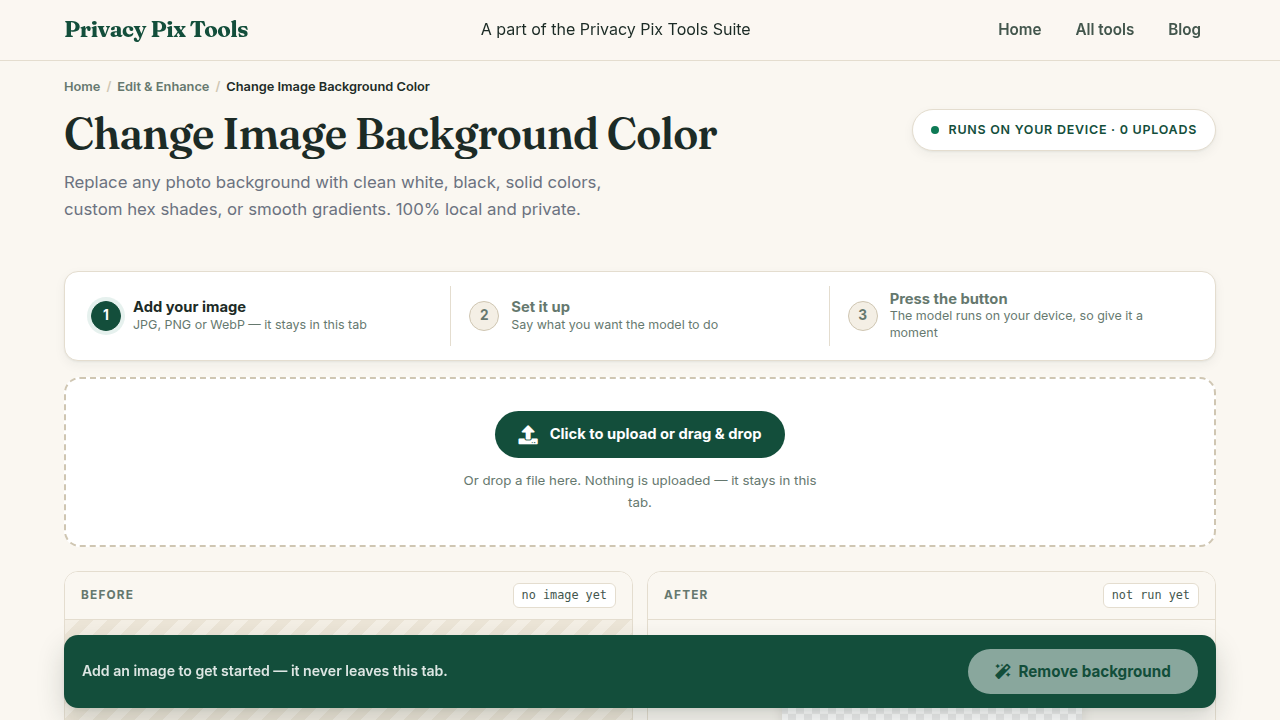
Welcome to the definitive guide for using the Change Image Background Color at PrivacyPixTools.com. We have recently updated all our tools to feature a modern, user-friendly interface. This guide walks you through the latest features and explains how our technology keeps your files secure.
In-Depth Look: Change Image Background Color
Following up on background removal, the Change Image Background Color tool allows you to instantly drop a new backdrop behind your isolated subject. You can choose from solid colors like pure white (ideal for product listings) or black, utilize a color picker for brand-specific hues, or generate smooth linear gradients. This seamless integration of subject extraction and background replacement happens locally, ensuring a fast workflow and strict data privacy.
Why Privacy Matters for Editing
At PrivacyPixTools, we believe your data is yours. Unlike other online editors that force you to upload your sensitive files to a cloud server, our Change Image Background Color runs entirely in your web browser. This client-side architecture means your files never leave your device. It is completely private and secure for all image editing and PDF editing.
Navigating the New Interface
Our recent UI updates were designed to streamline your workflow and enhance usability across all devices, from desktop monitors to mobile phones.
- Smart Dropzone: Simply drag your files directly into the workspace to begin processing immediately.
- Instant Feedback: See your changes reflected instantly on the canvas without waiting for a server response.
- Contextual Controls: Access professional-grade settings with our simplified, intelligent toolbars.
Step-by-Step Instructions
1. Open the Change Image Background Color in your modern web browser.
2. Load your file securely using the dropzone or file picker.
3. Utilize the intuitive controls to make your adjustments and preview the results in real-time.
4. Click the download button to save the final result instantly to your device—no watermarks, no server delays, no hidden fees.