The Ultimate Guide to PDF to Image Converter
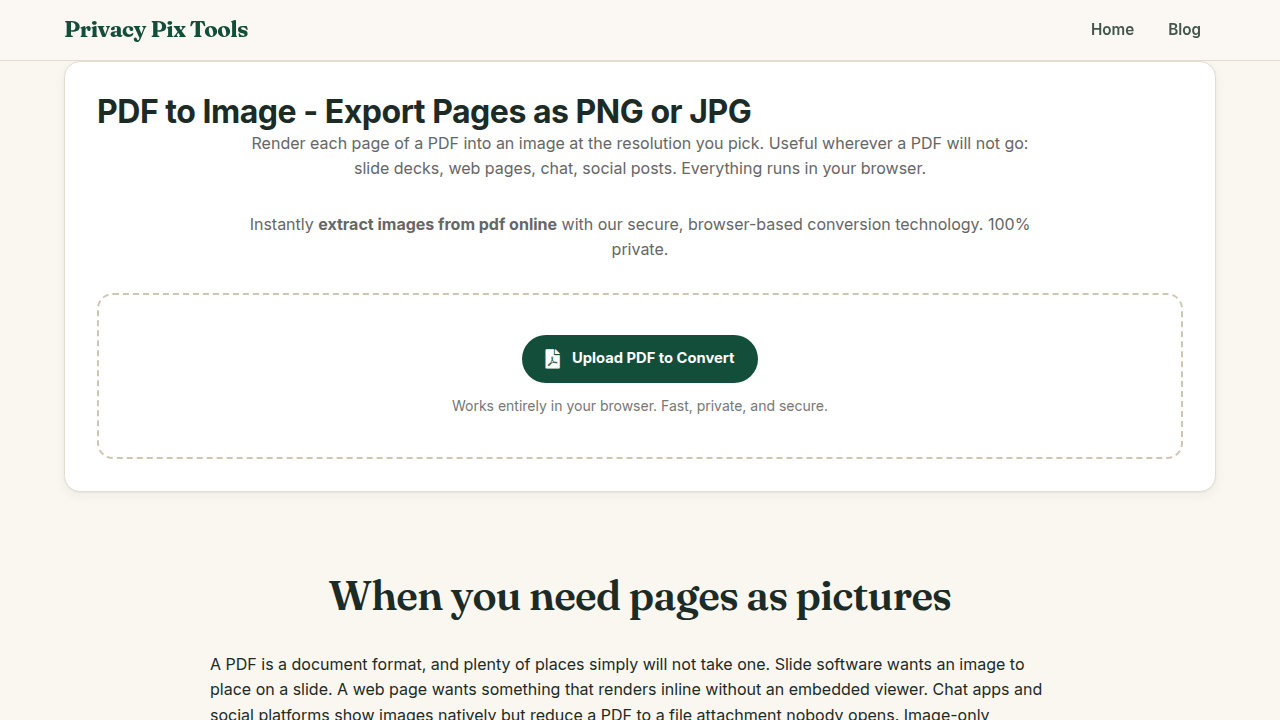
Welcome to the definitive guide for using the PDF to Image Converter at PrivacyPixTools.com. We have recently updated all our tools to feature a modern, user-friendly interface. This guide walks you through the latest features and explains how our technology keeps your files secure.
In-Depth Look: PDF to Image Converter
Converting documents shouldn't compromise your privacy. Our PDF to Image Converter uses a client-side port of PDF.js to render your PDF pages directly onto an HTML canvas, then exports them as high-quality JPG or PNG files. You can choose to convert specific pages or the entire document. Because the PDF parsing and rendering happen entirely on your machine, your confidential contracts, invoices, and personal documents are completely safe from interception.
Why Privacy Matters for Editing
At PrivacyPixTools, we believe your data is yours. Unlike other online editors that force you to upload your sensitive files to a cloud server, our PDF to Image Converter runs entirely in your web browser. This client-side architecture means your files never leave your device. It is completely private and secure for all image editing and PDF editing.
Navigating the New Interface
Our recent UI updates were designed to streamline your workflow and enhance usability across all devices, from desktop monitors to mobile phones.
- Smart Dropzone: Simply drag your files directly into the workspace to begin processing immediately.
- Instant Feedback: See your changes reflected instantly on the canvas without waiting for a server response.
- Contextual Controls: Access professional-grade settings with our simplified, intelligent toolbars.
Step-by-Step Instructions
1. Open the PDF to Image Converter in your modern web browser.
2. Load your file securely using the dropzone or file picker.
3. Utilize the intuitive controls to make your adjustments and preview the results in real-time.
4. Click the download button to save the final result instantly to your device—no watermarks, no server delays, no hidden fees.