How to Make a Photo Collage Online - Grids, Strips & Freestyle Layouts
To make a photo collage, open the free Collage Maker, click Select Multiple Images, choose a layout - Grid, Horizontal, Vertical, or Freestyle - adjust the Border Spacing, then click Preview Collage and download the combined image. No app install, no upload, no watermark.
A collage does what a single photo can't: it tells a sequence. The trip, the year, the renovation, the recipe - four to nine images in one frame carry a narrative that survives being glanced at for two seconds in a feed.
This guide covers the browser-based workflow - layouts, spacing, image order - plus composition advice for collages that look designed rather than dumped.
In this guide
What You Need Before You Start
Two to nine photos work best for most layouts (grids love square counts: 4 or 9). JPG, PNG, and WebP are supported. Photos with a consistent look - same event, same filter, same orientation - produce noticeably better collages.
Privacy note: The collage is composed on a canvas in your browser. Family photos never leave your device on their way to becoming a grid.
How to Make a Collage in 4 Steps
Step 1Select your photos
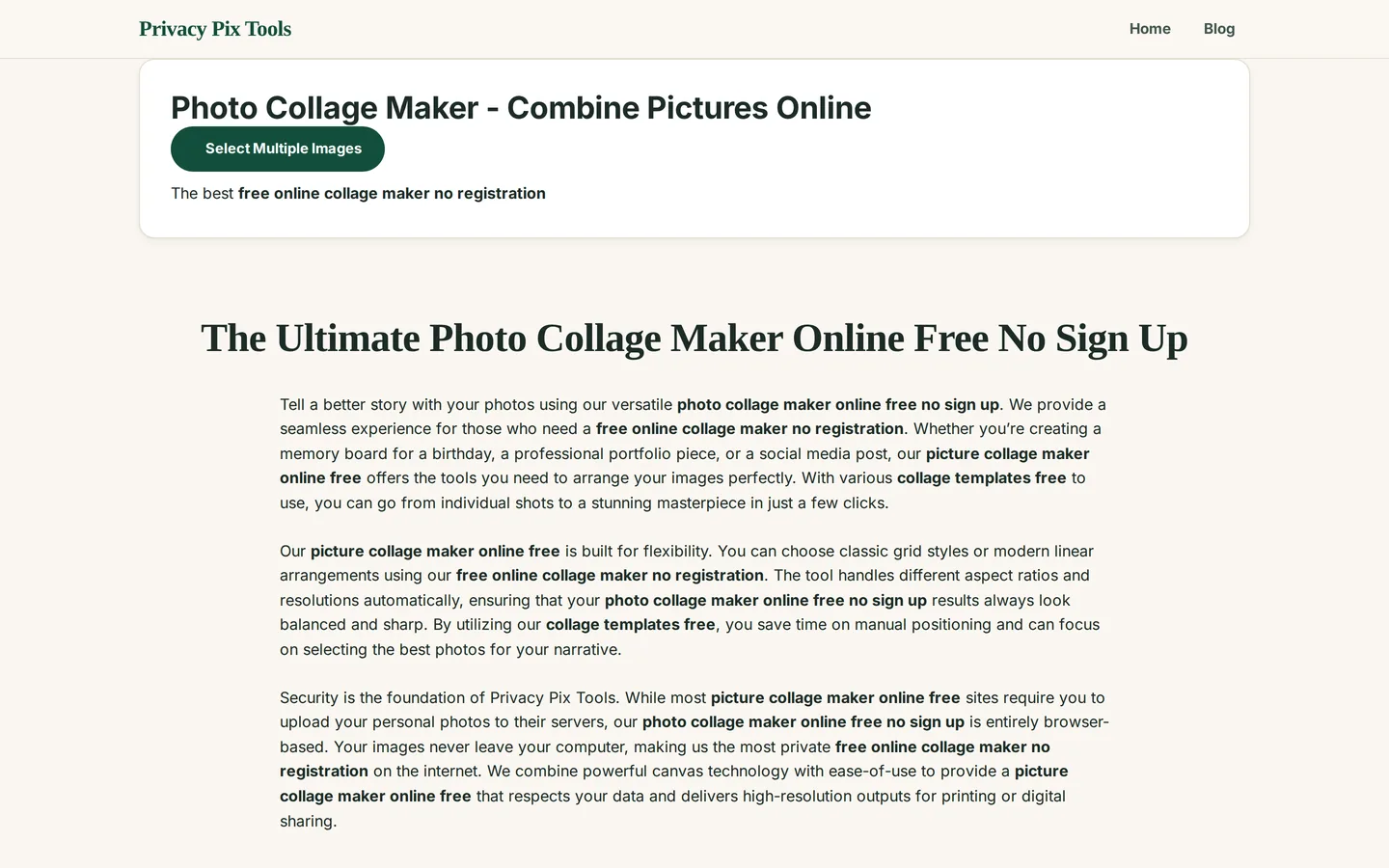
Open the Photo Collage Maker and click Select Multiple Images. Pick every photo for the collage in one go - thumbnails appear in a preview strip so you can confirm the set.
Step 2Choose a layout
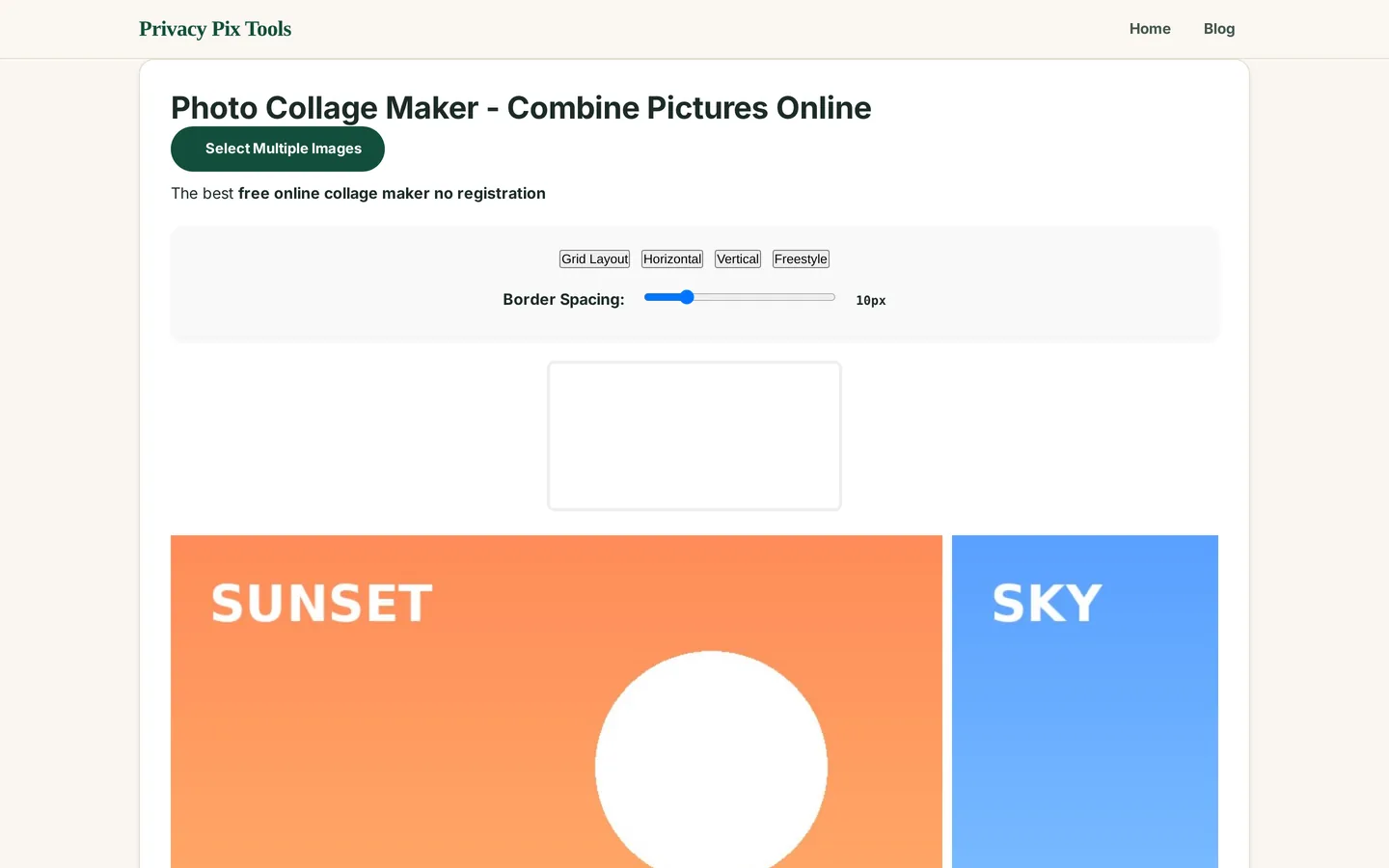
Four layout buttons control the arrangement: Grid Layout (rows × columns - the classic), Horizontal (one row, great for timelines), Vertical (one column, ideal for step-by-step content and Stories), and Freestyle (scattered, overlapping placement with a hand-arranged feel).
Step 3Tune the border spacing
The Border Spacing slider sets the gap between photos. 0px gives seamless edge-to-edge tiles; 10-20px of breathing room reads as a clean gallery wall. White space is a design feature - don't be afraid of it.
Step 4Preview and download
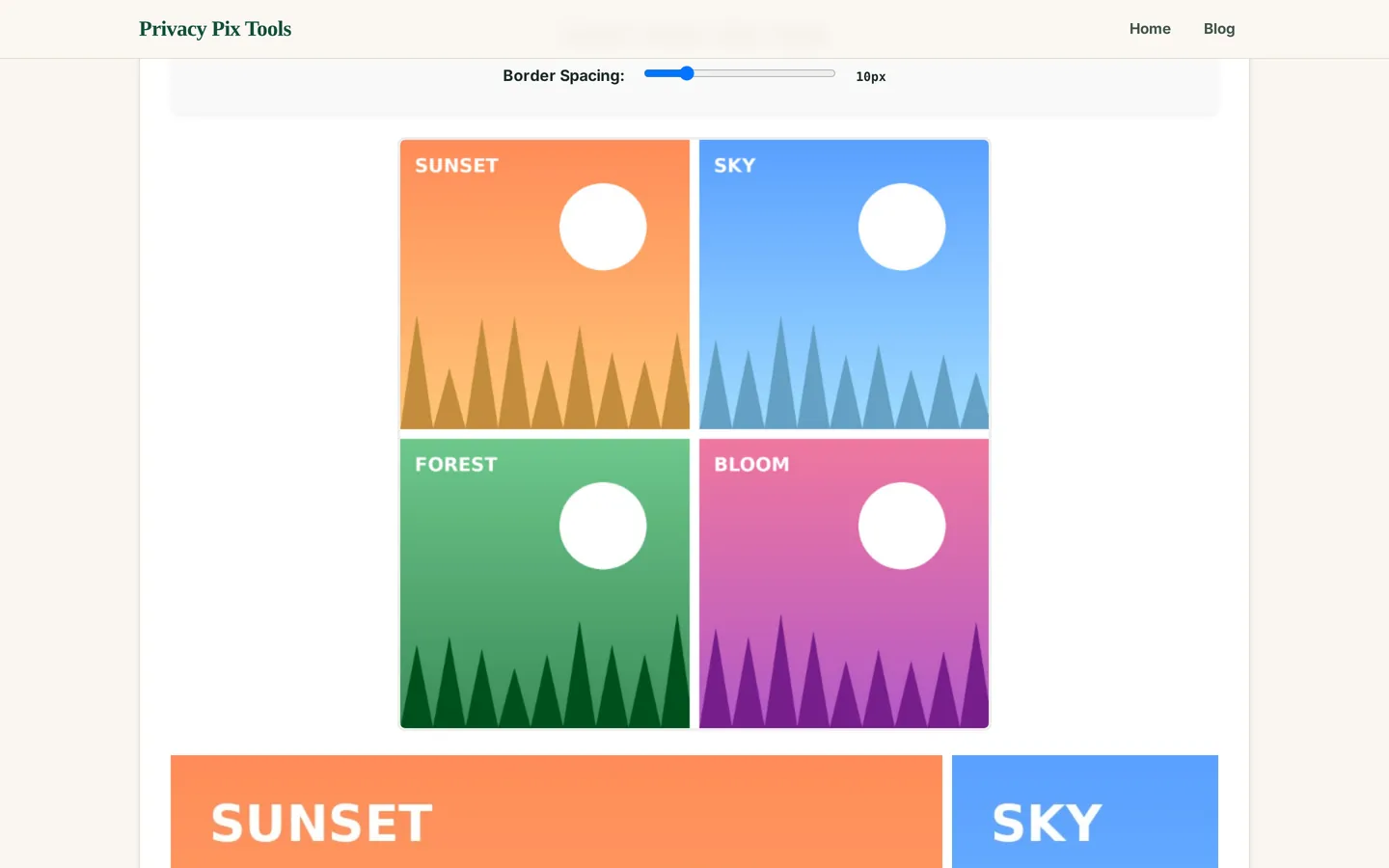
Click Preview Collage to render the composition, then Download to save the combined image at full resolution. Want it sized for a specific platform? Run the result through the Image Cropper or Social Media Post Creator afterward.
Combine your photos now
Open the Collage MakerPro Tips for Better Results
- Odd one out ruins grids: Grid layouts want 4 or 9 images. With 5-7 photos, use horizontal/vertical strips or freestyle, or cut to the best 4.
- Unify the look first: Collages amplify inconsistency. Run mismatched photos through the same filter in Photo Filters & Effects before combining - one pass of 'vintage' makes any set feel intentional.
- Order tells the story: Images place in the numbered tray order, and the arrows on each thumbnail reorder them. Arrange chronologically for narratives (start → finish), or put your strongest image first where the eye lands.
- Mind the aspect ratios: Mixing portrait and landscape shots in one grid leaves uneven background margins, since each photo is fitted whole into a square cell. Pre-crop everything square with the Image Cropper for perfect grid cells.
- Export big, shrink later: Download at full size, then compress with the Image Size Reducer for posting. You can't add resolution back after export.
Why This Stays 100% Private
Collage apps are among the worst offenders for permissions and data grabs - camera-roll access, account requirements, cloud "backups" of every layout you make. A browser canvas needs none of that. Your photos load into a tab, combine on your device, and download from memory. Close the tab and no copy exists anywhere but your own disk.
Unlike most "free" web tools, Privacy Pix Tools has no accounts, no file-size tricks, no watermarks, and no server-side processing. You can even load the page, disconnect from the internet, and the tool keeps working - proof that your files never leave your device.
Common Use Cases
- Event recaps: Wedding, birthday, or trip highlights in one shareable frame.
- Before / during / after: Renovations, art progress, and fitness journeys as horizontal strips.
- Product variants: Show every colorway of a product in a single listing image.
- Year-in-review posts: Twelve months, nine photos, one grid - the perennial January format.
Frequently Asked Questions
How many photos can a collage hold?
Grids work best with 4 or 9 images; strips handle 2-6 comfortably. Beyond that, individual photos get too small to read at feed sizes.
Can I make a collage without installing an app?
Yes - this maker runs entirely in your web browser on any device. No install, no account, no permissions beyond picking the files.
What does Freestyle layout do?
It scatters photos with overlap and rotation for a hand-arranged scrapbook feel, in contrast to the rigid geometry of grids and strips.
How do I make all photos the same size in the grid?
Pre-crop them to the same aspect ratio (square is safest) with the Image Cropper. Uniform inputs produce perfectly regular grid cells.
What resolution is the final collage?
The canvas renders at full working resolution and downloads without a watermark. For platform-specific sizes, crop or resize the export afterward.
Is anything uploaded while I build the collage?
No. Composition happens on a local canvas - the tool works offline once the page has loaded.
Related Tools & Guides
- Image Cropper - pre-crop photos square for perfect grid cells.
- Photo Filters & Effects - unify the look of mismatched photos before combining.
- Image Splitter - the reverse operation - split one image into a grid.
- Tell a Story with Photo Collages - the quick overview article.