HStack, VStack, Grid), relative positioning (position: { below, rightOf, inside }), variables ($varName), and named styles. The hand-computed x/y values in the steps below still work, but the same diagram can be expressed more concisely. See the v2 power features reference, and the modernized version at the bottom of this tutorial.
What You'll Build
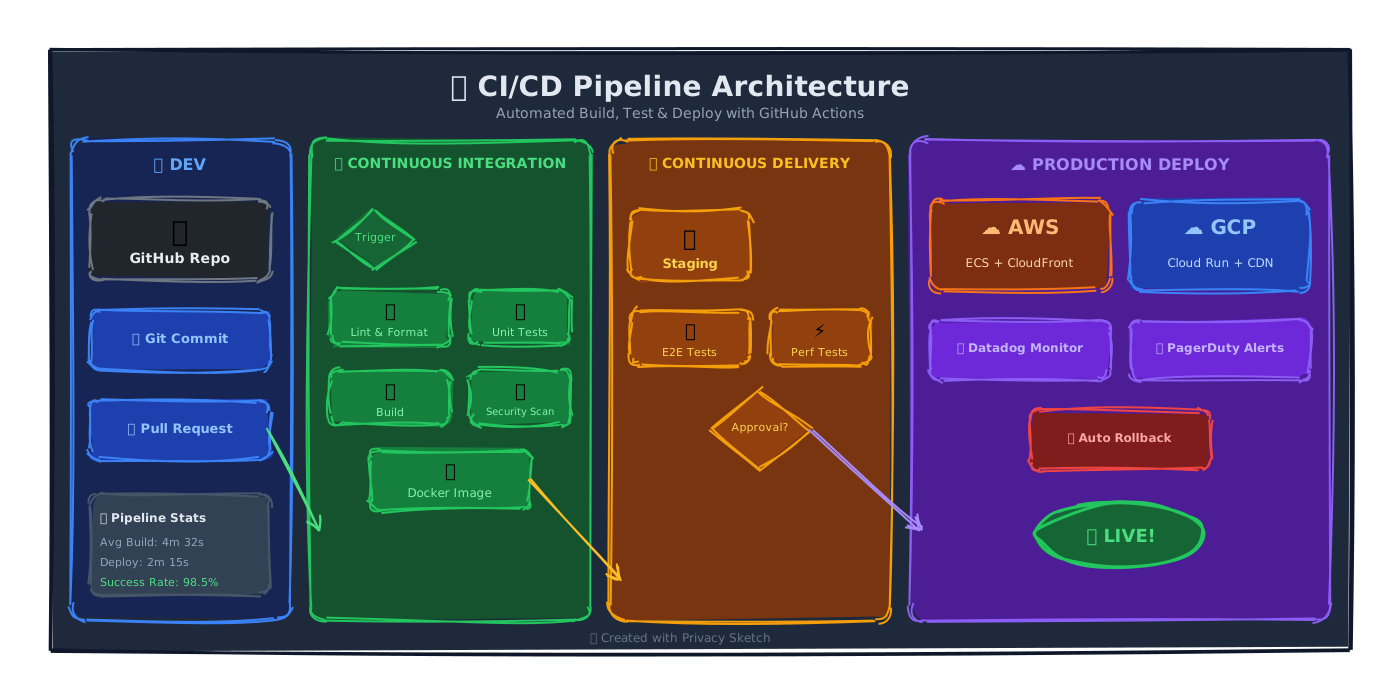
In this tutorial, you'll create a complete CI/CD (Continuous Integration/Continuous Delivery) pipeline diagram that shows the flow from code commit to production deployment. By the end, you'll have a beautiful, hand-drawn style diagram that's perfect for:
- Engineering documentation
- Team onboarding materials
- Technical presentations
- Architecture decision records (ADRs)
Understanding the Structure
Before we start building, let's break down what makes a good CI/CD diagram. Our pipeline will have four main stages:
| Stage | Color | Purpose |
|---|---|---|
| DEV | Blue | Where developers write and commit code |
| CI (Build) | Green | Automated testing, linting, and artifact creation |
| CD (Deploy) | Amber/Orange | Staging deployment and integration tests |
| Production | Purple | Live environment with monitoring |
Design Principle: Color Coding
Using consistent colors for each stage makes your diagram scannable at a glance. Viewers can quickly identify which part of the pipeline they're looking at.
Step 1: Create the Canvas Background
Every great diagram starts with a solid foundation. We'll create a dark background that makes our colorful stages pop.
Add the Background Rectangle
Open Privacy Sketch and create a large rectangle that will serve as your canvas. This gives the diagram a cohesive look and provides contrast for the lighter elements.
{
  "id": "bg",
  "type": "rectangle",
  "x": 20,
  "y": 20,
  "w": 1300,
  "h": 600,
  "options": {
    "stroke": "#0f172a",
    "fill": "#1e293b",
    "fillStyle": "solid",
    "roughness": 1.8
  }
}
Key settings explained:
x: 20, y: 20— Leaves a small margin from the edgew: 1300, h: 600— Wide format, perfect for horizontal pipelinesfillStyle: "solid"— Solid fill for a clean backgroundroughness: 1.8— Adds that hand-drawn character
Step 2: Add the Title and Subtitle
A clear title immediately tells viewers what they're looking at. We'll add a main title and a descriptive subtitle.
Create the Title Text
Text elements in Privacy Sketch can include emojis, which add visual interest. The
options.stroke property sets the text color.
{
  "id": "title",
  "type": "text",
  "x": 350,
  "y": 40,
  "w": 600,
  "h": 35,
  "text": "🔄 CI/CD Pipeline Architecture",
  "fontSize": 28,
  "fontWeight": "bold",
  "align": "center",
  "options": {
    "stroke": "#e2e8f0"  // Light color for dark background
  }
}
Text Color Tip
For text elements, the options.stroke property sets the text color, not the border. This
is different from shapes where stroke is the border color.
Step 3: Build the Stage Containers
Now for the main structure. We'll create four colored rectangles to represent each stage of the pipeline. Each stage has:
- A colored background rectangle
- A stage title label
- Internal components (boxes for specific steps)
Create the DEV Stage (Blue)
The DEV stage represents the developer's workspace - GitHub repo, commits, and pull requests.
// Stage background
{
  "id": "stage-dev",
  "type": "rectangle",
  "x": 40,
  "y": 110,
  "w": 220,
  "h": 480,
  "borderRadius": 15,
  "options": {
    "stroke": "blue.500",
    "fill": "#172554",
    "fillStyle": "solid"
  }
}

// Stage label
{
  "id": "stage-dev-label",
  "type": "text",
  "x": 40,
  "y": 125,
  "w": 220,
  "h": 25,
  "text": "💻 DEV",
  "fontSize": 16,
  "fontWeight": "bold",
  "align": "center",
  "options": { "stroke": "blue.400" }
}
Tailwind Color Tokens: Notice we're using blue.500 and
blue.400. Privacy Sketch supports Tailwind-style color tokens like red.500,
green.700, etc.
Repeat for Other Stages
Following the same pattern, create the remaining three stages. Each stage is positioned to the right of the previous one:
| Stage | x position | Width | Border Color | Fill Color |
|---|---|---|---|---|
| DEV | 40 | 220 | blue.500 | #172554 |
| CI | 280 | 280 | green.500 | green.900 |
| CD | 580 | 280 | amber.500 | amber.900 |
| PROD | 880 | 420 | #8b5cf6 | #4c1d95 |
Step 4: Add Internal Components
Within each stage, we add specific components. Let's add the GitHub box and some action items in the DEV stage.
Create Component Cards
Each component is a smaller rounded rectangle with an icon (emoji) and label. We position them inside their parent stage.
// GitHub component box
{
  "id": "github",
  "type": "rectangle",
  "x": 60,
  "y": 170,
  "w": 180,
  "h": 80,
  "borderRadius": 12,
  "options": {
    "stroke": "#6e7681",
    "fill": "#21262d",
    "fillStyle": "solid"
  }
}

// GitHub icon (emoji)
{
  "id": "github-icon",
  "type": "text",
  "x": 60,
  "y": 185,
  "w": 180,
  "h": 30,
  "text": "🐙",
  "fontSize": 28,
  "align": "center"
}

// GitHub label
{
  "id": "github-label",
  "type": "text",
  "x": 60,
  "y": 220,
  "w": 180,
  "h": 20,
  "text": "GitHub Repo",
  "fontSize": 14,
  "fontWeight": "bold",
  "align": "center",
  "options": { "stroke": "#e6edf3" }
}
Z-Order Matters!
Elements are drawn in the order they appear in the array. Place background elements FIRST, then place child elements AFTER. Otherwise, parents will cover their children.
Step 5: Connect with Arrows
Arrows show the flow of work through the pipeline. This is where many people get confused, so let's break it down clearly.
Understanding Arrow Positioning
Arrows use x, y, w, h slightly differently than shapes:
- Start point = (x, y)
- End point = (x + w, y + h)
To draw an arrow pointing right, use positive w and h: 0.
// Arrow from DEV to CI stage
{
  "id": "arrow-dev-to-ci",
  "type": "arrow",
  "x": 240,      // Right edge of DEV stage
  "y": 400,      // Vertical center
  "w": 50,       // Distance to CI stage
  "h": 0,        // Same height (horizontal arrow)
  "endArrowhead": "arrow",
  "options": {
    "stroke": "green.400",
    "strokeWidth": 2
  }
}
Arrow Direction Cheat Sheet
| Direction | w value | h value | Example |
|---|---|---|---|
| → Right | positive (+100) | 0 | Horizontal flow |
| ← Left | negative (-100) | 0 | Feedback loops |
| ↓ Down | 0 | positive (+100) | Vertical flow |
| ↗ Diagonal | positive | negative | Upward branch |
Step 6: Add Decision Points
Diamonds are perfect for showing decision points in your flow, like "Does the build pass?"
Create a Diamond for Triggers
{
  "id": "trigger",
  "type": "diamond",
  "x": 305,
  "y": 180,
  "w": 80,
  "h": 60,
  "options": {
    "stroke": "green.500",
    "fill": "green.800",
    "fillStyle": "solid"
  }
}
Step 7: Final Touches
Polish your diagram with these finishing touches:
- Add a footer — Credit or watermark at the bottom
- Use consistent spacing — Equal gaps between elements
- Check alignment — Elements should line up visually
- Test the export — Export as SVG to ensure quality
Pro Tip: Use Consistent Seeds
Add a "seed" number to your options. This keeps the hand-drawn "wobble" consistent every
time you render. Without it, lines may shift slightly on re-render.
Complete JSON Example
Here's a minimal complete example with the core structure. You can load this directly into Privacy Sketch:
{
  "version": "2.0",
  "elements": [
    // Background
    { "id": "bg", "type": "rectangle", "x": 20, "y": 20, "w": 800, "h": 400,
      "options": { "fill": "#1e293b", "stroke": "#0f172a", "fillStyle": "solid" }
    },
    // Title
    { "id": "title", "type": "text", "x": 200, "y": 40, "w": 400, "h": 30,
      "text": "🔄 My Pipeline", "fontSize": 24, "fontWeight": "bold", "align": "center",
      "options": { "stroke": "#e2e8f0" }
    },
    // Stage 1: DEV
    { "id": "dev", "type": "rectangle", "x": 40, "y": 100, "w": 150, "h": 280, "borderRadius": 12,
      "options": { "stroke": "blue.500", "fill": "#172554", "fillStyle": "solid" }
    },
    { "id": "dev-label", "type": "text", "x": 40, "y": 115, "w": 150, "h": 20,
      "text": "💻 DEV", "fontSize": 14, "fontWeight": "bold", "align": "center",
      "options": { "stroke": "blue.400" }
    },
    // Stage 2: CI
    { "id": "ci", "type": "rectangle", "x": 210, "y": 100, "w": 180, "h": 280, "borderRadius": 12,
      "options": { "stroke": "green.500", "fill": "green.900", "fillStyle": "solid" }
    },
    { "id": "ci-label", "type": "text", "x": 210, "y": 115, "w": 180, "h": 20,
      "text": "✅ CI", "fontSize": 14, "fontWeight": "bold", "align": "center",
      "options": { "stroke": "green.400" }
    },
    // Arrow connecting DEV to CI
    { "id": "arrow-1", "type": "arrow", "x": 190, "y": 240, "w": 20, "h": 0, "endArrowhead": "arrow",
      "options": { "stroke": "green.400", "strokeWidth": 2 }
    }
  ]
}
v2 Modernized Version
A full CI/CD board: 5 stage swimlanes (Source, Build, Test, Staging, Prod), each containing a VStack of sub-step cards with per-status colors (passed, running, skipped, pending). Below the pipeline: a metrics strip (success rate, MTTR, failures) and a notification fan-out bar. Arrows between stages snap to =stage.right so the layout stays connected if you resize any stage.
{
  "version": "2.0",
  "canvas": { "width": 1500, "height": 950, "background": "cream", "padding": 0 },
  "theme": { "roughness": 1.3, "bowing": 1.0, "fillStyle": "hachure", "fontFamily": "Comic Sans MS" },

  "vars": {
    "stageW": 250, "stageH": 500,
    "stepW": 220, "stepH": 50,
    "metricW": 250, "metricH": 80
  },

  "styles": {
    "stage":       { "strokeWidth": 3, "fillStyle": "hachure" },
    "src-stage":   { "extends": "stage", "fill": "slate.50",  "stroke": "slate.700"  },
    "build-stage": { "extends": "stage", "fill": "blue.50",   "stroke": "blue.700"   },
    "test-stage":  { "extends": "stage", "fill": "green.50",  "stroke": "green.700"  },
    "stg-stage":   { "extends": "stage", "fill": "amber.50",  "stroke": "amber.700"  },
    "prod-stage":  { "extends": "stage", "fill": "purple.50", "stroke": "purple.700" },
    "step":        { "fill": "white", "fillStyle": "solid", "strokeWidth": 2 },
    "passed":      { "extends": "step", "stroke": "green.500", "fill": "green.50" },
    "running":     { "extends": "step", "stroke": "blue.500",  "fill": "blue.50" },
    "skipped":     { "extends": "step", "stroke": "slate.400" },
    "pending":     { "extends": "step", "stroke": "slate.500" },
    "metric":      { "fill": "amber.100", "stroke": "amber.700", "strokeWidth": 2, "fillStyle": "solid" },
    "alert":       { "fill": "red.100",   "stroke": "red.700",   "strokeWidth": 2, "fillStyle": "solid" },
    "edge":        { "stroke": "slate.700", "strokeWidth": 2 }
  },

  "elements": [
    { "id": "title",  "type": "text", "x": 0, "y": 25, "w": 1500, "h": 36, "text": "CI/CD Pipeline · main branch", "fontSize": 26, "fontWeight": "bold", "align": "center" },
    { "id": "commit", "type": "text", "x": 0, "y": 64, "w": 1500, "h": 22, "text": "commit a3f2b91 · 'feat: add v2 layout containers' · @amrkarthik · 12 minutes ago", "fontSize": 13, "align": "center" },

    { "type": "HStack", "x": 60, "y": 110, "gap": 30, "children": [
      { "id": "src",   "type": "rectangle", "style": "src-stage",   "w": "$stageW", "h": "$stageH", "borderRadius": 14 },
      { "id": "build", "type": "rectangle", "style": "build-stage", "w": "$stageW", "h": "$stageH", "borderRadius": 14 },
      { "id": "test",  "type": "rectangle", "style": "test-stage",  "w": "$stageW", "h": "$stageH", "borderRadius": 14 },
      { "id": "stg",   "type": "rectangle", "style": "stg-stage",   "w": "$stageW", "h": "$stageH", "borderRadius": 14 },
      { "id": "prod",  "type": "rectangle", "style": "prod-stage",  "w": "$stageW", "h": "$stageH", "borderRadius": 14 }
    ]},

    { "id": "src-h",   "type": "text", "position": { "inside": "#src",   "align": "top-center", "padding": 18 }, "w": 250, "h": 28, "text": "📦 SOURCE",  "fontSize": 18, "fontWeight": "bold", "align": "center" },
    { "id": "build-h", "type": "text", "position": { "inside": "#build", "align": "top-center", "padding": 18 }, "w": 250, "h": 28, "text": "🔧 BUILD",   "fontSize": 18, "fontWeight": "bold", "align": "center" },
    { "id": "test-h",  "type": "text", "position": { "inside": "#test",  "align": "top-center", "padding": 18 }, "w": 250, "h": 28, "text": "🧪 TEST",    "fontSize": 18, "fontWeight": "bold", "align": "center" },
    { "id": "stg-h",   "type": "text", "position": { "inside": "#stg",   "align": "top-center", "padding": 18 }, "w": 250, "h": 28, "text": "🚧 STAGING", "fontSize": 18, "fontWeight": "bold", "align": "center" },
    { "id": "prod-h",  "type": "text", "position": { "inside": "#prod",  "align": "top-center", "padding": 18 }, "w": 250, "h": 28, "text": "🚀 PROD",    "fontSize": 18, "fontWeight": "bold", "align": "center" },

    { "type": "VStack", "x": 75, "y": 180, "gap": 12, "children": [
      { "id": "s1", "type": "rectangle", "style": "passed", "w": "$stepW", "h": "$stepH", "borderRadius": 8 },
      { "id": "s2", "type": "rectangle", "style": "passed", "w": "$stepW", "h": "$stepH", "borderRadius": 8 },
      { "id": "s3", "type": "rectangle", "style": "passed", "w": "$stepW", "h": "$stepH", "borderRadius": 8 }
    ]},
    { "id": "s1-t", "type": "text", "position": { "inside": "#s1", "align": "center", "padding": 14 }, "w": 220, "h": 22, "text": "✓ Checkout repo", "fontSize": 13, "fontWeight": "bold", "align": "center" },
    { "id": "s2-t", "type": "text", "position": { "inside": "#s2", "align": "center", "padding": 14 }, "w": 220, "h": 22, "text": "✓ Install deps",  "fontSize": 13, "fontWeight": "bold", "align": "center" },
    { "id": "s3-t", "type": "text", "position": { "inside": "#s3", "align": "center", "padding": 14 }, "w": 220, "h": 22, "text": "✓ Cache restore", "fontSize": 13, "fontWeight": "bold", "align": "center" },

    { "type": "VStack", "x": 355, "y": 180, "gap": 12, "children": [
      { "id": "b1", "type": "rectangle", "style": "passed", "w": "$stepW", "h": "$stepH", "borderRadius": 8 },
      { "id": "b2", "type": "rectangle", "style": "passed", "w": "$stepW", "h": "$stepH", "borderRadius": 8 },
      { "id": "b3", "type": "rectangle", "style": "passed", "w": "$stepW", "h": "$stepH", "borderRadius": 8 }
    ]},
    { "id": "b1-t", "type": "text", "position": { "inside": "#b1", "align": "center", "padding": 14 }, "w": 220, "h": 22, "text": "✓ TypeScript",  "fontSize": 13, "fontWeight": "bold", "align": "center" },
    { "id": "b2-t", "type": "text", "position": { "inside": "#b2", "align": "center", "padding": 14 }, "w": 220, "h": 22, "text": "✓ Webpack",     "fontSize": 13, "fontWeight": "bold", "align": "center" },
    { "id": "b3-t", "type": "text", "position": { "inside": "#b3", "align": "center", "padding": 14 }, "w": 220, "h": 22, "text": "✓ Docker image", "fontSize": 13, "fontWeight": "bold", "align": "center" },

    { "type": "VStack", "x": 635, "y": 180, "gap": 12, "children": [
      { "id": "t1", "type": "rectangle", "style": "passed",  "w": "$stepW", "h": "$stepH", "borderRadius": 8 },
      { "id": "t2", "type": "rectangle", "style": "passed",  "w": "$stepW", "h": "$stepH", "borderRadius": 8 },
      { "id": "t3", "type": "rectangle", "style": "running", "w": "$stepW", "h": "$stepH", "borderRadius": 8 },
      { "id": "t4", "type": "rectangle", "style": "skipped", "w": "$stepW", "h": "$stepH", "borderRadius": 8 }
    ]},
    { "id": "t1-t", "type": "text", "position": { "inside": "#t1", "align": "center", "padding": 14 }, "w": 220, "h": 22, "text": "✓ Unit (412)",      "fontSize": 13, "fontWeight": "bold", "align": "center" },
    { "id": "t2-t", "type": "text", "position": { "inside": "#t2", "align": "center", "padding": 14 }, "w": 220, "h": 22, "text": "✓ Integration",      "fontSize": 13, "fontWeight": "bold", "align": "center" },
    { "id": "t3-t", "type": "text", "position": { "inside": "#t3", "align": "center", "padding": 14 }, "w": 220, "h": 22, "text": "↻ E2E (running)",    "fontSize": 13, "fontWeight": "bold", "align": "center" },
    { "id": "t4-t", "type": "text", "position": { "inside": "#t4", "align": "center", "padding": 14 }, "w": 220, "h": 22, "text": "⏸ Visual (skipped)", "fontSize": 13, "fontWeight": "bold", "align": "center" },

    { "type": "VStack", "x": 915, "y": 180, "gap": 12, "children": [
      { "id": "st1", "type": "rectangle", "style": "pending", "w": "$stepW", "h": "$stepH", "borderRadius": 8 },
      { "id": "st2", "type": "rectangle", "style": "pending", "w": "$stepW", "h": "$stepH", "borderRadius": 8 },
      { "id": "st3", "type": "rectangle", "style": "pending", "w": "$stepW", "h": "$stepH", "borderRadius": 8 }
    ]},
    { "id": "st1-t", "type": "text", "position": { "inside": "#st1", "align": "center", "padding": 14 }, "w": 220, "h": 22, "text": "○ Deploy",       "fontSize": 13, "fontWeight": "bold", "align": "center" },
    { "id": "st2-t", "type": "text", "position": { "inside": "#st2", "align": "center", "padding": 14 }, "w": 220, "h": 22, "text": "○ Smoke tests",  "fontSize": 13, "fontWeight": "bold", "align": "center" },
    { "id": "st3-t", "type": "text", "position": { "inside": "#st3", "align": "center", "padding": 14 }, "w": 220, "h": 22, "text": "○ QA approval",  "fontSize": 13, "fontWeight": "bold", "align": "center" },

    { "type": "VStack", "x": 1195, "y": 180, "gap": 12, "children": [
      { "id": "p1", "type": "rectangle", "style": "pending", "w": "$stepW", "h": "$stepH", "borderRadius": 8 },
      { "id": "p2", "type": "rectangle", "style": "pending", "w": "$stepW", "h": "$stepH", "borderRadius": 8 },
      { "id": "p3", "type": "rectangle", "style": "pending", "w": "$stepW", "h": "$stepH", "borderRadius": 8 }
    ]},
    { "id": "p1-t", "type": "text", "position": { "inside": "#p1", "align": "center", "padding": 14 }, "w": 220, "h": 22, "text": "○ Canary 5%",    "fontSize": 13, "fontWeight": "bold", "align": "center" },
    { "id": "p2-t", "type": "text", "position": { "inside": "#p2", "align": "center", "padding": 14 }, "w": 220, "h": 22, "text": "○ Rollout 50%",   "fontSize": 13, "fontWeight": "bold", "align": "center" },
    { "id": "p3-t", "type": "text", "position": { "inside": "#p3", "align": "center", "padding": 14 }, "w": 220, "h": 22, "text": "○ Full rollout",  "fontSize": 13, "fontWeight": "bold", "align": "center" },

    { "id": "a1", "type": "arrow", "style": "edge", "x": "=src.right",   "y": "=src.centerY",   "w": 30, "h": 0, "endArrowhead": "arrow" },
    { "id": "a2", "type": "arrow", "style": "edge", "x": "=build.right", "y": "=build.centerY", "w": 30, "h": 0, "endArrowhead": "arrow" },
    { "id": "a3", "type": "arrow", "style": "edge", "x": "=test.right",  "y": "=test.centerY",  "w": 30, "h": 0, "endArrowhead": "arrow" },
    { "id": "a4", "type": "arrow", "style": "edge", "x": "=stg.right",   "y": "=stg.centerY",   "w": 30, "h": 0, "endArrowhead": "arrow" },

    { "id": "metrics-h", "type": "text", "x": 60, "y": 650, "w": 400, "h": 24, "text": "Pipeline Metrics", "fontSize": 16, "fontWeight": "bold" },
    { "type": "HStack", "x": 60, "y": 680, "gap": 20, "children": [
      { "id": "m1", "type": "rectangle", "style": "metric", "w": "$metricW", "h": "$metricH", "borderRadius": 10 },
      { "id": "m2", "type": "rectangle", "style": "metric", "w": "$metricW", "h": "$metricH", "borderRadius": 10 },
      { "id": "m3", "type": "rectangle", "style": "metric", "w": "$metricW", "h": "$metricH", "borderRadius": 10 },
      { "id": "m4", "type": "rectangle", "style": "metric", "w": "$metricW", "h": "$metricH", "borderRadius": 10 },
      { "id": "m5", "type": "rectangle", "style": "alert",  "w": "$metricW", "h": "$metricH", "borderRadius": 10 }
    ]},
    { "id": "m1-n", "type": "text", "position": { "inside": "#m1", "align": "top-center",    "padding": 10 }, "w": 250, "h": 30, "text": "94%",     "fontSize": 24, "fontWeight": "bold", "align": "center" },
    { "id": "m1-l", "type": "text", "position": { "inside": "#m1", "align": "bottom-center", "padding": 8 },  "w": 250, "h": 20, "text": "success rate", "fontSize": 12, "align": "center" },
    { "id": "m2-n", "type": "text", "position": { "inside": "#m2", "align": "top-center",    "padding": 10 }, "w": 250, "h": 30, "text": "8m 14s",  "fontSize": 22, "fontWeight": "bold", "align": "center" },
    { "id": "m2-l", "type": "text", "position": { "inside": "#m2", "align": "bottom-center", "padding": 8 },  "w": 250, "h": 20, "text": "avg duration", "fontSize": 12, "align": "center" },
    { "id": "m3-n", "type": "text", "position": { "inside": "#m3", "align": "top-center",    "padding": 10 }, "w": 250, "h": 30, "text": "247",     "fontSize": 24, "fontWeight": "bold", "align": "center" },
    { "id": "m3-l", "type": "text", "position": { "inside": "#m3", "align": "bottom-center", "padding": 8 },  "w": 250, "h": 20, "text": "runs / week", "fontSize": 12, "align": "center" },
    { "id": "m4-n", "type": "text", "position": { "inside": "#m4", "align": "top-center",    "padding": 10 }, "w": 250, "h": 30, "text": "12 min",  "fontSize": 22, "fontWeight": "bold", "align": "center" },
    { "id": "m4-l", "type": "text", "position": { "inside": "#m4", "align": "bottom-center", "padding": 8 },  "w": 250, "h": 20, "text": "MTTR",         "fontSize": 12, "align": "center" },
    { "id": "m5-n", "type": "text", "position": { "inside": "#m5", "align": "top-center",    "padding": 10 }, "w": 250, "h": 30, "text": "3",       "fontSize": 24, "fontWeight": "bold", "align": "center" },
    { "id": "m5-l", "type": "text", "position": { "inside": "#m5", "align": "bottom-center", "padding": 8 },  "w": 250, "h": 20, "text": "failures (24h)", "fontSize": 12, "align": "center" },

    { "id": "notif-h", "type": "text", "x": 60, "y": 800, "w": 400, "h": 24, "text": "Notification fan-out", "fontSize": 16, "fontWeight": "bold" },
    { "id": "notif",   "type": "rectangle", "x": 60, "y": 830, "w": 1380, "h": 80, "borderRadius": 12, "options": { "fill": "indigo.50", "stroke": "indigo.600", "strokeWidth": 2, "fillStyle": "solid" } },
    { "id": "notif-t", "type": "text", "position": { "inside": "#notif", "align": "center", "padding": 16 }, "w": 1380, "h": 24, "text": "💬 Slack #deploys     📧 oncall@privacypixtools.com     📊 Datadog event     🔔 PagerDuty (on failure)", "fontSize": 16, "fontWeight": "bold", "align": "center" }
  ]
}
Showcase: 5 stage swimlanes with nested per-stage VStacks, 4 status styles via extends, expression-driven arrows, metrics row + notification footer. ~70 elements with 12 named styles and 5 layout containers.
🎨 Ready to Build Your Own?
Open Privacy Sketch and start creating your CI/CD pipeline diagram today. It's free, private, and runs entirely in your browser.
Open Privacy SketchNext Steps
Now that you've built your first pipeline diagram, here are some ways to level up:
- Getting Started Guide — Learn more fundamentals
- Layout Patterns — Common diagram layouts
- LLM Reference — Technical JSON documentation
- Example Gallery — See more diagram examples