How to Compress a PDF - Reduce File Size Without Wrecking Quality
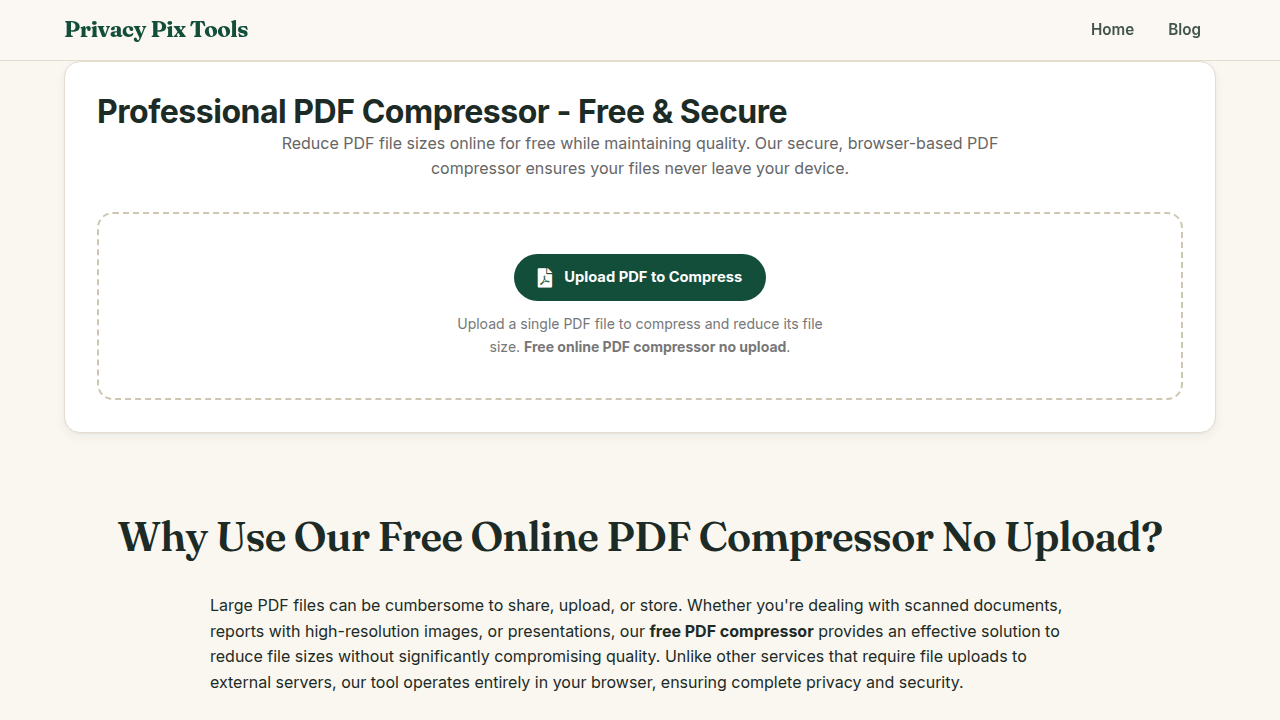
To compress a PDF, open the free PDF Compressor, upload your file, choose a Compression Level - Low, Medium, or High - and click Compress PDF. The tool shows the original size, the new size, and the exact percentage saved before you download. Processing is 100% in-browser: your document never touches a server.
PDFs balloon for one main reason: embedded images stored at print resolution inside documents that will only ever be read on screens. A ten-page scan can easily weigh 30MB - three times most email attachment limits and a miserable upload on any form.
Compression re-renders those images at sensible resolution and quality, routinely cutting 40-80% of the weight with little visible change. This guide covers the three-level workflow and how to pick the right level for email, archiving, and portals.
In this guide
What You Need Before You Start
Your PDF file. Know your target: email attachments generally cap at 10-25MB, many government portals at 2-5MB. Image-heavy PDFs (scans, photo decks) compress dramatically; born-digital text PDFs are already small and shrink less.
Privacy note: The compressor uses pdf.js and pdf-lib - trusted open-source PDF engines - running in your browser. Contracts, statements, and medical documents are never uploaded.
How to Compress a PDF in 4 Steps
Step 1Upload your PDF
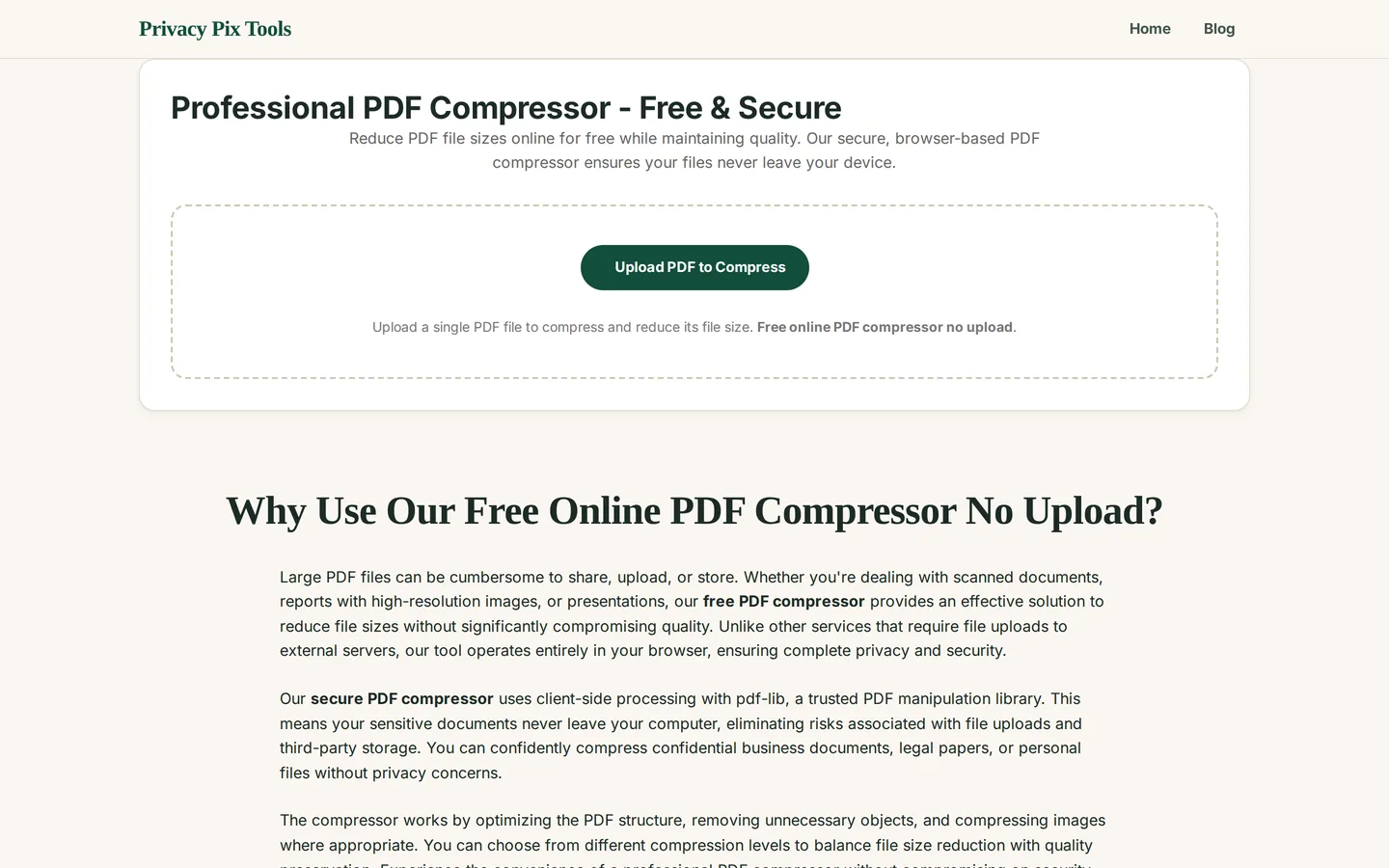
Open the Professional PDF Compressor and click Upload PDF to Compress. The file loads locally and its Original Size appears in the status panel.
Step 2Choose the compression level
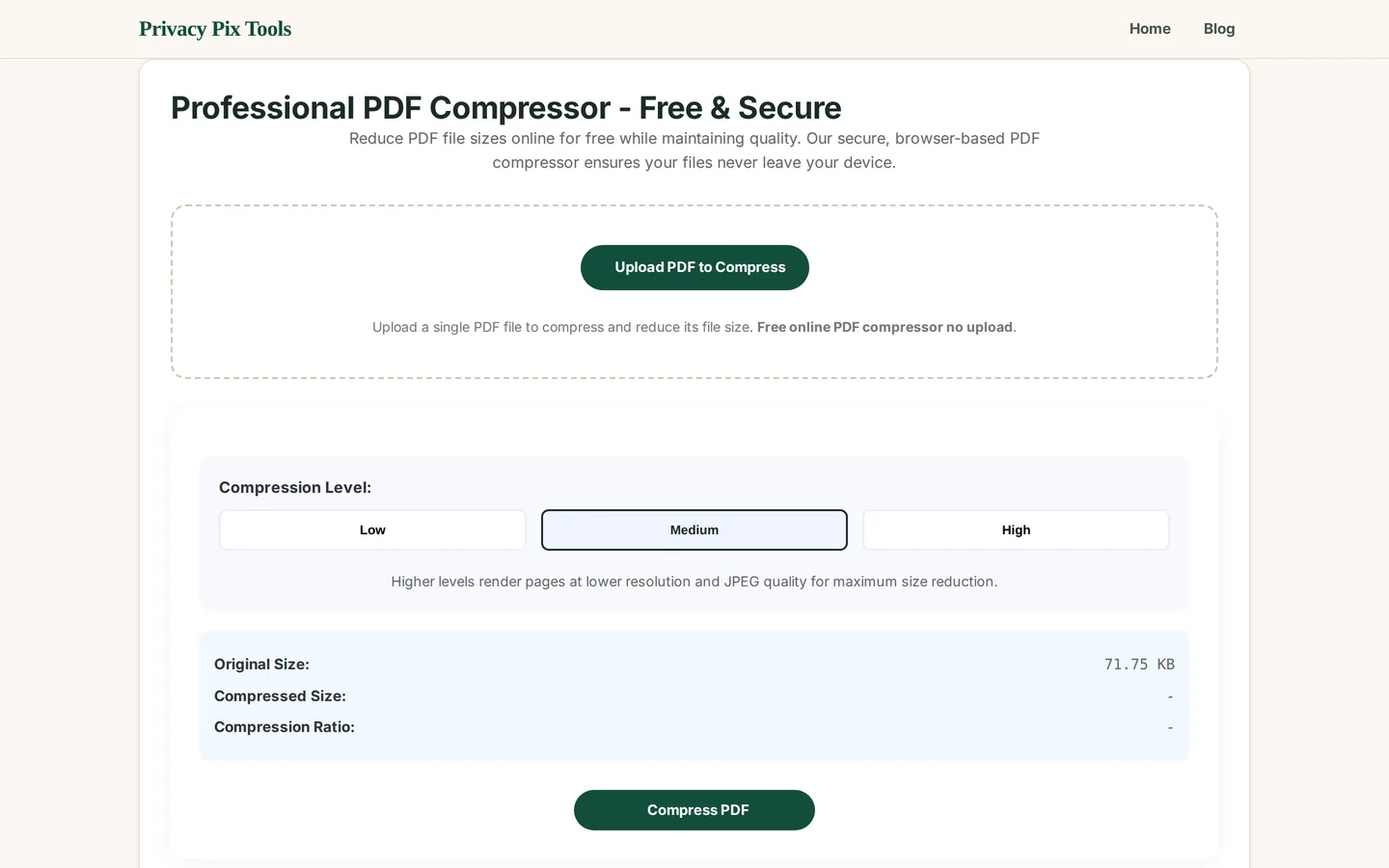
Pick Low, Medium, or High. Higher levels render pages at lower resolution and stronger JPEG quality reduction for maximum savings. Medium is the everyday choice - significant savings with screen-quality output; use Low for print-bound files and High to duck strict upload caps.
Step 3Compress and review the savings
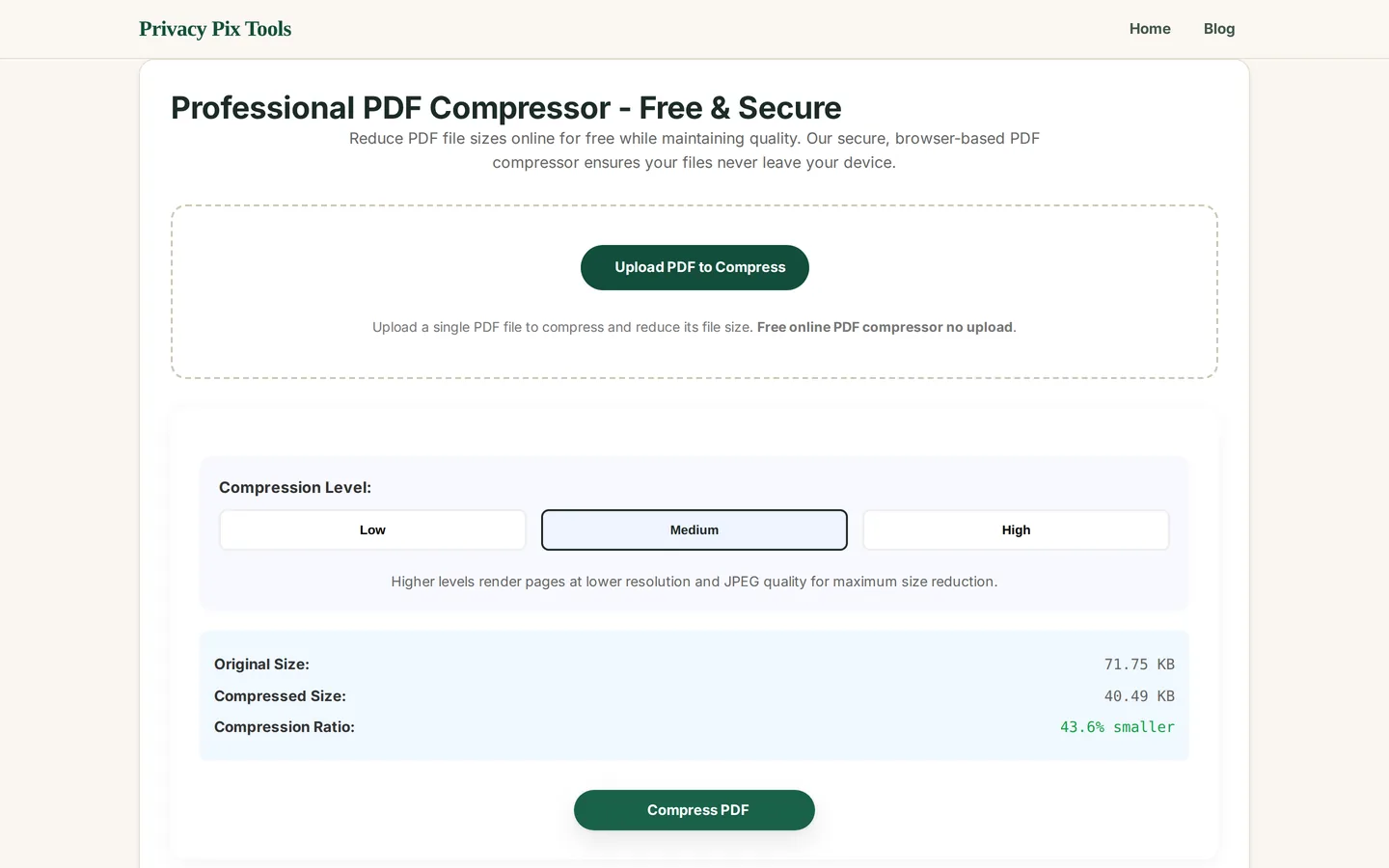
Click Compress PDF. Pages are re-rendered and reassembled locally, then the panel reports the result - in our example, 71.75 KB → 40.49 KB, 43.6% smaller. If the file is still too big, run it again at a higher level.
Step 4Download the compressed file
Hit Download and check the output once in your PDF viewer - confirm text legibility at your normal zoom. Use Compress Another to keep working through a stack of documents.
Shrink a PDF right now
Open the PDF CompressorPro Tips for Better Results
- Match the level to the destination: Email and portals: Medium. Long-term archive of scans: Low (keep detail). Hard 2MB caps: High, then verify readability.
- Verify before you send: Always open the compressed file and zoom to reading size. Fine print and detailed diagrams are the first casualties of aggressive compression.
- Compress images before making PDFs: Building the document yourself? Shrink images with the Image Size Reducer first - a well-built small PDF beats a compressed big one.
- Split giants instead of crushing them: A 200-page scan under a 5MB cap will look terrible. Split it into parts with the PDF Splitter and send them separately.
- Keep the original: Compression is lossy and one-way. Archive the master; distribute the compressed copy.
Why This Stays 100% Private
The PDFs people need to shrink are precisely the ones they should not upload to a random website: signed contracts, bank statements, medical records, legal filings. "Free PDF compressor" sites process all of it server-side under terms nobody reads. This compressor runs the entire pipeline - parsing, re-rendering, reassembly - inside your browser with pdf.js and pdf-lib. Verifiably, nothing leaves your machine.
Unlike most "free" web tools, Privacy Pix Tools has no accounts, no file-size tricks, no watermarks, and no server-side processing. You can even load the page, disconnect from the internet, and the tool keeps working - proof that your files never leave your device.
Common Use Cases
- Email attachments: Get scans and reports under the 10-25MB caps without splitting them.
- Portal uploads: Court filings, visa applications, and job portals with strict size limits.
- Archiving: Shrink years of scanned paperwork to a fraction of their storage footprint.
- Faster sharing: Smaller files upload, download, and open faster for everyone.
Frequently Asked Questions
How much smaller will my PDF get?
Image-heavy PDFs (scans, photo documents) typically shrink 40-80%. Text-only, born-digital PDFs are already efficient and may only lose a little.
Will the text stay readable?
At Low and Medium levels, yes - comfortably. High level trades visible sharpness for size; verify fine print after compressing.
Which compression level should I choose?
Medium for almost everything. Low when the document will be printed or archived. High only when a strict upload cap forces it.
Is there a file size or page limit?
No fixed limit - processing happens in your browser's memory, which handles typical documents easily. Very large files depend on your device's RAM.
Is my PDF uploaded during compression?
No. The entire pipeline runs locally via pdf.js and pdf-lib. You can compress confidential documents with the network unplugged.
Can I compress a password-protected PDF?
Encrypted PDFs must be unlocked before processing. Remove the password (with the owner's authority) and re-protect the compressed output if needed.
Related Tools & Guides
- PDF Splitter - divide huge documents instead of over-compressing.
- How to Convert Images to PDF - build lean PDFs from the start.
- PDF Merger - combine documents before compressing once.
- Secure PDF Management Guide - the full private PDF workflow.