How to Convert Images to PDF - Combine Photos into One Document, Privately
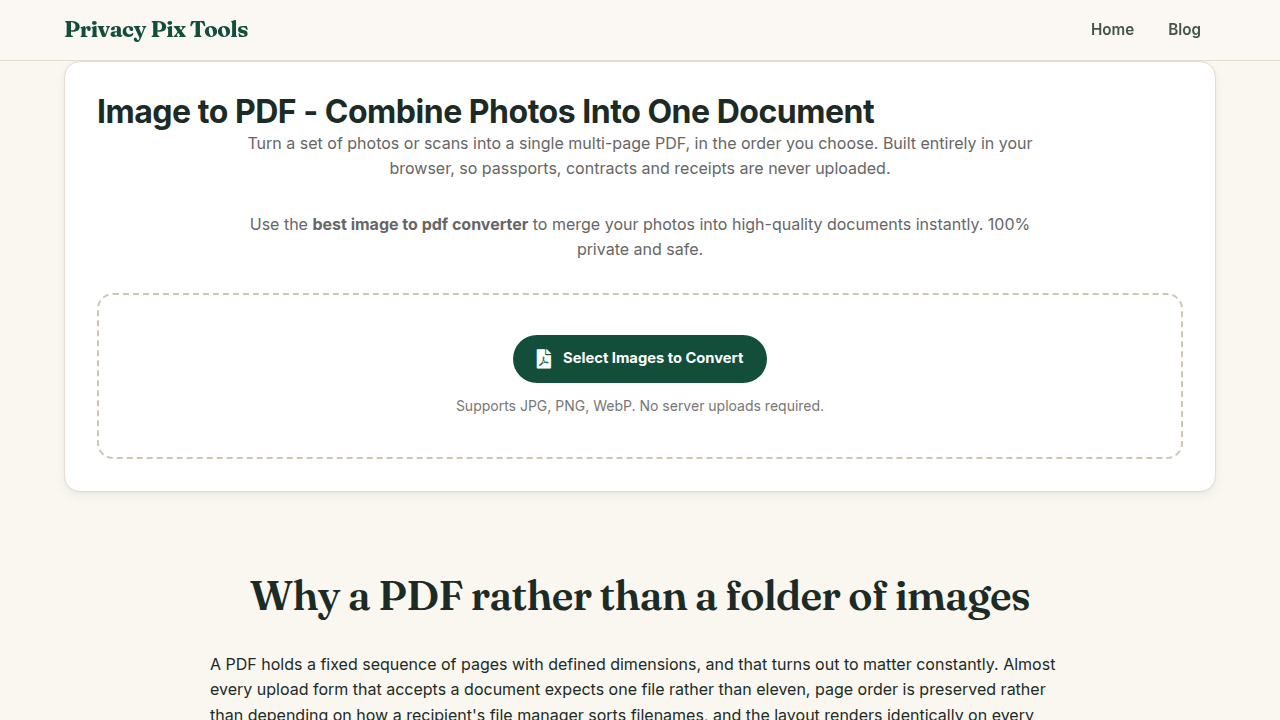
To convert images to PDF, open the free Image to PDF Converter, click Select Images to Convert, check the page order in the Document Preview, and hit Generate & Download PDF. Each image becomes a page in one document - assembled entirely in your browser with no upload.
The PDF remains the world's document handshake: page-faithful, universally viewable, printable, and expected by every institution that asks you to "please send as a single file." Meanwhile, everything you actually capture - receipts, IDs, forms, whiteboards, artwork - starts life as an image. Bridging the two is one of the most common document tasks there is.
This guide shows the private way to do it, plus preparation tricks (ordering, straightening, compressing) that make the difference between an amateur photo dump and a clean, submission-ready document.
In this guide
What You Need Before You Start
Your images (JPG, PNG, or WebP) named or selected in the order you want pages to appear. For document photos, capture flat and square - or fix them first with the Perspective Straightener.
Privacy note: The PDF is assembled by a JavaScript library (jsPDF) on your device. The scans people convert - IDs, contracts, medical forms - never leave the browser.
How to Make a PDF from Images in 3 Steps
Step 1Select your images
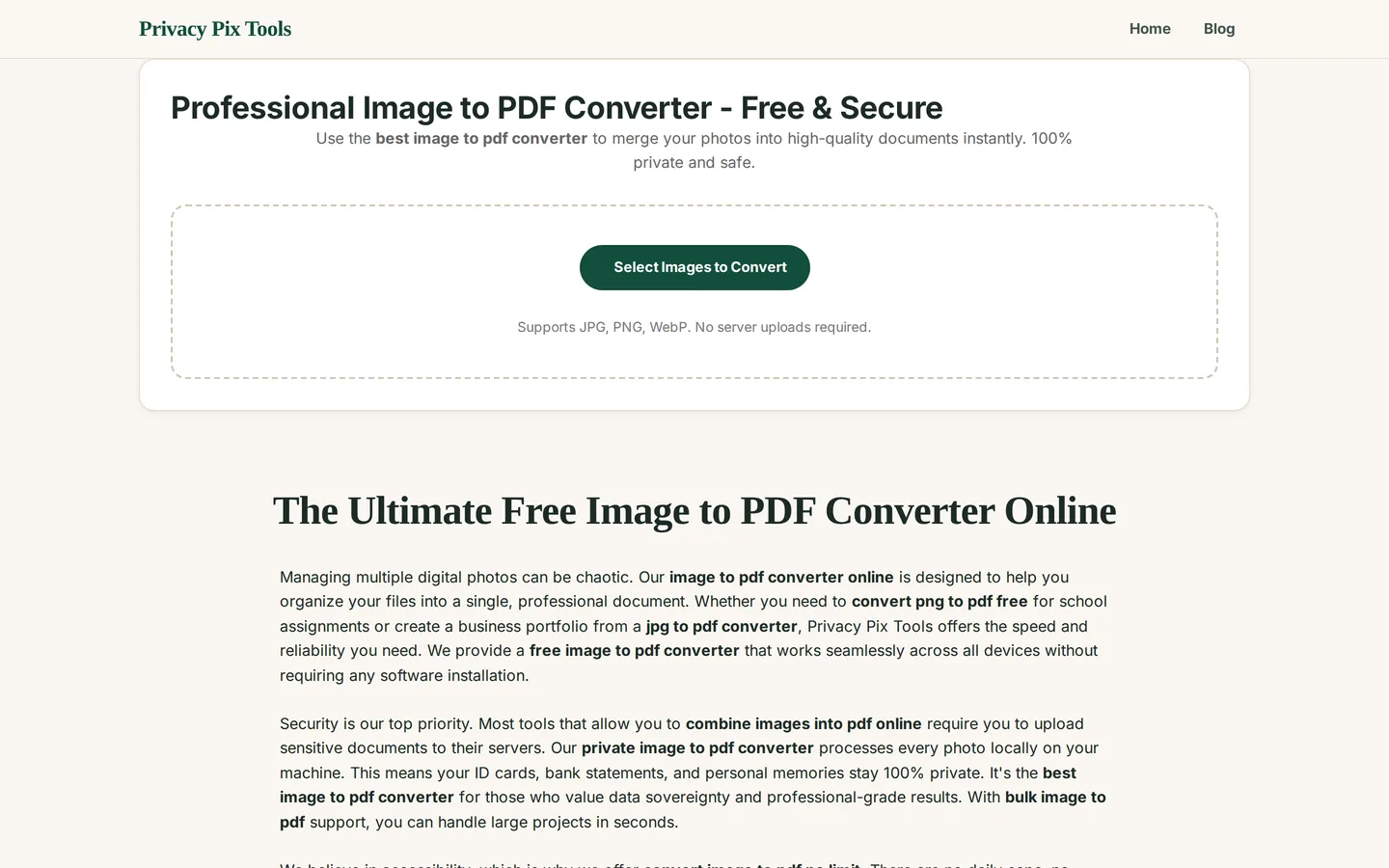
Open the Professional Image to PDF Converter and click Select Images to Convert. Pick one image or dozens - selection order becomes page order, so select files in sequence (or name them 01, 02, 03… beforehand).
Step 2Review the Document Preview
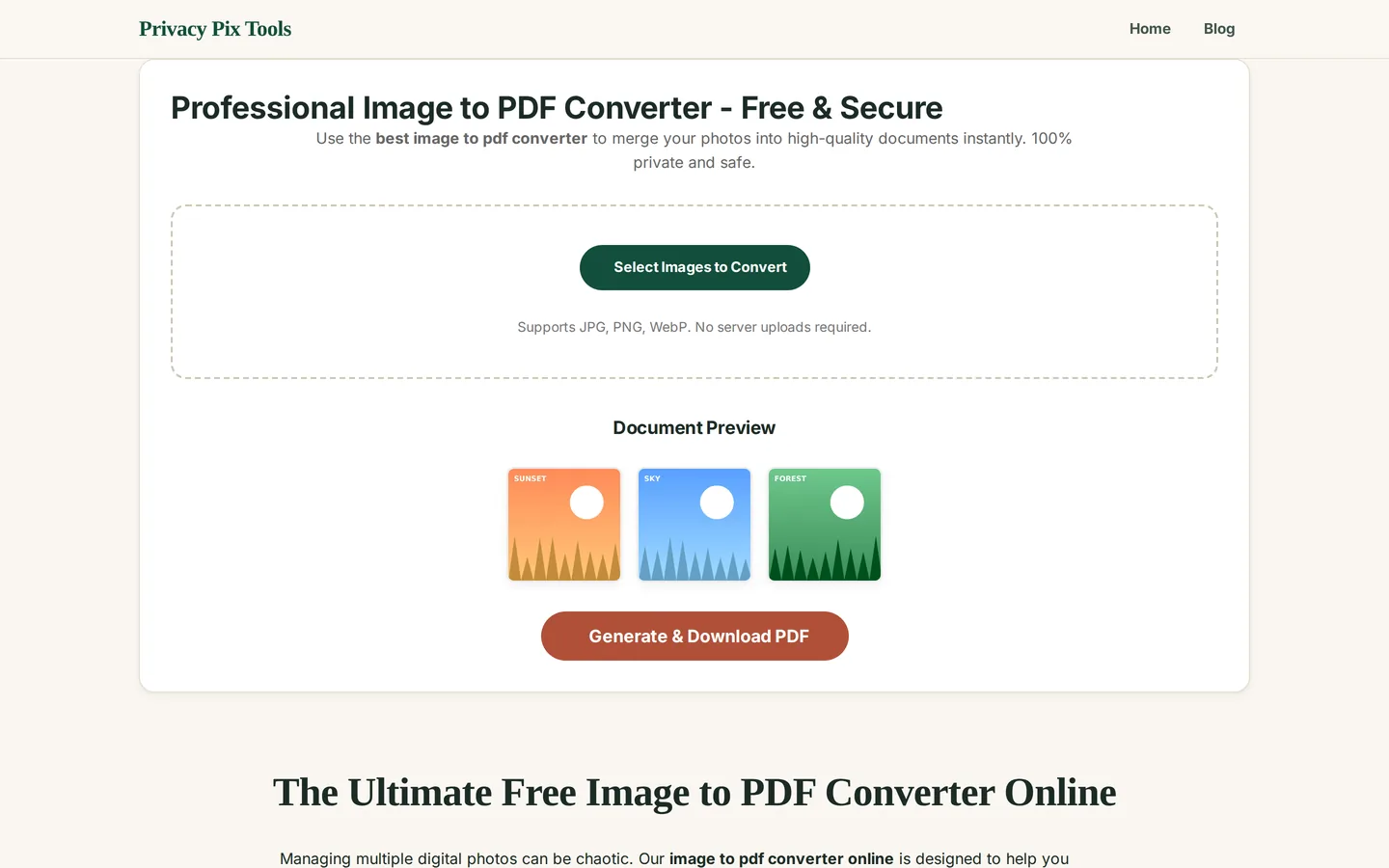
Thumbnails render under Document Preview in page order. Confirm the sequence and completeness now - a missing page discovered after you've emailed the PDF means redoing the whole run.
Step 3Generate and download the PDF
Click Generate & Download PDF. Each image is placed on its own page, sized to fit, and the finished document downloads immediately. Open it once in your PDF viewer to verify, then send or file it.
Combine your images into a PDF
Open Image to PDFPro Tips for Better Results
- Compress images first for email-friendly PDFs: A PDF inherits its images' weight - ten full-resolution phone photos produce a 40MB document. Run the batch through the Image Size Reducer first (85% quality, 1600px longest side) and land under 5MB.
- Straighten document photos: The Perspective Straightener turns angled desk shots into flat, scanner-like pages. It's the single biggest professionalism upgrade for photographed documents.
- Consistent orientation: Mixed portrait and landscape pages read badly. Rotate everything the same way with Rotate & Flip before converting.
- Name files in page order: 01-cover.jpg, 02-page.jpg… lets you select all and get perfect ordering automatically.
- Redact before you bind: Blur account numbers and personal details with the Privacy Blur tool per image - before they are locked into the document.
Why This Stays 100% Private
Think about what gets converted to PDF: identity documents for verification, signed contracts, medical claims, visa paperwork. Upload-based converters put every one of those on a server you cannot audit, with retention you cannot verify. This converter builds the PDF in browser memory with jsPDF and writes it straight to your downloads folder - the document exists exactly twice: your originals, and your PDF.
Unlike most "free" web tools, Privacy Pix Tools has no accounts, no file-size tricks, no watermarks, and no server-side processing. You can even load the page, disconnect from the internet, and the tool keeps working - proof that your files never leave your device.
Common Use Cases
- Form submissions: Government and university portals that demand 'one PDF' get photographed pages combined properly.
- Expense reports: A month of receipts as one ordered, submittable document.
- Portfolios: Artwork and design shots bound into a shareable deck.
- Record keeping: Warranties, manuals, and paperwork photographed and filed as searchable-named PDFs.
Frequently Asked Questions
How do I control the page order?
Selection order = page order. Select files in sequence, or name them with number prefixes (01, 02, 03…) and select all at once.
How many images can one PDF hold?
No artificial limit - assembly happens in your browser memory, which comfortably handles dozens of pages. For very large jobs, compress images first.
Why is my PDF so large, and how do I shrink it?
PDF size ≈ sum of image sizes. Compress the images before converting, or run the finished file through the PDF Compressor - ideally both for email-bound documents.
Will image quality drop in the PDF?
Images are embedded at high quality. What you see in the preview is what prints.
Can I convert a PDF back to images?
Yes - the companion PDF to Image tool extracts each page as a JPG or PNG, also fully in-browser.
Are my documents uploaded during conversion?
No. The jsPDF library assembles the file locally. Airplane mode after page load changes nothing.
Related Tools & Guides
- PDF Compressor - shrink the finished document for email.
- Perspective Straightener - make photographed pages look scanned.
- How to Compress PDF Files - the companion compression guide.
- PDF Merger - combine multiple existing PDFs into one.