How to Convert Images Between JPG, PNG, WebP & BMP - Free & Private
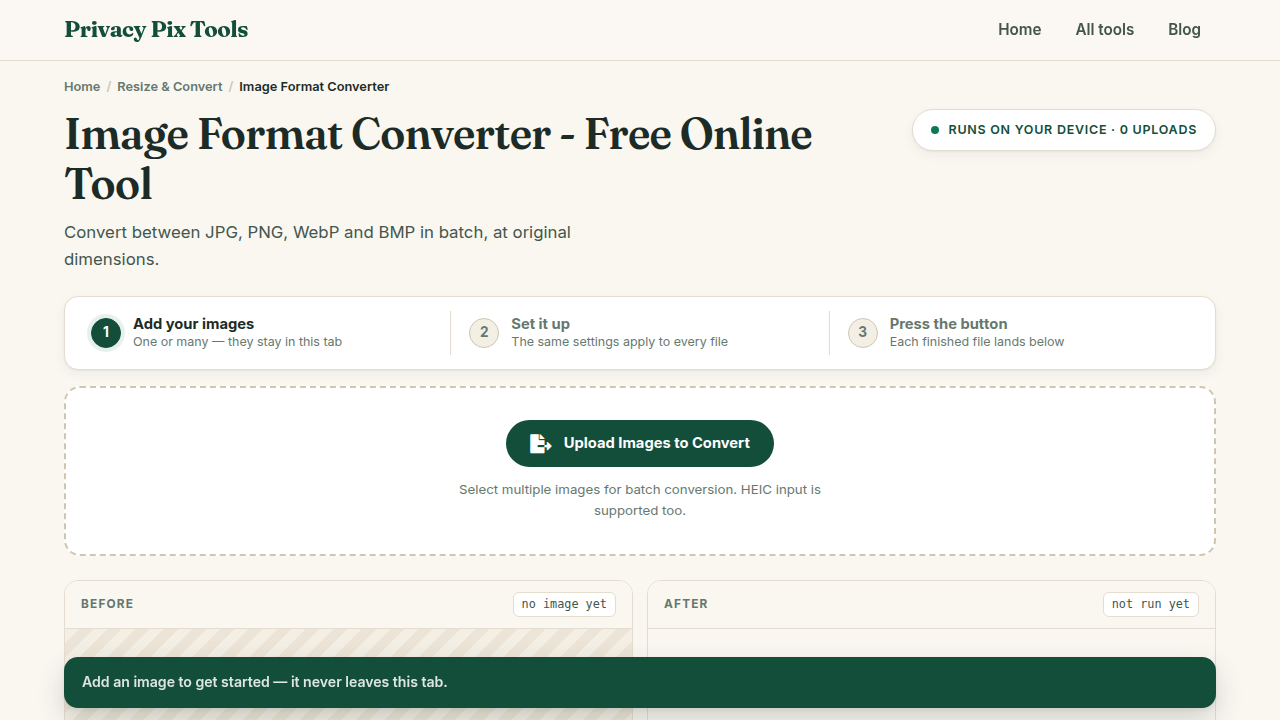
To convert an image to another format, open the Image Format Converter, upload one or more images, click the target format - Convert to JPG, PNG, WebP, or BMP - and download the converted files. Batches download as a single ZIP, and everything runs locally in your browser.
Every image format is a trade-off. JPG is small but can't do transparency; PNG is pixel-perfect but heavy; WebP is the modern all-rounder that some legacy software still rejects; BMP is enormous but universally readable by ancient systems. Converting between them is one of the most common image tasks there is - and there is no reason it should involve uploading your files to a server.
This guide covers the conversion workflow in detail, then gives you a practical cheat sheet for choosing the right format for websites, print, email, and archives.
In this guide
What You Need Before You Start
Your source images and a browser. The converter accepts JPG, PNG, WebP, and BMP as input and outputs any of the four. For HEIC input, use the dedicated HEIC Converter; for SVG vector files, use SVG to PNG.
Privacy note: Conversion uses the Canvas API on your device. Sensitive graphics - logos under NDA, document scans, design drafts - never leave your machine.
How to Convert an Image in 3 Steps
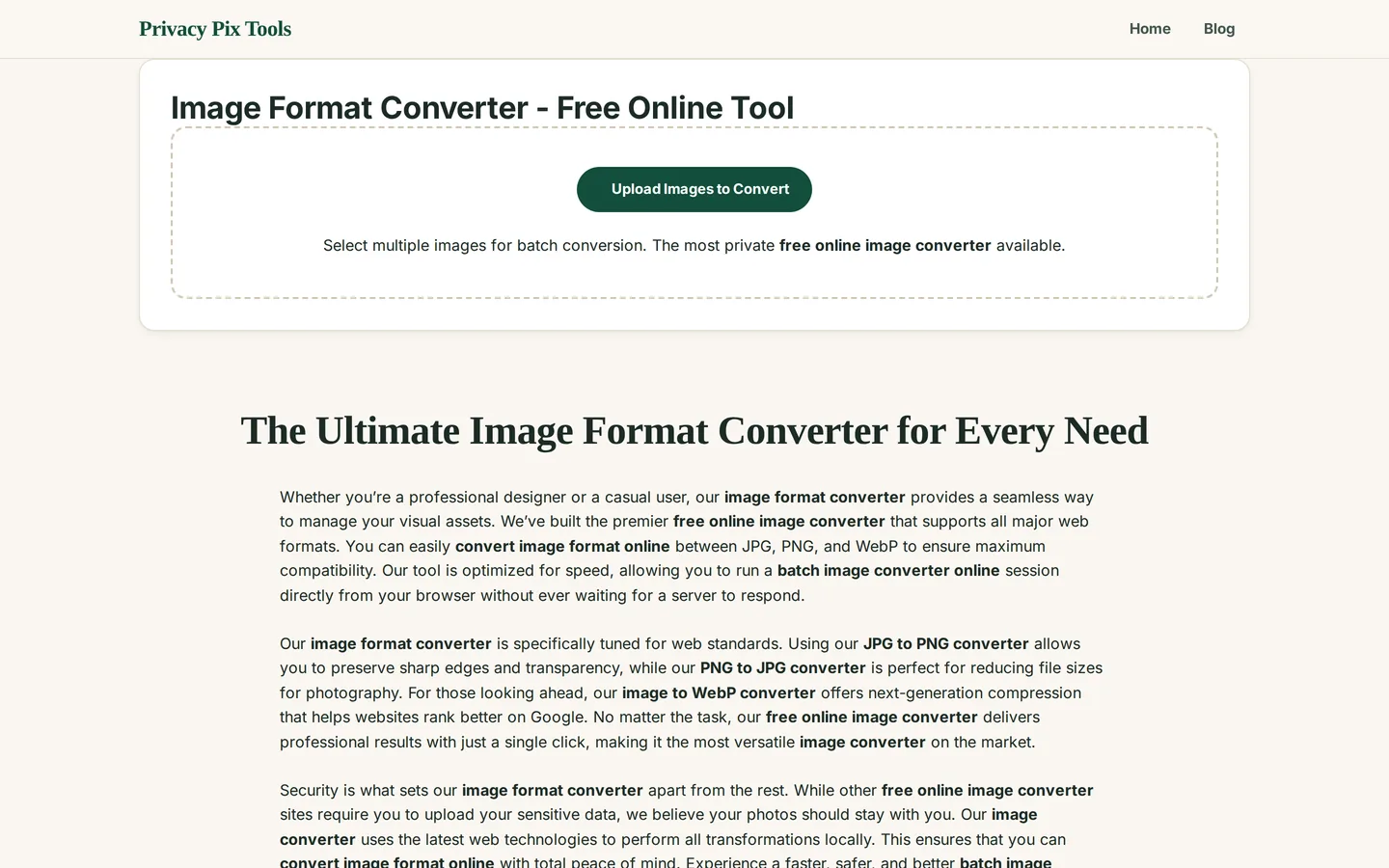
Step 1Upload one image - or a whole batch
Open the Image Format Converter and click Upload Images to Convert, or drag files onto the page. Adding multiple files automatically enables batch mode with a thumbnail queue, a running count, and a Clear All button.
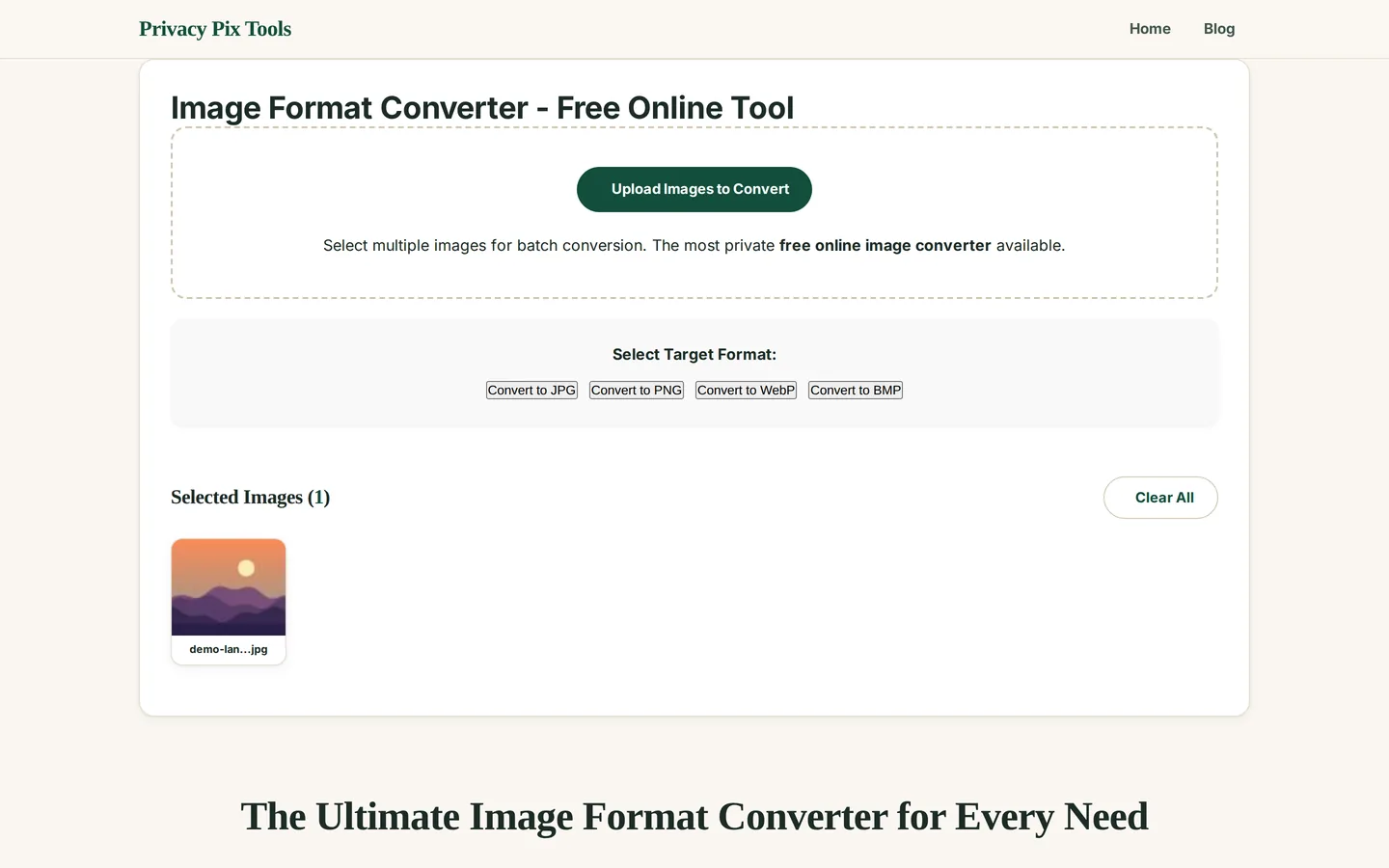
Step 2Pick the target format
Under Select Target Format, click Convert to JPG, Convert to PNG, Convert to WebP, or Convert to BMP. Conversion starts immediately - there is no separate "go" button - and each finished file appears in the Converted Images list below.
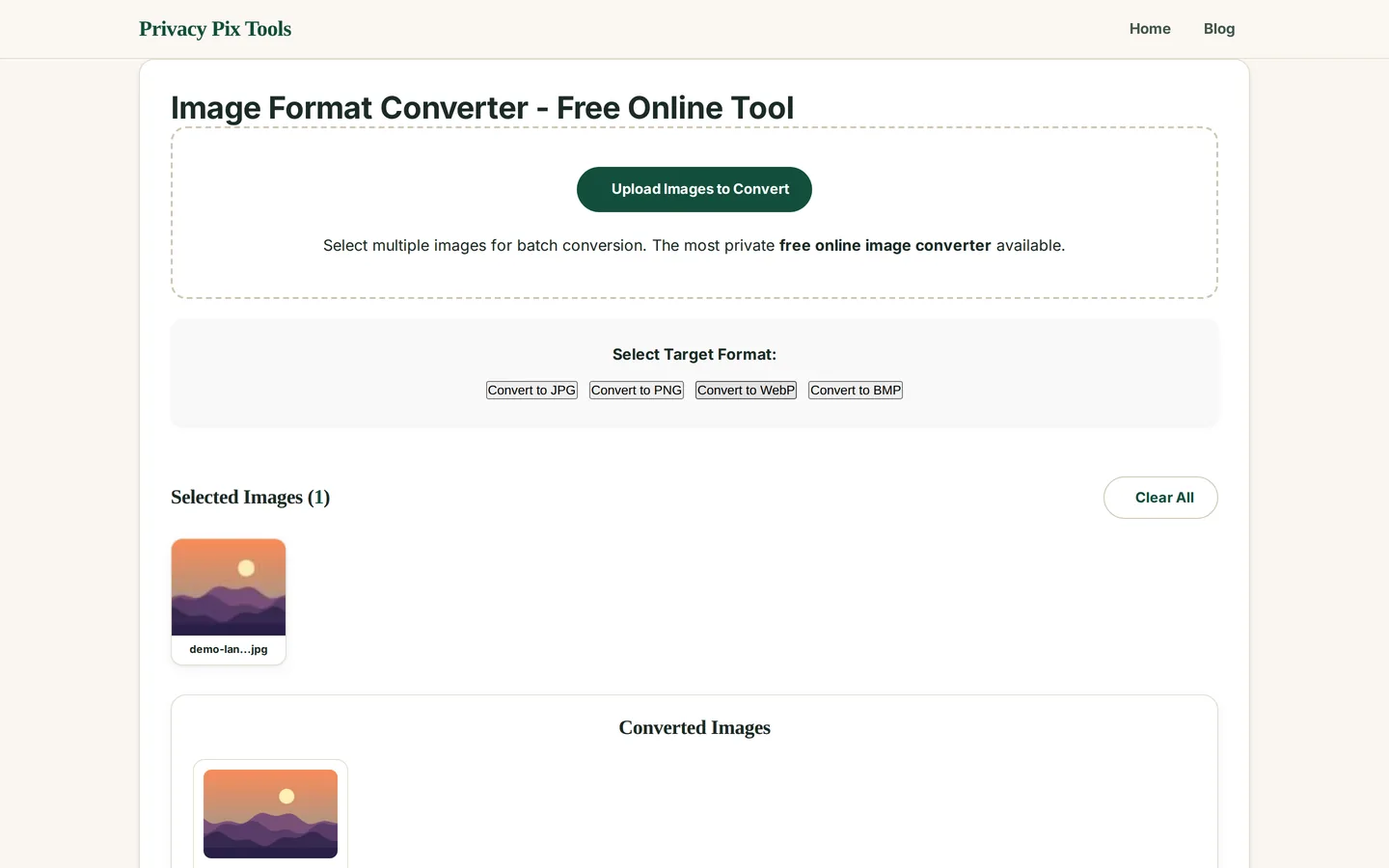
Step 3Download the results
Single files download with one click next to the converted preview. For batches, hit Download All to receive one ZIP archive containing every converted image, named after the originals.
Convert your images now
Open the Format ConverterPro Tips for Better Results
- Choose WebP for the web: At the same visual quality, WebP files are typically 25-35% smaller than JPG and support transparency like PNG. Every modern browser supports it.
- Mind the transparency: Converting a transparent PNG to JPG fills the transparent areas with a solid background - JPG has no alpha channel. Keep logos and cut-outs in PNG or WebP.
- Don't upscale by converting: Conversion never adds detail. If you need a bigger image, convert format here and then use the AI Image Upscaler to add resolution.
- Screenshots vs photos: Flat-color screenshots compress beautifully as PNG; photographs are far smaller as JPG or WebP. Converting a photo from PNG to WebP often shrinks it by 80%+.
- Batch a mixed folder: The queue accepts mixed input formats - drop JPGs and PNGs together and convert them all to WebP in one go.
Why This Stays 100% Private
Image conversion sites are among the most common "free tool" honeypots on the internet: you hand over your file, they process it on their server, and their privacy policy quietly grants them the right to keep it. This converter is different by architecture, not by promise - the Canvas API in your browser re-encodes the pixels, so there is nothing to retain server-side. It works offline once loaded.
Unlike most "free" web tools, Privacy Pix Tools has no accounts, no file-size tricks, no watermarks, and no server-side processing. You can even load the page, disconnect from the internet, and the tool keeps working - proof that your files never leave your device.
Common Use Cases
- Web performance: Convert site images from PNG/JPG to WebP to cut page weight and improve Core Web Vitals scores.
- Compatibility fixes: Old software or an upload form that rejects WebP? Convert back to JPG or PNG in seconds.
- Design handoff: Deliver assets in whatever format the client's system expects - including legacy BMP for industrial or embedded systems.
- Email attachments: Convert heavyweight PNG photo exports to JPG so they fit under attachment size caps.
Frequently Asked Questions
Which format should I choose?
For photos on the web: WebP (or JPG for maximum compatibility). For logos, screenshots, and anything needing transparency: PNG or WebP. BMP only when a legacy system explicitly requires it.
Will converting reduce my image quality?
PNG and BMP are lossless - converting to them preserves every pixel. Converting to JPG or WebP applies high-quality lossy compression; at the tool's default settings the difference is not visible in normal use.
Can I convert multiple images at once?
Yes - batch mode is automatic when you select multiple files, and the results download together as one ZIP archive.
What happens to transparency when I convert PNG to JPG?
JPG cannot store transparency, so transparent regions are flattened onto a solid background. If you need the transparency preserved, convert to WebP instead.
Does this converter handle HEIC or RAW files?
HEIC has its own dedicated converter on this site. Camera RAW formats (CR2, NEF, ARW) are not supported - export them to JPG from your photo software first.
Is there a size limit?
No server means no artificial limits. Very large images are constrained only by your device's memory.
Related Tools & Guides
- HEIC to JPG Converter - for iPhone photo conversion.
- SVG to PNG Converter - rasterize vector graphics at any resolution.
- How to Compress Images - optimize file size after converting.
- The Ultimate Free Image Converter - the quick overview article.