How to Create a QR Code That Never Expires - Free & Private
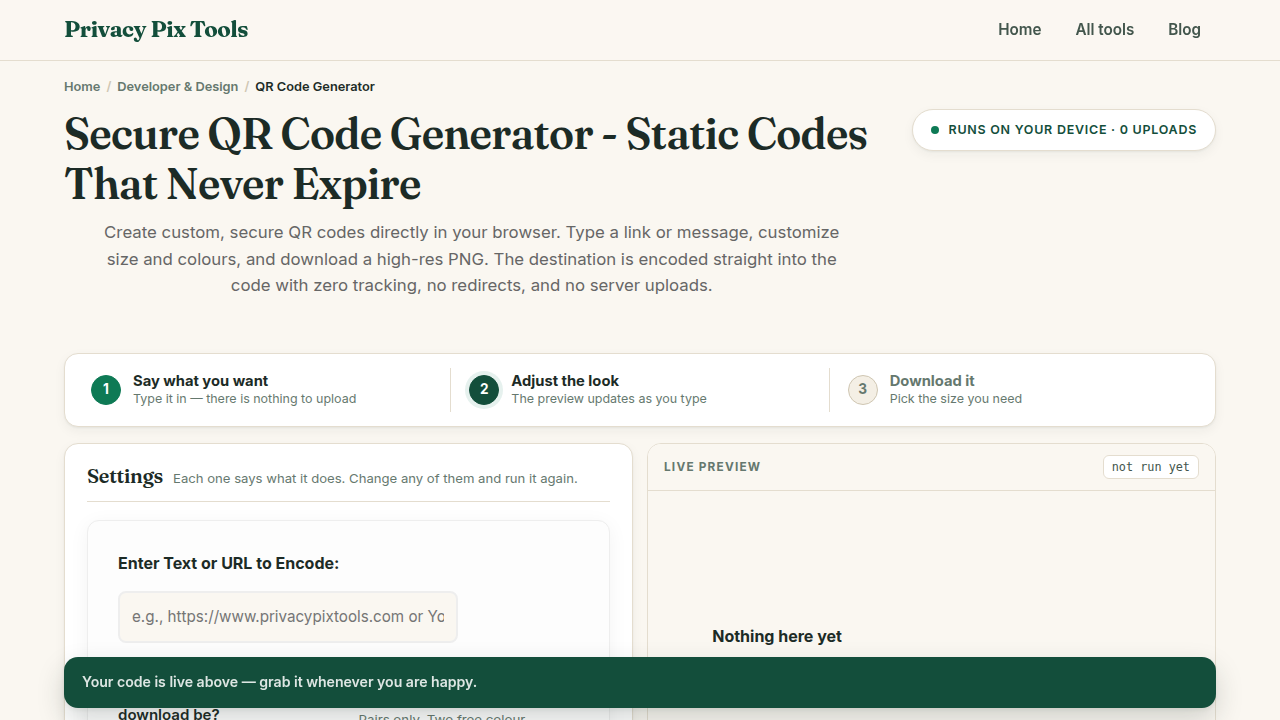
To create a QR code, open the free QR Code Generator, paste your URL or text into the Enter Text or URL to Encode field, pick a size and colors, and click Generate Secure QR Code. Download the PNG and print it anywhere - the code is static, encoding your data directly, so it never expires and nothing is tracked.
Here is the dirty secret of most "free" QR generators: they don't encode your link. They encode their link, which redirects to yours - so they can count scans, inject ads, and break your code the day you don't upgrade to a paid plan. Thousands of printed menus and posters have died this way.
A static QR code has none of these failure modes. The data lives in the pattern itself, readable by any camera forever, with no server in the loop. This guide shows you how to generate one, customize it, and verify it scans before you send anything to the printer.
In this guide
What You Need Before You Start
The exact text or URL you want to encode - double-check it, because a static code cannot be edited after printing (that permanence is the feature). Shorter URLs produce simpler, easier-scanning patterns; consider your own short domain rather than a link-shortener service that could itself die.
Privacy note: The QR matrix is computed by JavaScript in your browser. The URL or message you encode is never sent anywhere - no scan tracking, no analytics, no third party between your poster and your audience.
How to Create a QR Code in 3 Steps
Step 1Enter the text or URL to encode
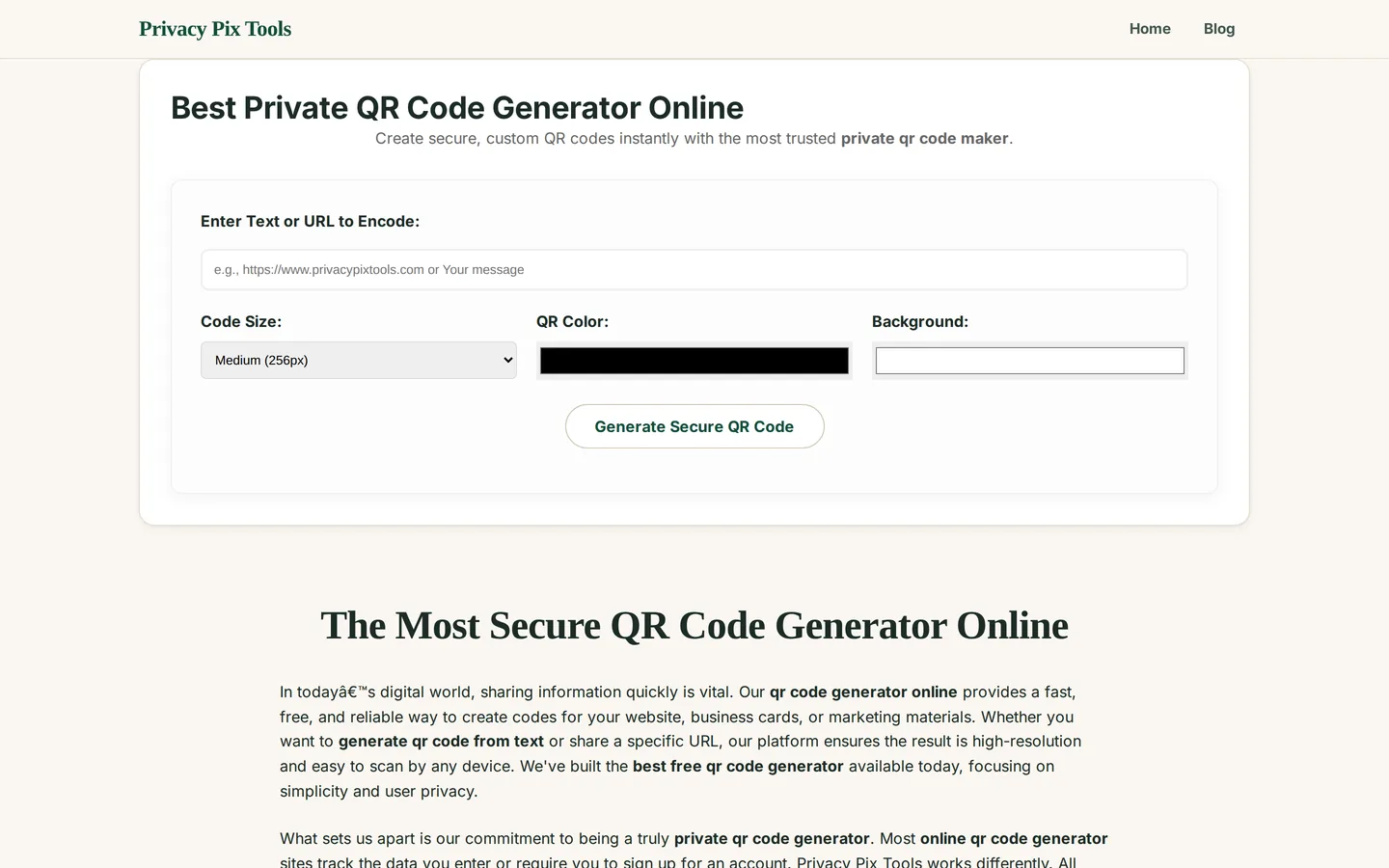
Open the Best Private QR Code Generator and type or paste into Enter Text or URL to Encode. URLs should include the protocol (https://...) so every scanner app opens them correctly. Plain text, Wi-Fi strings, and contact details work too.
Step 2Choose size and colors
Pick a download size (Medium 256px suits screens; Large 512px for print) and one of the tested colour pairs. The preview says whether the pair scans reliably. Keep dark modules on a light background - reversed or low-contrast codes fail on many scanners.
Step 3Generate, test, and download
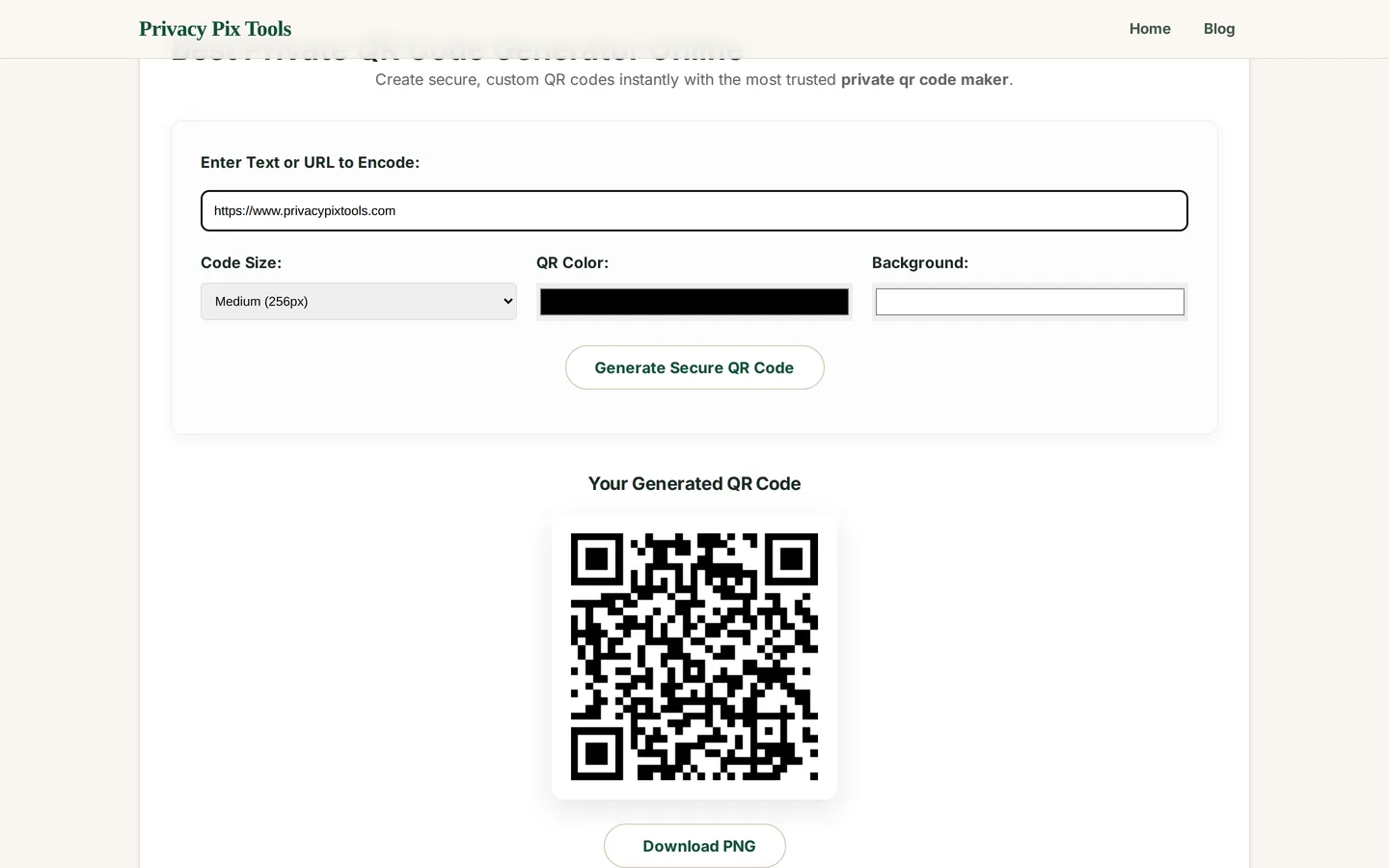
Click Generate Secure QR Code. Your code renders instantly under Your Generated QR Code. Point a phone camera at the screen to verify it opens the right destination, then click Download PNG for a crisp file ready for print or web.
Generate a permanent QR code
Open the QR GeneratorPro Tips for Better Results
- Test before you print: Scan from the screen with at least two devices (iPhone camera + an Android). Then print one copy at final size and scan that too - especially for small stickers.
- Size for scan distance: Rule of thumb: QR width ≈ scan distance ÷ 10. A table tent scanned from 25cm needs ~2.5cm; a poster scanned from 3m needs ~30cm.
- Leave the quiet zone: Keep a white margin around the code (about 4 modules). Cropping it tight against other graphics is the most common cause of scan failure.
- Contrast over beauty: Brand colors are fine if the code stays much darker than its background. Never invert (light code on dark) - many readers refuse it.
- Short URLs scan faster: Longer data means denser patterns and fussier scanning. Encode a clean short URL on a domain you control.
Why This Stays 100% Private
Dynamic QR services intermediate every scan through their servers: they see who scanned, when, where, and can change or break the destination at will. A static code generated locally has no such middleman - the pattern is the data. This generator computes it in your tab, which also means confidential URLs (internal tools, pre-launch pages, private Wi-Fi credentials) are never disclosed to anyone.
Unlike most "free" web tools, Privacy Pix Tools has no accounts, no file-size tricks, no watermarks, and no server-side processing. You can even load the page, disconnect from the internet, and the tool keeps working - proof that your files never leave your device.
Common Use Cases
- Restaurant menus: One code to your menu page, printed once, working for years - no subscription to lapse.
- Business cards & flyers: Link to your site or portfolio; static codes keep working as long as the URL does.
- Wi-Fi sharing: Encode WIFI:T:WPA;S:NetworkName;P:password;; and guests connect by pointing their camera.
- Event posters: Tickets, registration, or maps at scan distance - sized correctly, tested once, reliable all season.
Frequently Asked Questions
Do these QR codes expire?
No. Static codes encode your data directly in the pattern - there is no service that can shut down or paywall them. The code works as long as the destination URL exists.
What's the difference between static and dynamic QR codes?
Static encodes your data itself; dynamic encodes a redirect through a provider's server, enabling scan tracking and editable destinations - at the cost of a dependency that can break your printed codes. For most uses, static is the safer choice.
Can I track how many people scan my code?
Not via the code itself - that is the privacy feature. If you need analytics, encode a URL with UTM parameters and read the data in your own web analytics.
Can I use brand colors?
Yes - set QR and background colors freely, keeping strong dark-on-light contrast. Test with multiple phones before mass printing.
What can a QR code contain besides a URL?
Any text: Wi-Fi credentials (WIFI: format), contact cards (vCard), phone numbers (tel:), emails (mailto:), or plain messages. Capacity is a few thousand characters, but shorter scans more reliably.
What resolution should I print at?
Download the PNG at the largest size and let your print workflow scale it down rather than up. For very large formats, generate at maximum size - the modules stay razor sharp.
Related Tools & Guides
- Favicon Generator - brand assets for the site your QR points to.
- Base64 Converter - embed the QR PNG directly in HTML or CSS.
- Make QR Codes That Work Forever - the quick overview article.
- How to Create a Favicon - complete your site's identity kit.