How to Crop an Image Online - Exact Ratios for Every Platform
To crop an image online, open the free Image Cropper, upload your photo, choose an aspect ratio preset - 1:1 for Instagram, 16:9 for YouTube, 9:16 for Stories, or Custom/Free - drag the selection box over the area you want to keep, then click Preview & Apply Crop and download. No upload, no watermark.
Cropping is the highest-impact edit in photography: it fixes composition, removes distractions, and makes an image fit the exact frame a platform demands. Get the ratio wrong and Instagram chops your subject's head off, YouTube letterboxes your thumbnail, and your banner gets stretched into soup.
This guide walks through the private, browser-based way to crop with pixel accuracy, then gives you the full aspect-ratio cheat sheet for every major platform, so you never guess again.
In this guide
What You Need Before You Start
A photo in JPG, PNG, or WebP, and a rough idea of where the crop is headed (feed post, story, thumbnail, print). If you want the tool to find the best crop automatically - centering faces or subjects using AI - try the companion Smart Auto-Crop tool instead.
Privacy note: Cropping happens on a canvas in your browser tab. The photo - and whatever you cropped out of it - never touches a server.
How to Crop an Image in 4 Steps
Step 1Upload the photo you want to crop
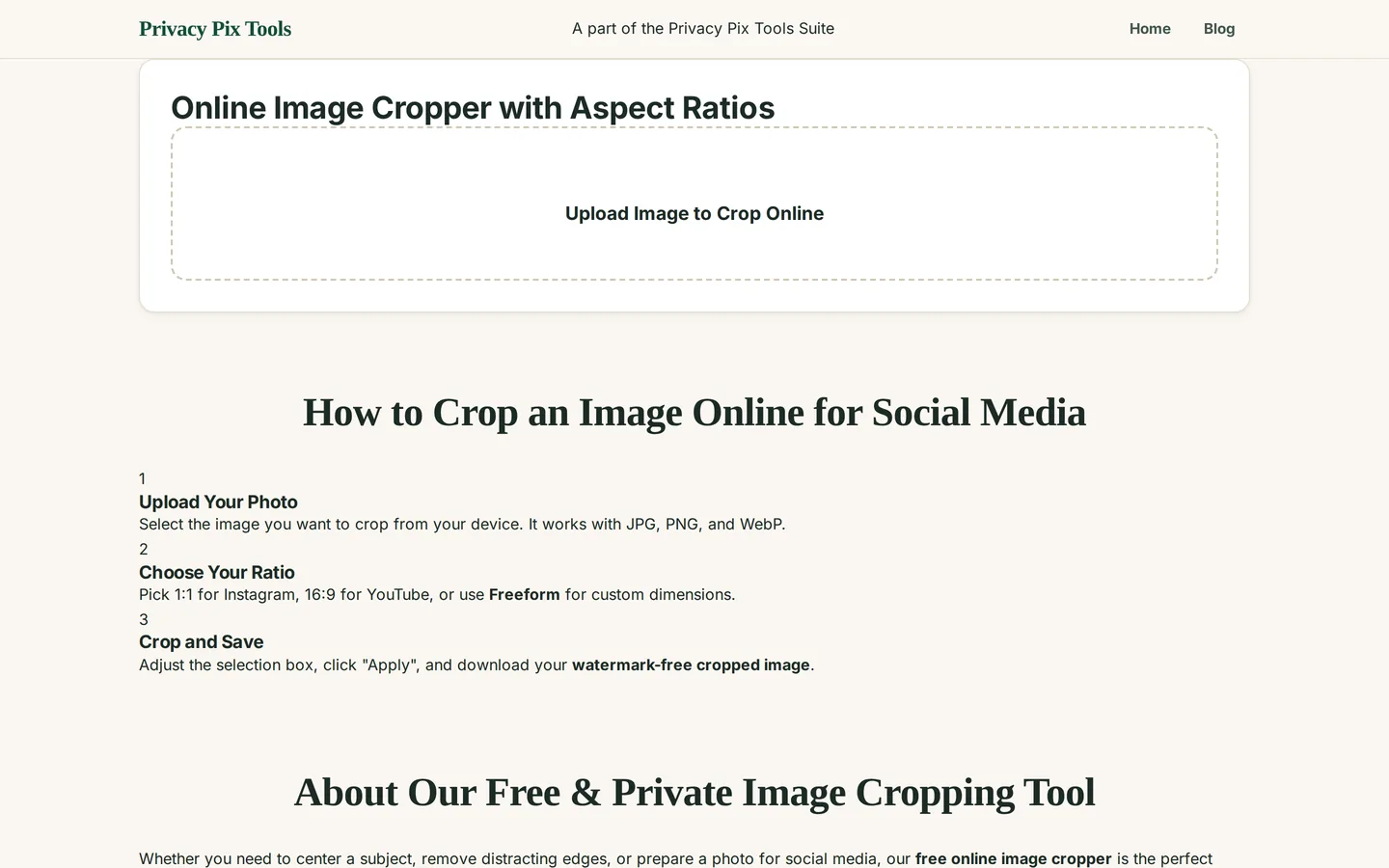
Open the Online Image Cropper and click Upload Image to Crop Online, or drag your file onto the dashed area. The photo loads instantly into the crop canvas.
Step 2Choose an aspect ratio
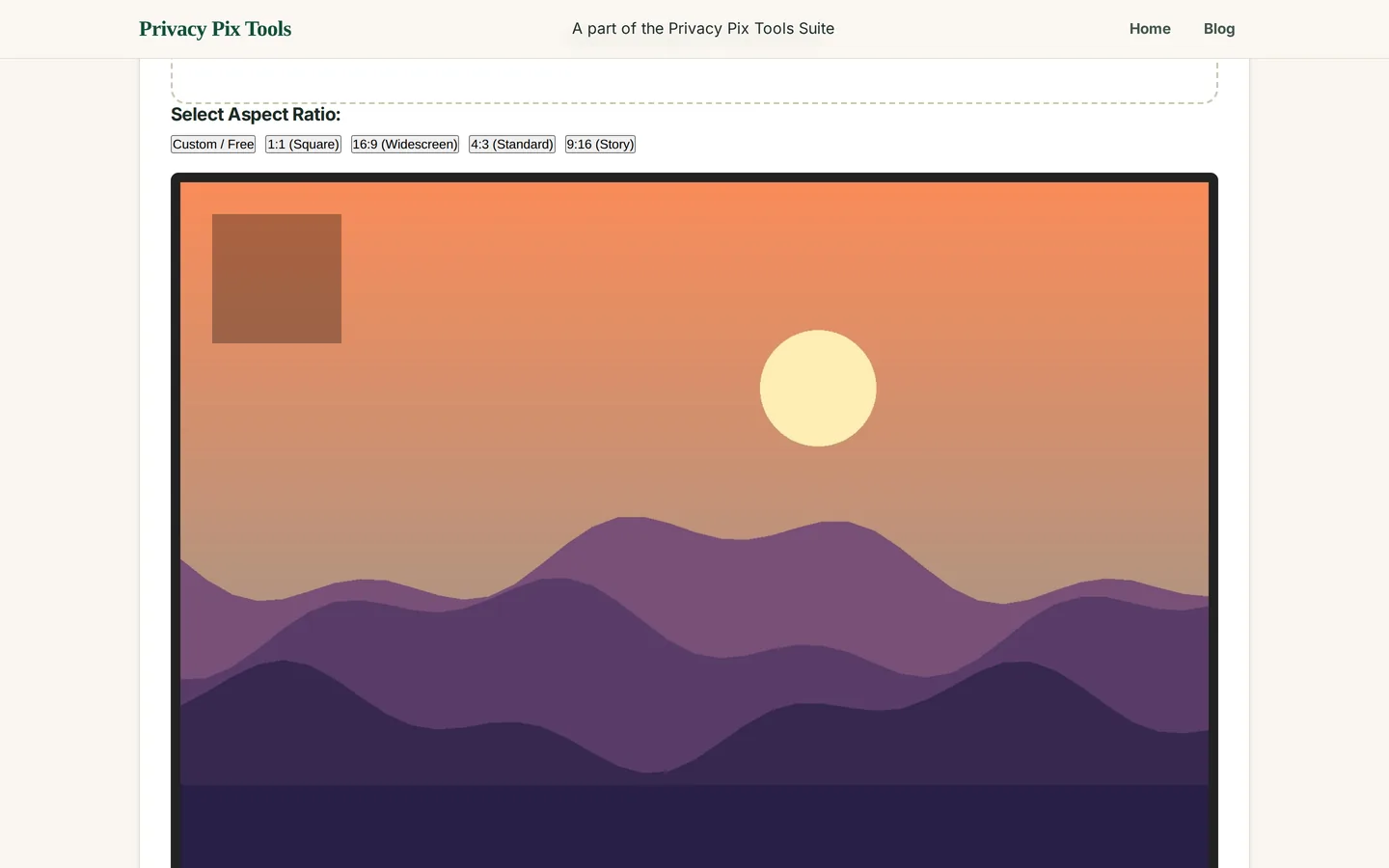
Under Select Aspect Ratio, pick a preset: 1:1 (Square), 16:9 (Widescreen), 4:3 (Standard), 9:16 (Story), or Custom / Free for unconstrained cropping. Locking a ratio guarantees the result fits its destination perfectly - no surprise letterboxing.
Step 3Position and size the crop box
Drag inside the box to move it; drag its edges or draw a new box to resize. With a ratio locked, the box keeps its proportions automatically. Compose deliberately: put horizons on a third-line, leave breathing room in the direction a subject faces, and cut distractions at the frame edge.
Step 4Apply and download
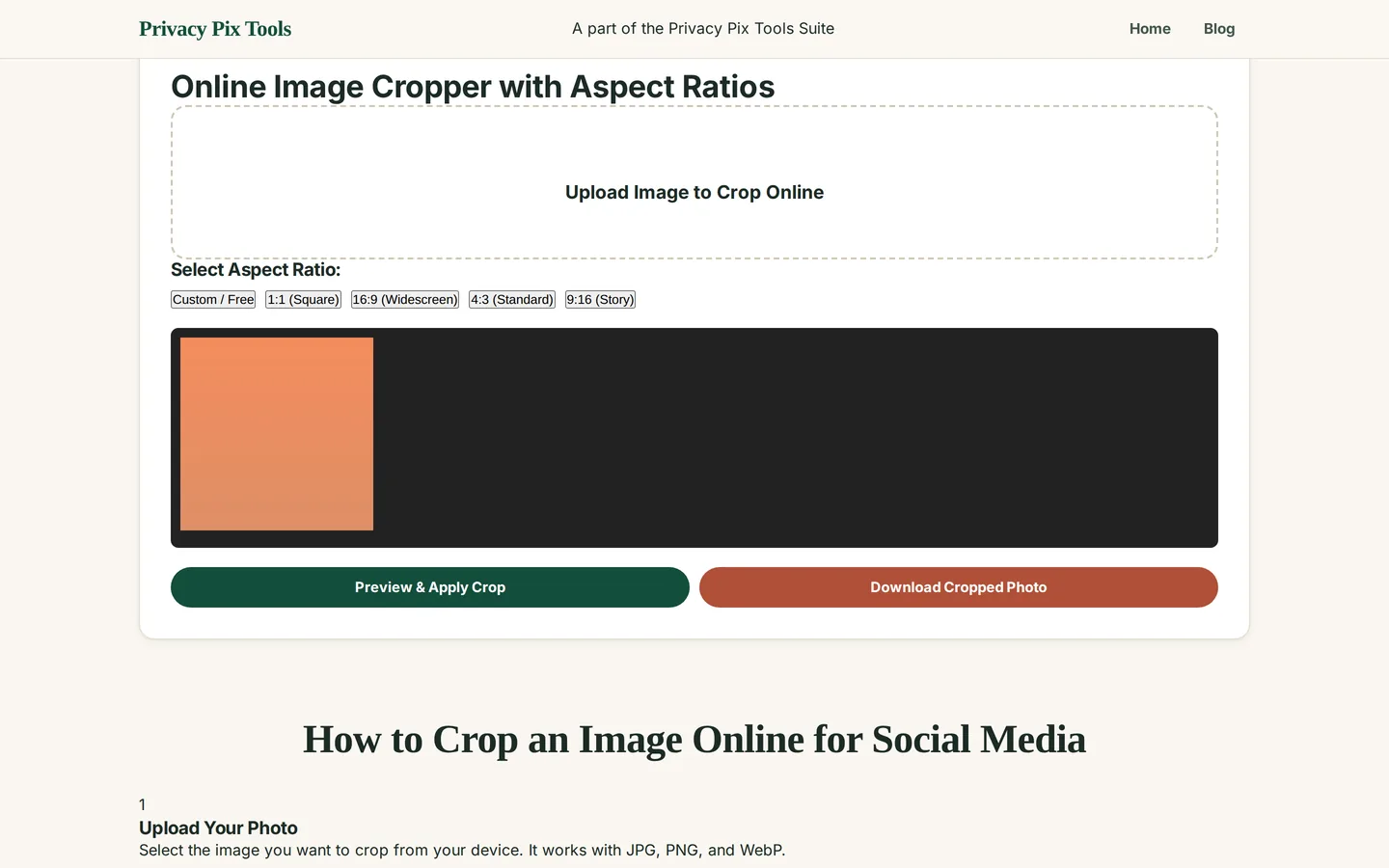
Click Preview & Apply Crop to see exactly what you will get, then Download Cropped Photo. The output keeps the original pixel density of the selected region - nothing is scaled or re-compressed beyond the crop itself.
Crop a photo right now
Open the Image CropperPro Tips for Better Results
- The platform cheat sheet: Instagram feed 1:1 or 4:5 · Instagram/TikTok/Shorts vertical 9:16 · YouTube thumbnail 16:9 (1280×720) · X/Twitter post 16:9 · LinkedIn banner 4:1 · Facebook cover ~2.7:1. When in doubt, shoot loose and crop later.
- Crop before you compress: Always crop first, then resize/compress. Cropping after compression wastes quality on pixels you were going to discard anyway.
- Rule of thirds: Imagine the frame divided into a 3×3 grid; place eyes, horizons, and subjects on the lines and intersections. A crop is your second chance at composition.
- Keep originals for re-crops: Save the uncropped master. Platforms change their ratios constantly - a 4:5 post today may need a 9:16 version next year.
- Let AI find the subject: For batches of profile photos or product shots, the Smart Auto-Crop tool detects the subject and centers the crop automatically.
Why This Stays 100% Private
What you crop out can matter more than what you keep: the screen edge showing a confidential email, a bystander's face, your house number. Upload-based croppers receive the entire original - including everything you intended to remove. This cropper never transmits the image at all; the full-resolution original stays in browser memory on your machine and is gone when you close the tab.
Unlike most "free" web tools, Privacy Pix Tools has no accounts, no file-size tricks, no watermarks, and no server-side processing. You can even load the page, disconnect from the internet, and the tool keeps working - proof that your files never leave your device.
Common Use Cases
- Social media sizing: Hit exact platform ratios so the algorithm never auto-crops your subject.
- Profile pictures: Crop to a centered square, then round the corners with the Round Image Corners tool for circular avatars.
- YouTube thumbnails: 16:9 crops from stills or screenshots, ready for the 1280×720 upload.
- Print preparation: Match classic print ratios (4:3, 3:2, 5:4) before ordering enlargements.
Frequently Asked Questions
How do I crop an image to a square?
Upload your photo, click the 1:1 (Square) preset, position the box over your subject, then apply and download. The result is a perfect square at the original resolution of the selected area.
Does cropping reduce image quality?
No - cropping removes pixels outside the box but does not recompress or scale what remains. The cropped region keeps its original quality.
What crop ratio does Instagram use?
Feed posts support 1:1 (square), 4:5 (portrait), and 1.91:1 (landscape). Stories and Reels use 9:16. The 4:5 portrait crop occupies the most screen space in the feed.
Can I crop to exact pixel dimensions?
Use Custom / Free mode to crop the proportions you need, and pair with the Social Media Post Creator or Image Size Reducer if you must land on an exact pixel size like 1080×1080.
Is there a watermark on the cropped image?
No watermark, ever. The download is your image, cropped, nothing added.
Can the tool crop automatically around faces?
That is exactly what the companion Smart Auto-Crop tool does - its AI finds the most important region (faces, pets, subjects) and centers the crop for you.
Related Tools & Guides
- Smart Auto-Crop - AI-powered subject detection and automatic cropping.
- Round Image Corners - turn square crops into rounded or circular avatars.
- How to Resize Images for Social Media - exact pixel dimensions for every platform.
- Perspective Straightener - fix tilted photos before cropping.