How to Resize Images for Social Media - Every Platform, One Tool
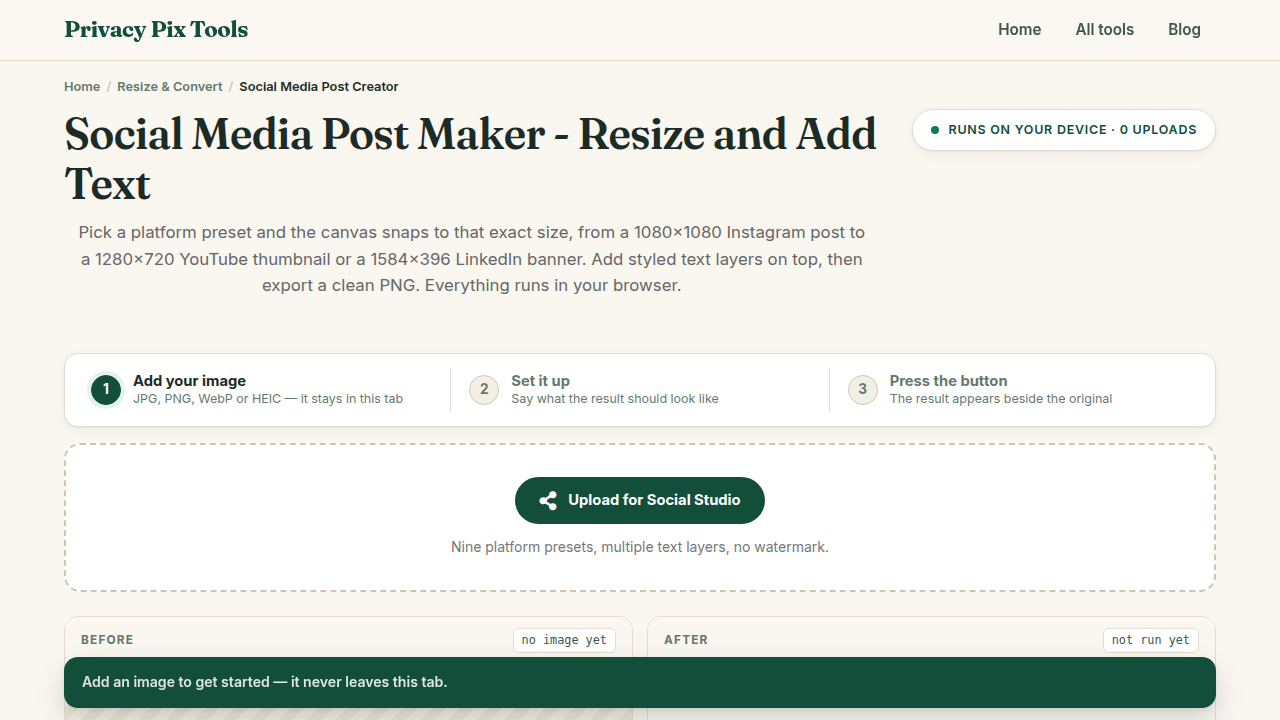
To resize an image for social media, open the Social Media Post Studio, upload your photo, pick the platform preset (or set exact dimensions), optionally add styled text with the Add Engaging Text panel, and download the perfectly sized post. All rendering happens in your browser - your content stays private until you post it.
Every platform slices images differently, and the punishments for wrong sizes are real: Instagram crops your subject out of frame, X blurs your text into soup, LinkedIn letterboxes your banner. Posting the same unmodified photo everywhere means looking slightly broken everywhere.
This guide shows the browser-based workflow for hitting exact platform dimensions with clean text overlays - plus the current size cheat sheet worth bookmarking.
In this guide
What You Need Before You Start
Your source image, at least as large as the target size (downscaling is clean; upscaling costs quality - use the AI Upscaler first if the source is too small). Know your destination platform and whether the post needs text on the image.
Privacy note: Composition and export run on a local canvas. Campaign creative and unannounced content never sit on a third-party server before launch.
How to Create a Platform-Perfect Post in 4 Steps
Step 1Upload your image to the studio
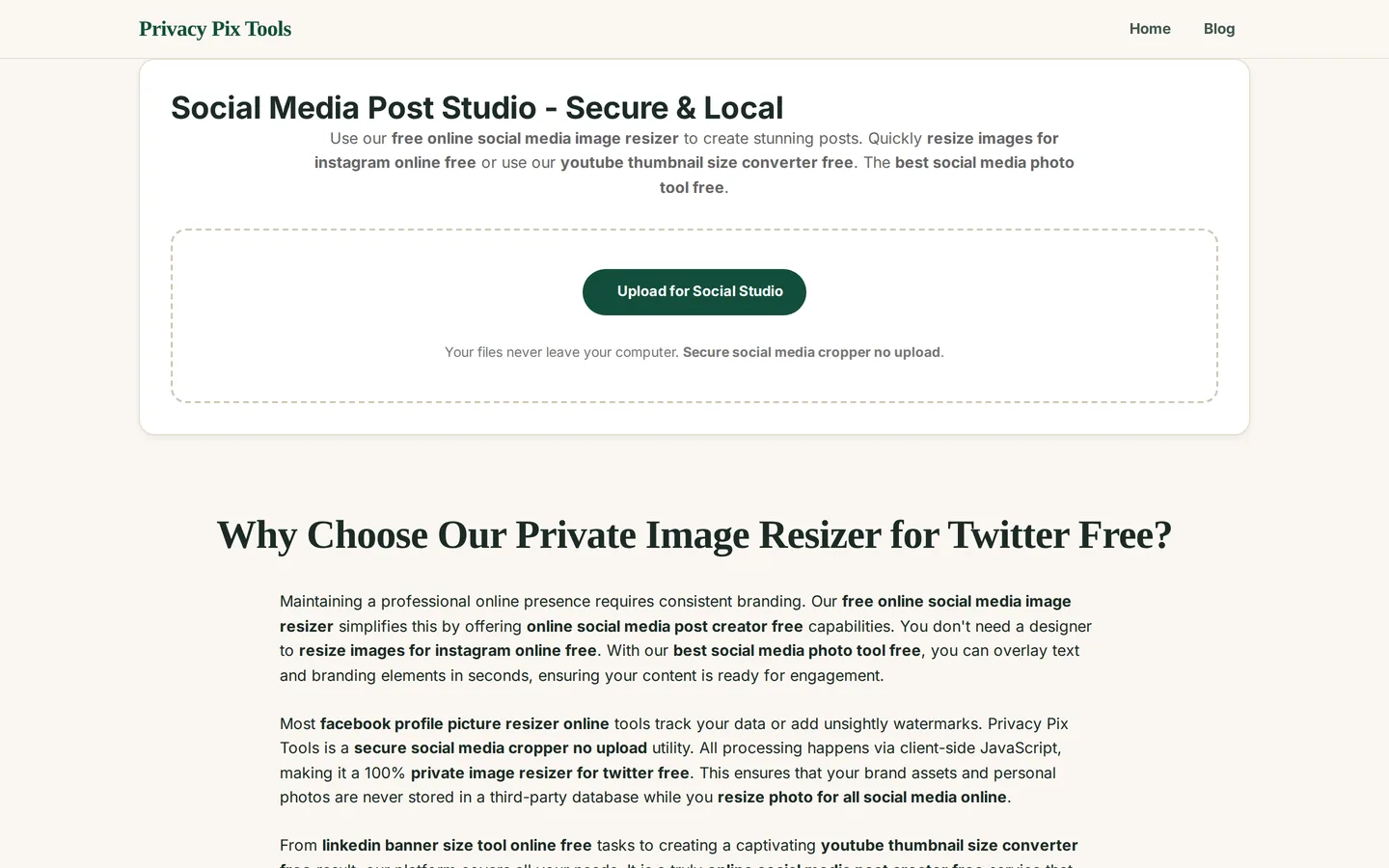
Open the Social Media Post Studio and click Upload for Social Studio. The image loads onto the working canvas with the editing panels above.
Step 2Set the platform size
Choose your target platform's dimensions - the studio's canvas adapts and shows exactly how your image fills the frame. Reposition so the subject sits safely inside the crop (remember: profile grids re-crop feed posts to square previews).
Step 3Add text with the overlay panel
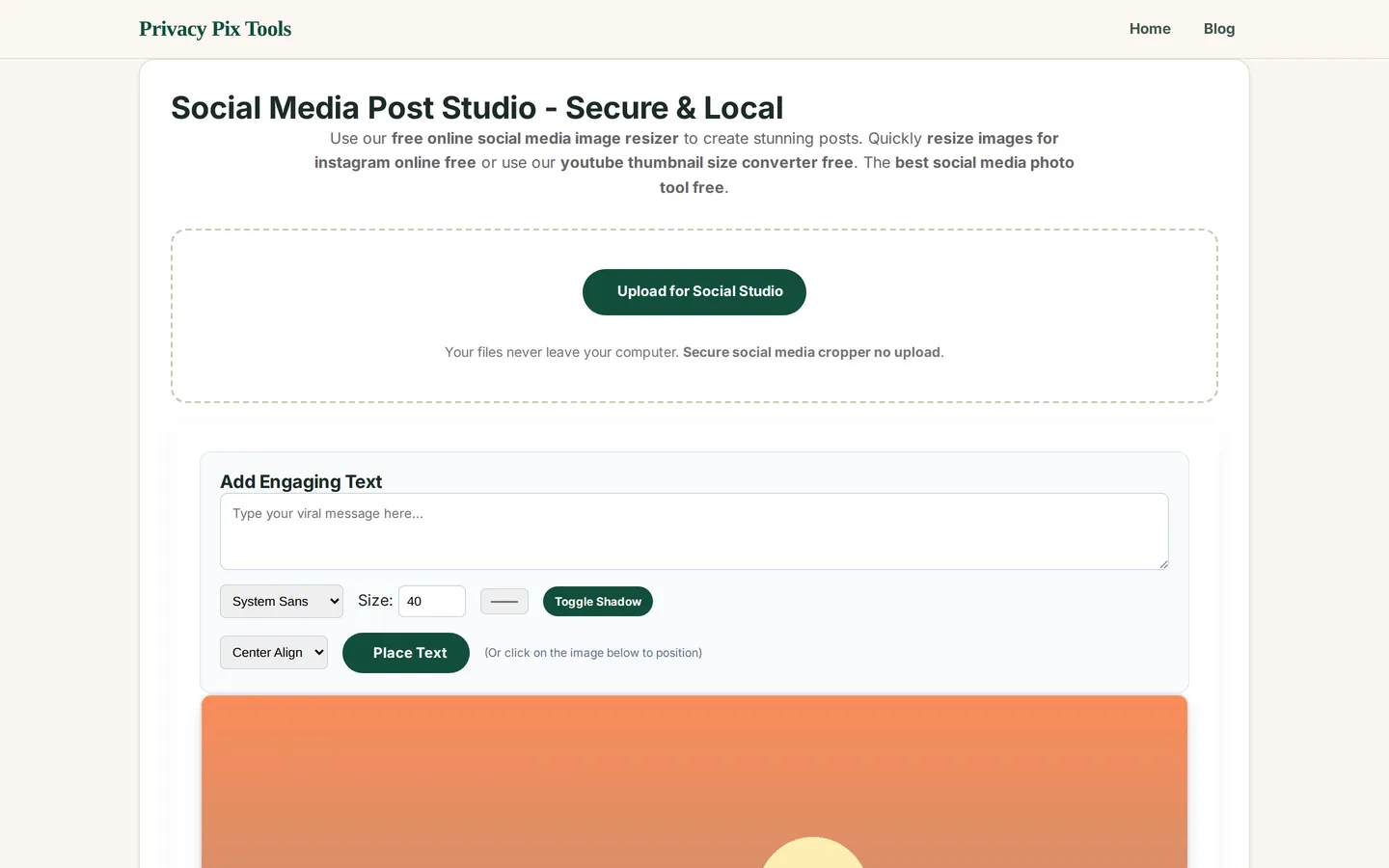
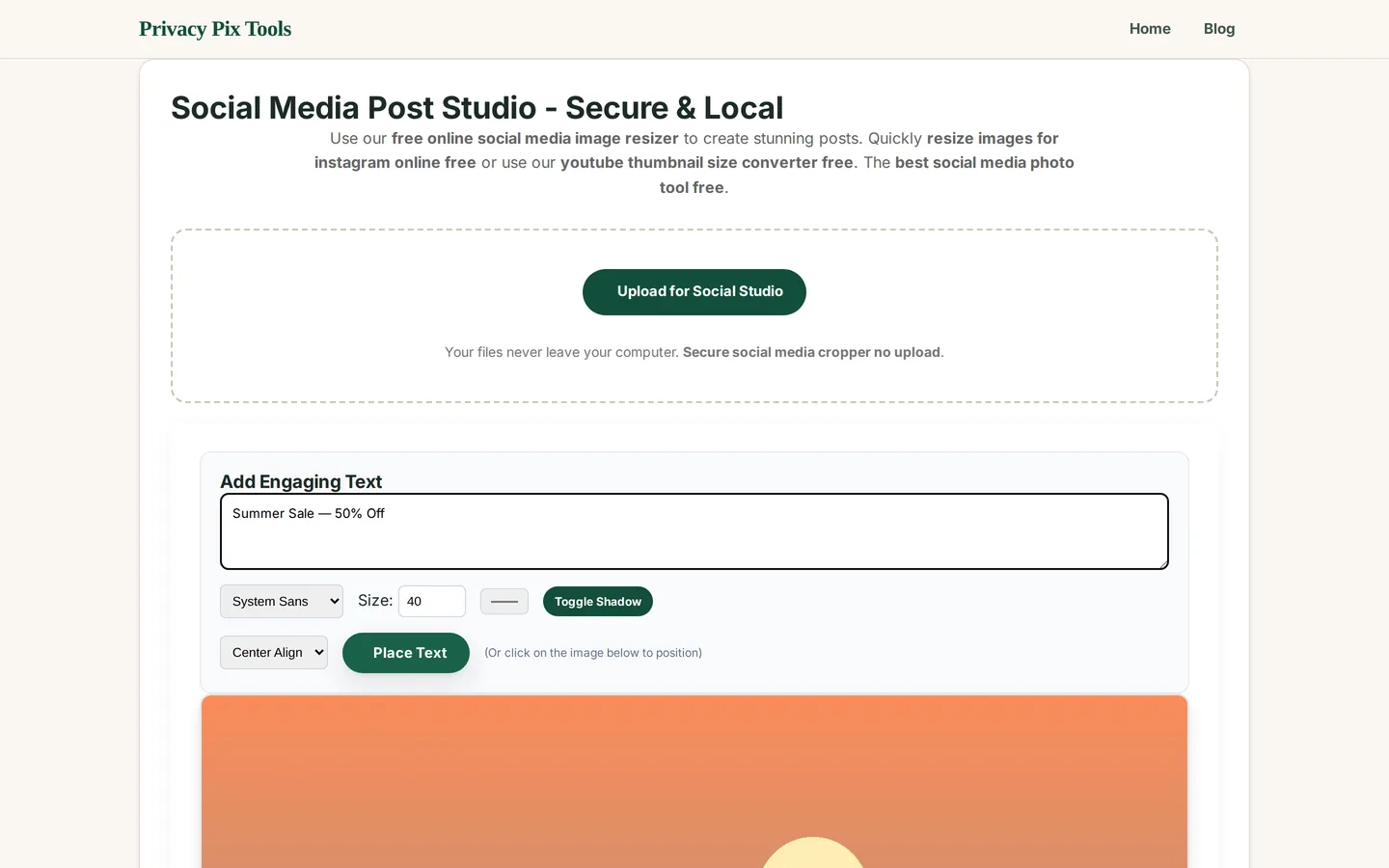
In Add Engaging Text, type your message, choose the font family and size, set alignment, and click Toggle Shadow for legibility on busy photos. Hit Place Text, then click on the canvas to position it - or drag to fine-tune. Undo/Redo cover any experiments.
Step 4Download and post
Click Download and the finished post saves at the exact target dimensions - no platform re-compression surprises, no watermark. Repeat with a different preset to adapt the same creative for every network in minutes.
Design a perfectly sized post
Open the Social StudioPro Tips for Better Results
- The 2026 size cheat sheet: Instagram feed 1080×1080 (square) or 1080×1350 (4:5 portrait - most screen space) · Stories/Reels/TikTok/Shorts 1080×1920 · YouTube thumbnail 1280×720 · X post 1600×900 · LinkedIn post 1200×627, banner 1584×396 · Facebook cover 820×312.
- Design for the smallest render: Your post is usually seen as a feed thumbnail first. Text must read at 300px wide - if it doesn't, make it bigger and bolder.
- Safe zones for Stories: Platforms overlay UI on the top ~250px and bottom ~310px of 1080×1920 stories. Keep text and faces in the middle band.
- Shadowed text survives anything: The Toggle Shadow option is the difference between legible and invisible on photographic backgrounds. Use it by default.
- One master, many crops: Compose loose, export per-platform. Keep your text away from edges so the same creative survives 1:1, 4:5, and 9:16.
Why This Stays 100% Private
Marketing calendars leak through tools more often than through people: the campaign graphic uploaded to a resizing site is timestamped, stored, and outside your control weeks before launch. A local studio removes the exposure - creative for the product you haven't announced renders on your machine and exists nowhere else until the moment you publish it.
Unlike most "free" web tools, Privacy Pix Tools has no accounts, no file-size tricks, no watermarks, and no server-side processing. You can even load the page, disconnect from the internet, and the tool keeps working - proof that your files never leave your device.
Common Use Cases
- Multi-platform campaigns: One hero image adapted to five networks' dimensions in one sitting.
- Quote graphics: Text-on-image posts with shadowed typography that stays readable in the feed.
- Event announcements: The same announcement as a square post, a story, and a banner.
- Thumbnails: 1280×720 YouTube thumbnails with bold overlay text that reads at suggestion size.
Frequently Asked Questions
What size should an Instagram post be?
1080×1080 for square, but 1080×1350 (4:5 portrait) claims the most feed real estate. Stories and Reels are 1080×1920. Keep key content centered - grid previews crop to square.
What is the correct YouTube thumbnail size?
1280×720 (16:9), under 2MB. Design for legibility at the tiny suggested-videos size: bold text, high contrast, one focal point.
Why do my images look blurry after posting?
Platforms re-compress aggressively, and wrong-sized uploads get scaled twice. Uploading at the exact recommended dimensions minimizes the damage - that is precisely what the studio exports.
Can I add my own fonts and colors to the text?
The studio offers font family, size, alignment, color, and shadow controls. For fully custom typography, compose in the Photo Editor and size the result here.
Does the tool watermark or brand my posts?
No. The download is your creative at the target size, nothing added.
Is my content uploaded while I design?
No - the studio is a local canvas. Unpublished campaign material stays on your machine until you choose to post it.
Related Tools & Guides
- Image Cropper - quick ratio crops without the text tooling.
- How to Crop Images Online - aspect-ratio fundamentals and platform ratios.
- How to Compress Images - meet platform file-size caps cleanly.
- Perfectly Sized Social Posts - the quick overview article.