How to Extract Text from Any Image - Free AI OCR in Your Browser
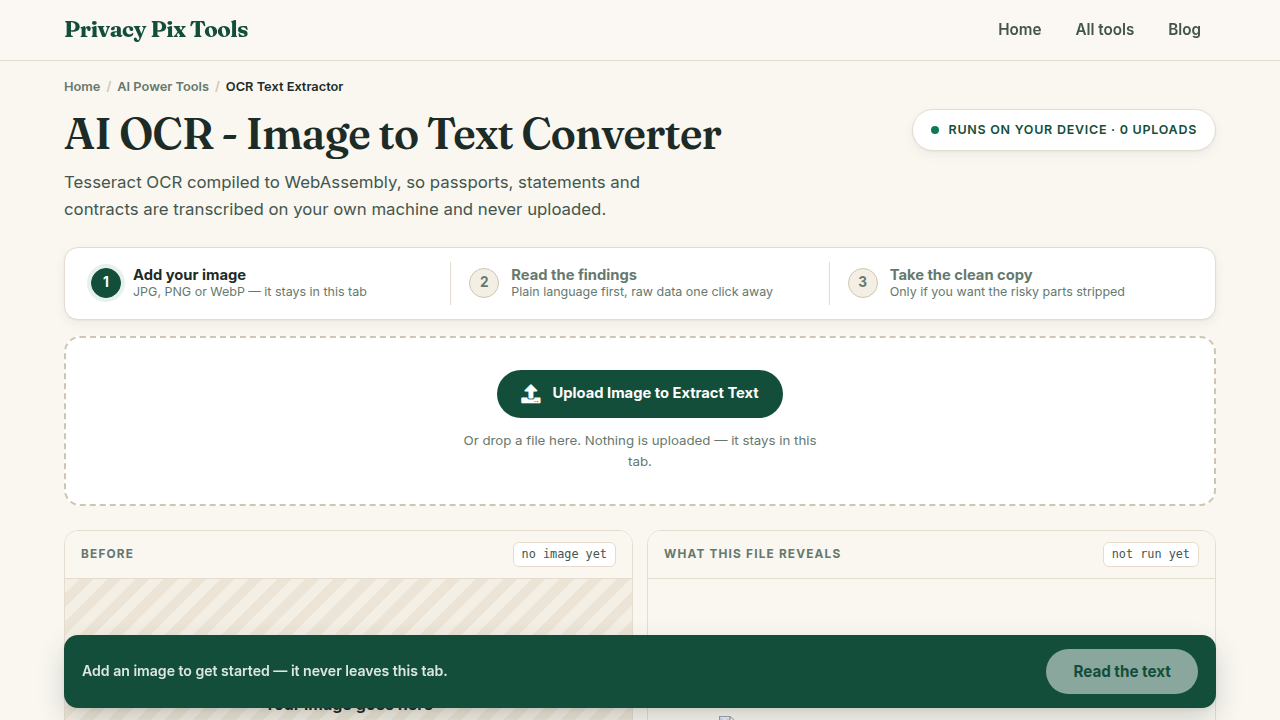
To extract text from an image, open the AI OCR Text Extractor, upload your screenshot or document photo, pick the language, and click Run AI OCR Extraction. The recognized text appears in an editable box with a Copy button - and because the OCR engine runs in your browser, the document itself is never uploaded.
Optical Character Recognition has quietly become one of the most-used AI capabilities in daily life: copying an address out of a screenshot, digitizing a receipt, rescuing a paragraph from a photographed page. What most people don't realize is that OCR no longer requires a cloud service - a full recognition engine (Tesseract, the same technology behind countless commercial products) now runs as WebAssembly inside a browser tab.
That matters because the images people OCR are disproportionately sensitive: contracts, invoices, IDs, medical letters. This guide covers the local workflow and the capture technique that makes the difference between 99% and 60% accuracy.
In this guide
What You Need Before You Start
An image containing printed text - a screenshot, a scan, or a well-lit photo. JPG, PNG, and WebP are supported. The quality bar: if you can read the text comfortably at 100% zoom, the OCR engine probably can too.
Privacy note: The recognition engine downloads to your browser and processes the image locally. Contracts and IDs are never sent to a cloud OCR API.
How to Turn an Image into Editable Text in 3 Steps
Step 1Upload the image containing text
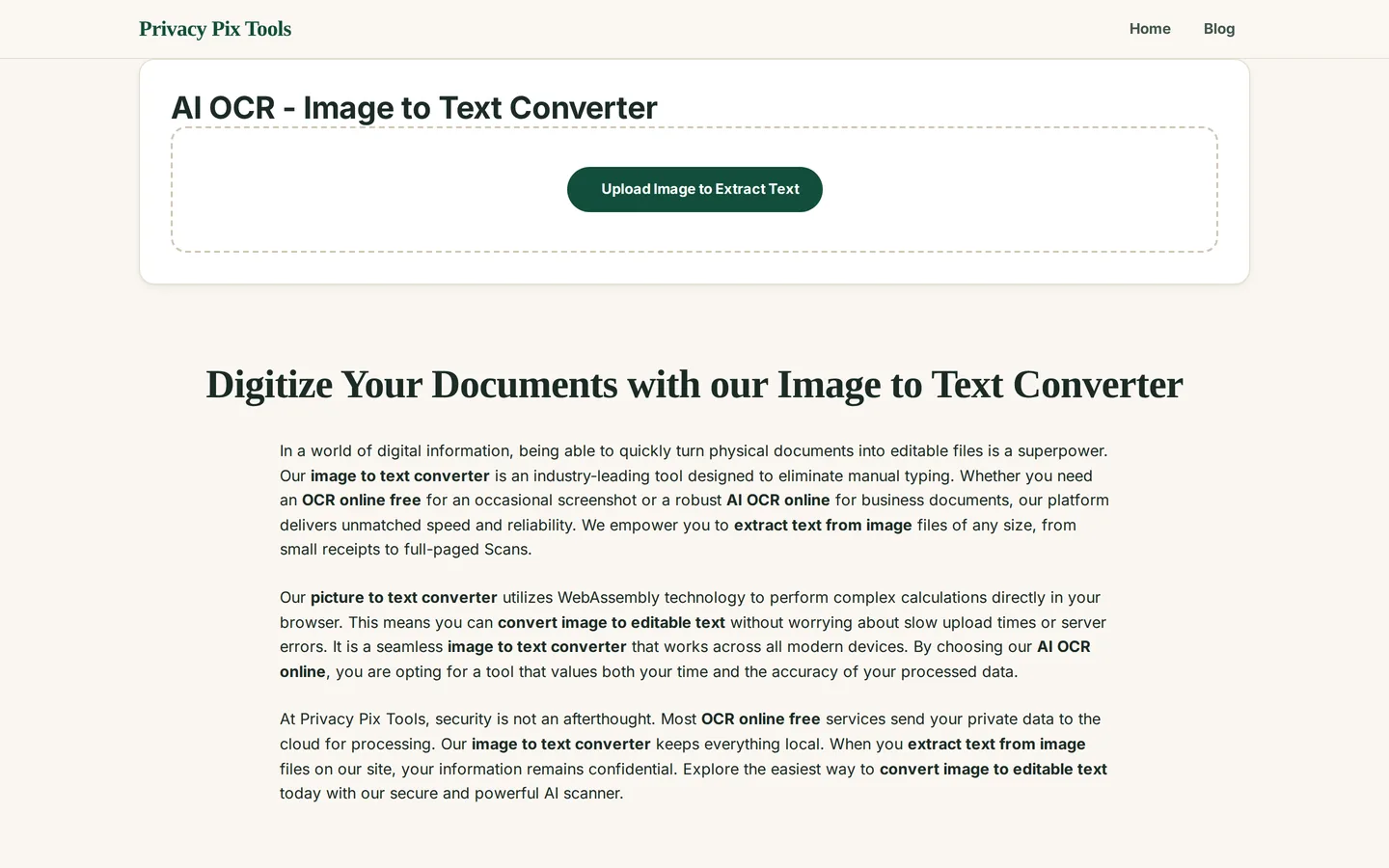
Open the AI OCR - Image to Text Converter and click Upload Image to Extract Text. The image previews on the page so you can confirm it is sharp and readable.
Step 2Select the language and run extraction
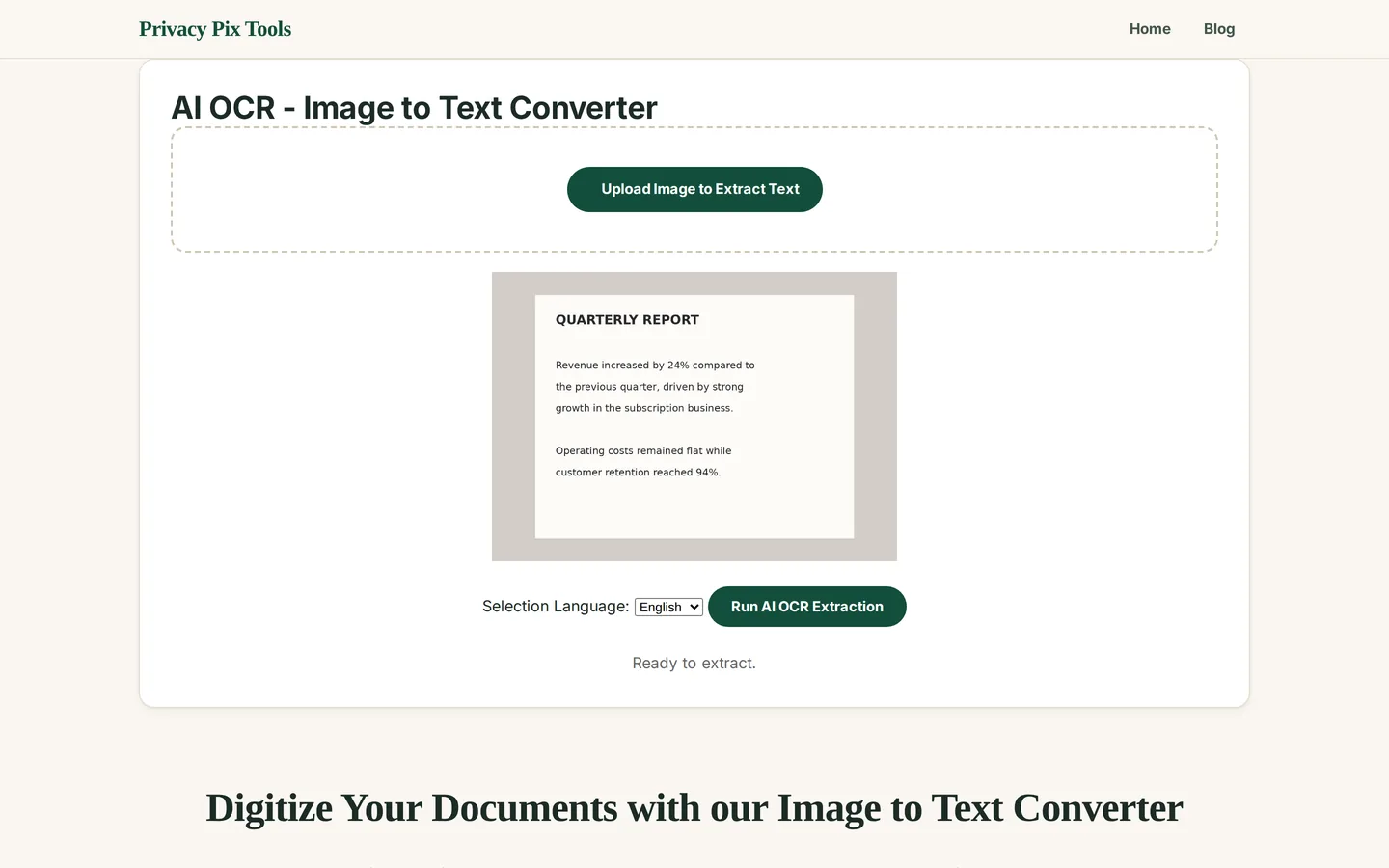
Choose the document's language in the Selection Language dropdown - this loads the matching recognition model and dramatically improves accuracy. Then click Run AI OCR Extraction. The engine initializes on first use, then works through the image region by region.
Step 3Copy your text
The recognized text appears in an editable output area. Proofread it - OCR is excellent, not perfect, and numbers deserve special attention - then hit Copy and paste anywhere: notes, spreadsheets, code, email.
Extract text from an image now
Open the AI OCR ToolPro Tips for Better Results
- Capture flat and square: Shoot documents from directly above in even light. Perspective distortion is the top accuracy killer - fix skewed photos with the Perspective Straightener before OCR.
- Resolution has a floor: Text needs roughly 20+ pixels of height to recognize reliably. Crop to the relevant region rather than OCR-ing a tiny paragraph lost in a big photo.
- Match the language model: Selecting the right language loads the right character set and dictionary - it is the single biggest accuracy switch in the tool.
- Contrast beats color: Faded receipts and low-contrast scans improve dramatically with a contrast boost in the Photo Editor before extraction.
- Verify numbers twice: OCR confuses 0/O, 1/l/I, and 5/S more than anything else. For invoices and account numbers, proofread digits character by character.
Why This Stays 100% Private
Cloud OCR APIs are explicit about it: submitted documents may be retained and used to improve their models. Think about what people OCR - contracts, financial statements, prescriptions, IDs - and that policy becomes alarming. Running Tesseract as WebAssembly in your tab removes the API from the equation: the recognition model comes to the document, not the reverse.
Unlike most "free" web tools, Privacy Pix Tools has no accounts, no file-size tricks, no watermarks, and no server-side processing. You can even load the page, disconnect from the internet, and the tool keeps working - proof that your files never leave your device.
Common Use Cases
- Receipts and invoices: Digitize amounts and line items into spreadsheets for expenses and taxes.
- Screenshots: Copy error messages, addresses, and quotes out of images when the original text is unselectable.
- Book and print excerpts: Photograph a page, extract the paragraph, cite it properly.
- Old documents: Turn letters and typewritten archives into searchable, editable text.
Frequently Asked Questions
How accurate is the OCR?
On clean printed text with the right language selected, expect near-perfect results. Accuracy falls with blur, skew, low contrast, decorative fonts, and tiny text - the capture tips above matter more than the engine.
Does it read handwriting?
Neat block printing sometimes works; cursive generally does not. This engine is optimized for printed text.
Which languages are supported?
Major world languages, selectable in the dropdown - each loads a dedicated recognition model. Always match the model to the document.
Is my document uploaded for processing?
No. The OCR engine (Tesseract compiled to WebAssembly) executes in your browser. The image never leaves your device - verify with your browser's network inspector if you like.
Can I OCR a PDF?
Convert PDF pages to images first with the PDF to Image tool, then OCR each page here. For born-digital PDFs, the text may already be selectable without OCR.
Why is the first extraction slower?
The engine and language model initialize on first run. Subsequent extractions in the same session skip that step and run much faster.
Related Tools & Guides
- Perspective Straightener - flatten skewed document photos before OCR.
- PDF to Image - convert PDF pages for OCR processing.
- How to Convert Images to PDF - rebuild processed pages into documents.
- Extract Text with AI OCR - the quick overview article.