How to Make an Animated GIF from Your Photos - Free & No Watermark
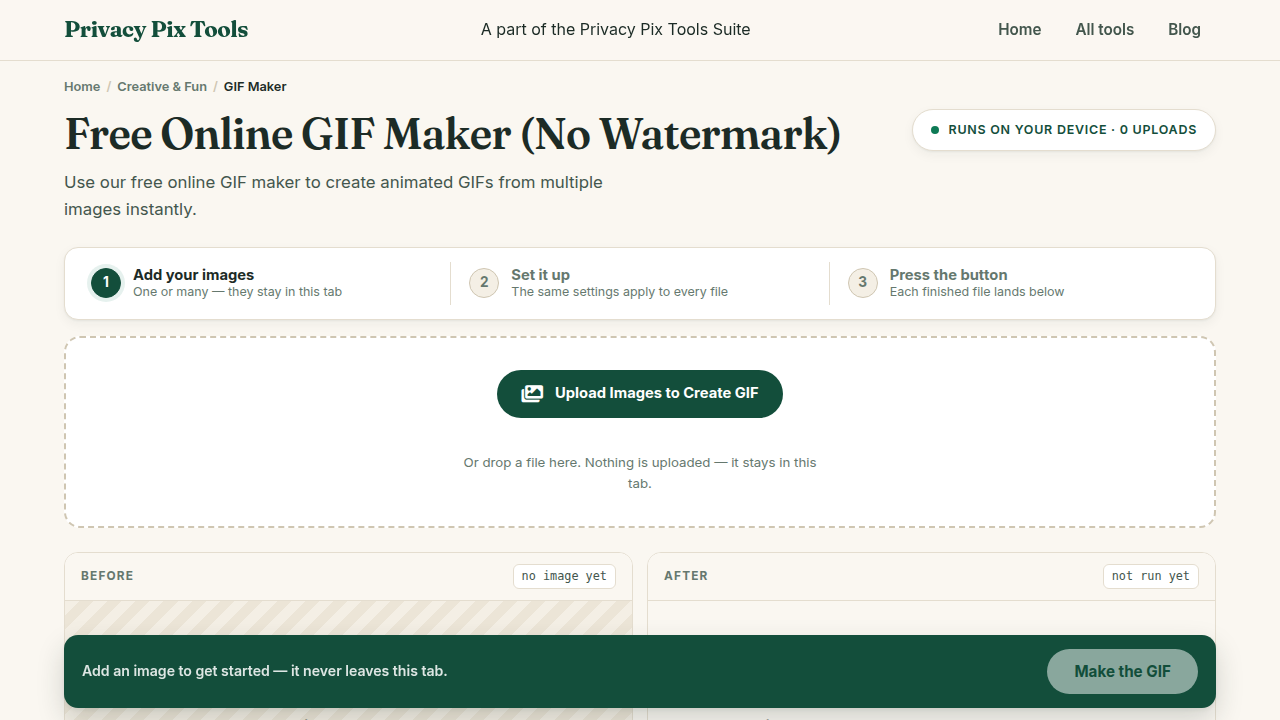
To make an animated GIF, open the free GIF Maker, upload your photos in sequence, set the Interval (seconds per frame) and Output Width, then click Generate Animated GIF and download. The animation is assembled entirely in your browser - no upload, no watermark, no account.
The GIF refuses to die for one reason: it plays everywhere, automatically, with no player, no codec, and no sound to unmute. Product spins, before/after reveals, short tutorials, reaction loops - a handful of still frames becomes a moving image that works in every chat app, email client, and README file on earth.
This guide shows you how to assemble photos into a GIF with full control over timing and size, plus the practical tricks - frame counts, dimensions, loop design - that keep file sizes sane.
In this guide
What You Need Before You Start
Two or more images (PNG, JPG, or WebP) that read as a sequence. They are added in selection order, so name files 01.jpg, 02.jpg, 03.jpg... to keep the story straight. Frames with identical dimensions produce the cleanest result.
Privacy note: The GIF encoder (gifshot) runs as JavaScript in your tab. Your frames and the finished animation never touch a server.
How to Make a GIF in 3 Steps
Step 1Upload your frames in order
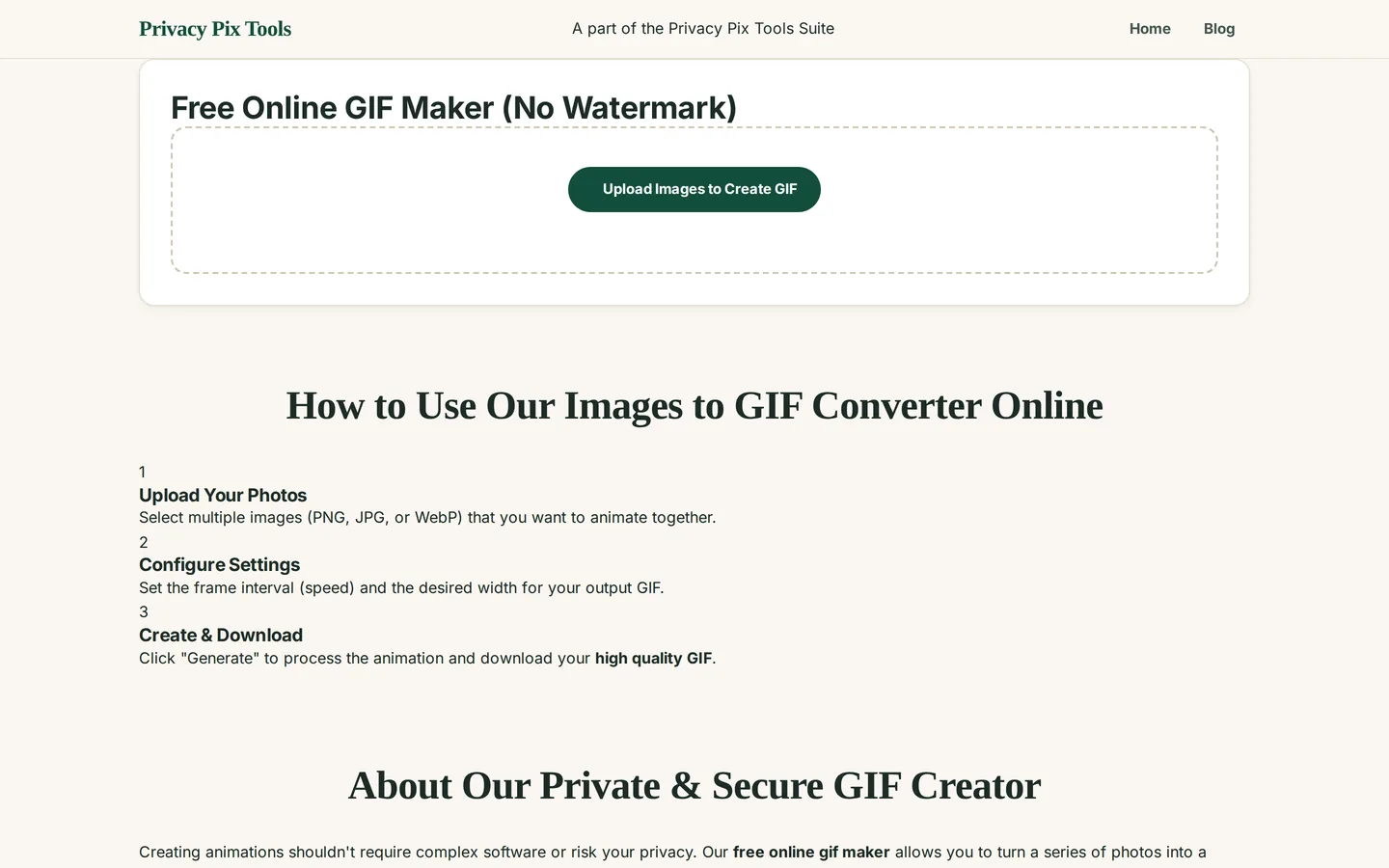
Open the Free Online GIF Maker (No Watermark) and click Upload Images to Create GIF. Select all frames at once - the counter confirms how many are loaded (e.g. "4 image(s) selected").
Step 2Set the interval and output width
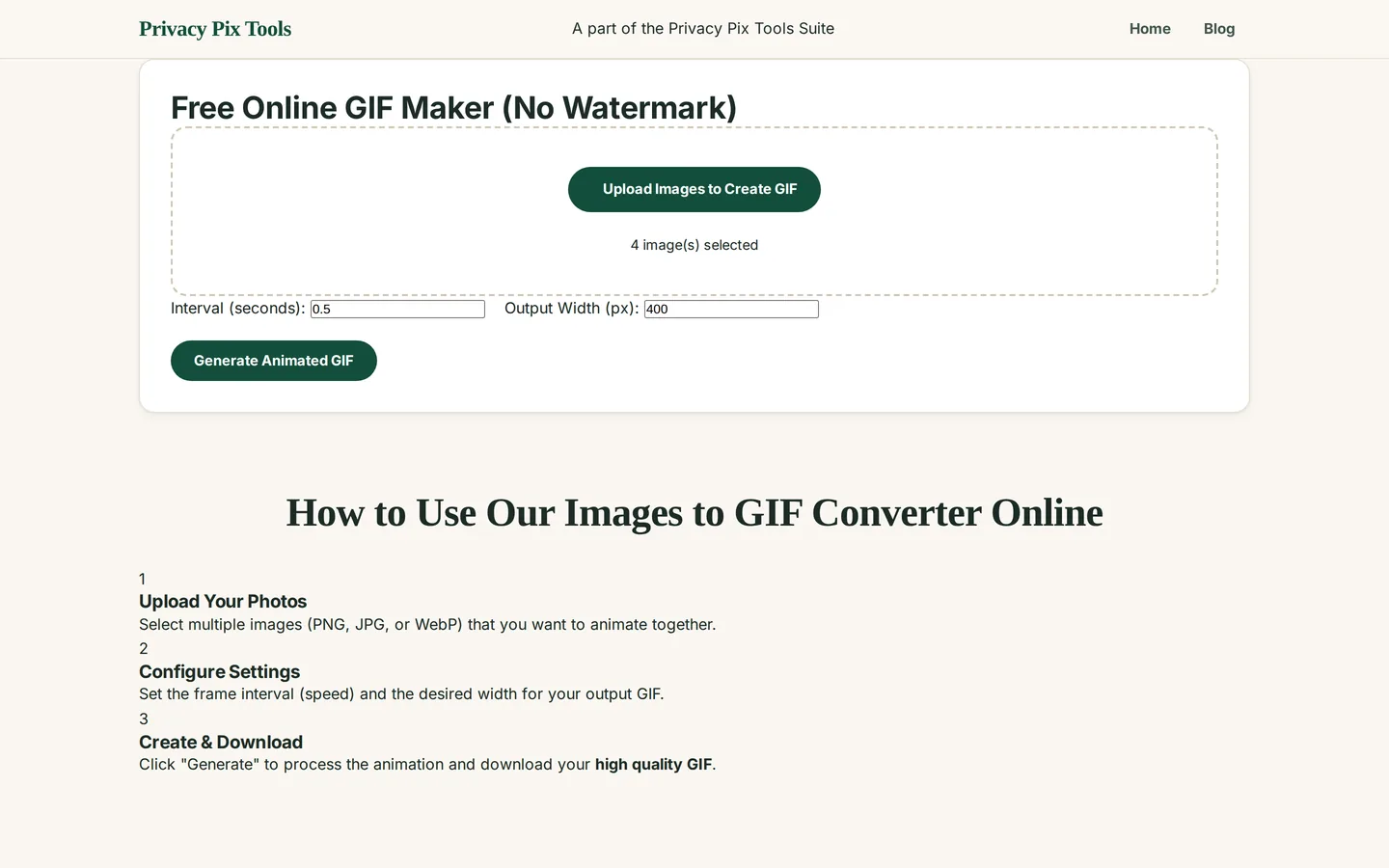
Two controls define your animation. Interval (seconds) is how long each frame shows - 0.5s reads as a comfortable slideshow, 0.1-0.2s feels like motion. Output Width (px) sets the GIF's size; 400px is a solid default for chat, 600-800px for tutorials where detail matters.
Step 3Generate and download
Click Generate Animated GIF. The encoder assembles frames locally - a few seconds for small GIFs, longer for many large frames - then presents the looping preview with a download link. Save it and drop it anywhere GIFs go, which is everywhere.
Animate your photos now
Open the GIF MakerPro Tips for Better Results
- GIF sizes explode fast: File size scales with width × frames. A 400px, 10-frame GIF is chat-friendly; an 800px, 40-frame one can hit tens of MB. Keep loops short and dimensions modest.
- Design for the loop: GIFs repeat forever. Sequences that end near where they began - a rotation, a bounce, a cycle - loop seamlessly instead of jarring on every restart.
- Consistent frames, better GIFs: Shoot from a fixed position (tripod, propped phone) so the background holds still and only your subject moves. Crop all frames identically with the Image Cropper first if needed.
- Slow for tutorials, fast for motion: Screen-recording-style GIFs need 1-2s per step so viewers can read. Flipbook animation needs 0.1s frames. Match the interval to the content.
- Caption frames before assembly: Add text to individual frames with the Meme Generator or Photo Editor, then assemble - the GIF format keeps text crisp if you avoid tiny fonts.
Why This Stays 100% Private
Online GIF services are content platforms first and tools second - uploads feed their public libraries and their moderation pipelines. Your team-retro animation or family birthday loop does not belong in either. This maker encodes the GIF with JavaScript on your machine: frames in, animation out, nobody in between.
Unlike most "free" web tools, Privacy Pix Tools has no accounts, no file-size tricks, no watermarks, and no server-side processing. You can even load the page, disconnect from the internet, and the tool keeps working - proof that your files never leave your device.
Common Use Cases
- Product showcases: Rotate a product through a dozen angles for a listing that moves.
- Before / after reveals: Two-frame GIFs are the cleanest way to show an edit, a renovation, or a redesign.
- Micro-tutorials: Step-by-step screenshots become a self-playing walkthrough for docs and READMEs.
- Reaction GIFs: Your own face, your own pet, your own joke - original reaction material for the group chat.
Frequently Asked Questions
How many images do I need for a GIF?
Two frames already make a functional loop (great for before/after). Smooth motion typically wants 8-20 frames. More frames mean smoother animation and bigger files.
What does the interval setting control?
Seconds per frame. 0.5 gives a readable slideshow pace; 0.1-0.2 approximates motion; 1-2 suits step-by-step tutorials.
Why is my GIF file so large?
Width and frame count dominate. Reduce output width to 400px, trim frames, and avoid photographic backgrounds with lots of noise - GIF compresses flat areas far better.
Is there a watermark on the output?
No. The generated GIF contains your frames and nothing else.
Can I make a GIF from a video?
This tool assembles still images. Export frames from your video first (most players can save frames), then upload the stills here.
Do animated GIFs keep my photos' metadata?
The encoding process writes fresh image data without EXIF, but if you care about metadata hygiene, scrub source frames with the Metadata Remover first.
Related Tools & Guides
- Meme Generator - caption frames before animating them.
- Image Cropper - crop all frames to identical dimensions.
- How to Compress Images - shrink frames before assembly for smaller GIFs.
- Make Your Own GIFs - the quick overview article.