How to Remove the Background from an Image - Free, Private & In Your Browser
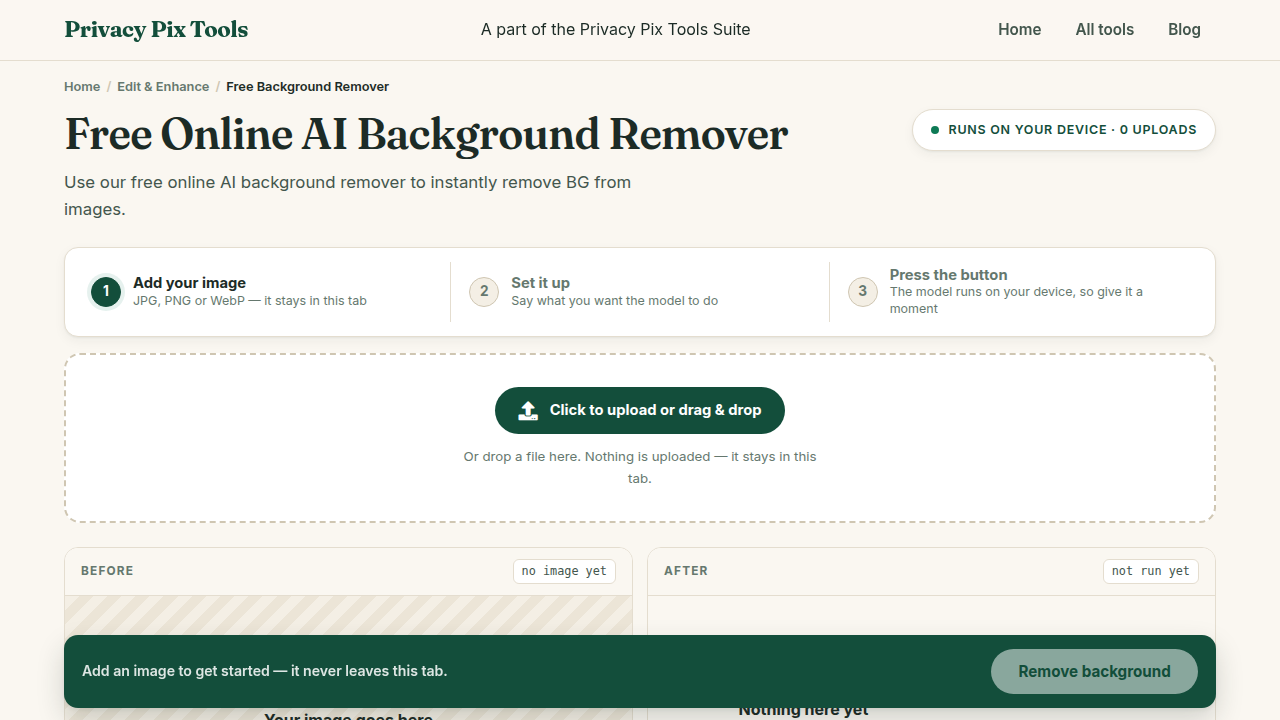
To remove the background from an image for free, open the AI Background Remover, upload your photo, click Remove Background, and download the transparent PNG. The AI model runs locally in your browser, so the photo is never uploaded to a server - no account, no watermark, no file limits.
Background removal used to require Photoshop skills and a steady hand with the pen tool. Today, a neural network can separate a subject from its background in seconds - and thanks to WebAssembly, that network can run inside your browser instead of on someone else's server. This guide walks you through the entire process with real screenshots, explains what makes local AI different from upload-based services like remove.bg, and shares tips for getting clean edges on hair, fur, and other tricky details.
The tool works with JPG, PNG, and WebP images and outputs a PNG with a true alpha channel (transparency), ready to drop onto any new background, product page, or presentation slide.
In this guide
What You Need Before You Start
Any modern browser (Chrome, Edge, Firefox, or Safari) on desktop or mobile, and the photo you want to cut out. Photos with decent contrast between subject and background give the best results. The first run downloads the AI model into your browser cache (a few MB), so a normal internet connection helps the first time; after that it is nearly instant.
Privacy note: The segmentation model is downloaded to your device and executed there. Your photo is never transmitted anywhere - you can watch the network tab in your browser's developer tools and see that no image data leaves the page.
How to Remove an Image Background in 3 Steps
Step 1Upload the photo you want to cut out
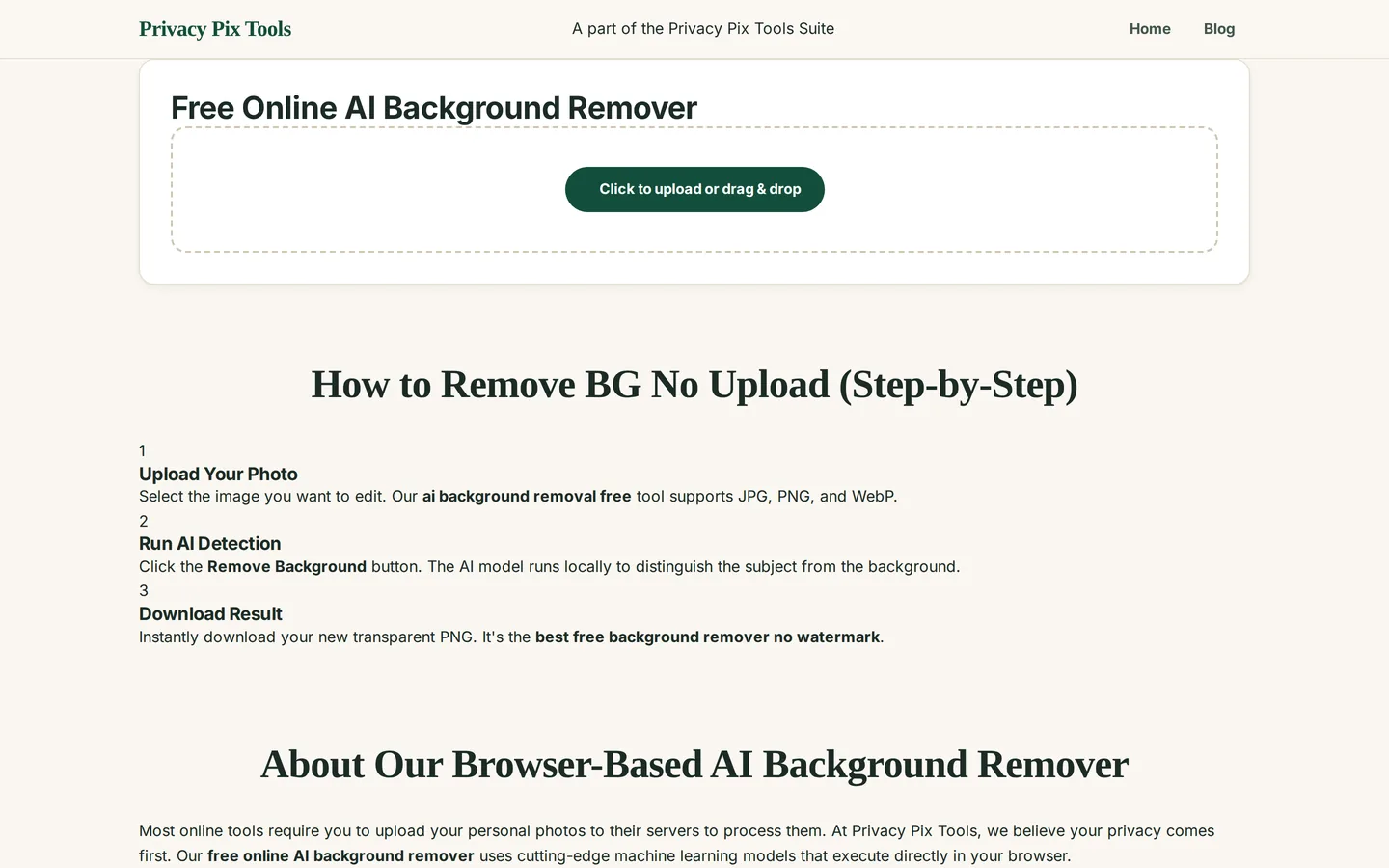
Go to the Free Online AI Background Remover and click "Click to upload or drag & drop". You can also drag a file straight from your file manager onto the dashed upload zone. JPG, PNG, and WebP are all supported.
Step 2Click “Remove Background” and let the AI work
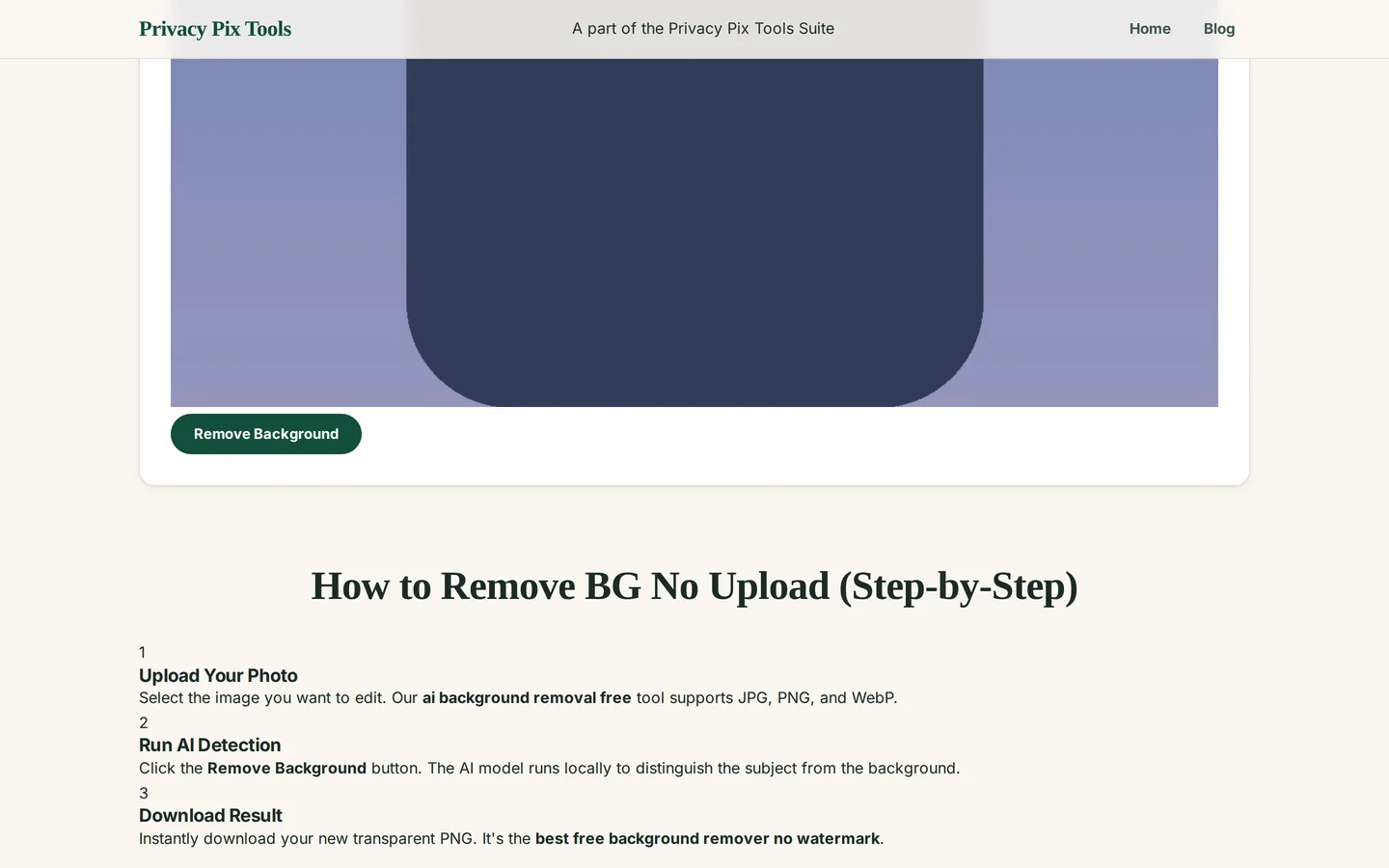
Your photo appears in the preview with a green Remove Background button underneath. Click it. The AI model (a portrait/object segmentation network) loads into your browser and analyzes the image locally. Depending on your device this takes from a couple of seconds to about twenty - a laptop from the last few years handles it easily.
While it works, nothing is uploaded: the entire computation runs on your own CPU/GPU via WebAssembly. That is why the tool keeps working even if you disconnect from Wi-Fi after the page loads.
Step 3Download your transparent PNG
When processing finishes, the checkerboard pattern shows exactly which pixels are now transparent. Click Download PNG and the cut-out saves straight to your downloads folder with full resolution preserved and no watermark added.
Need the subject on a new backdrop? Open the result in the Image Overlay Tool or the Photo Editor and layer it over any background you like.
Remove a background right now
Open the Background RemoverPro Tips for Better Results
- Contrast is king: Subjects that stand out from the background (a person against a wall, a product on a table) segment more cleanly than subjects that blend in. If you control the shot, avoid busy backgrounds.
- Watch the edges at 100%: Zoom into hair, fur, and semi-transparent areas after download. If edges look rough, try a higher-resolution source image - the model has more pixels to work with.
- Keep the PNG format: JPG cannot store transparency. If you re-save the result, always keep it as PNG or WebP, otherwise the background comes back as solid white.
- Batch workflow: Cutting out many product photos? Process them one after another in the same tab - the model stays loaded after the first run, so every following image is much faster.
- Portrait mode alternative: If you want a blurred background instead of a removed one, the AI Background Blur tool creates a DSLR-style depth effect in one click.
Why This Stays 100% Private
Traditional background removal sites work by uploading your photo to their servers, running the AI there, and sending the result back. That means your image - and everything in it - is in someone else's hands, subject to their retention policy. Privacy Pix Tools flips this: the AI model travels to you and runs in a sandboxed browser tab. Personal photos, unreleased product shots, and ID pictures never leave your machine.
Unlike most "free" web tools, Privacy Pix Tools has no accounts, no file-size tricks, no watermarks, and no server-side processing. You can even load the page, disconnect from the internet, and the tool keeps working - proof that your files never leave your device.
Common Use Cases
- E-commerce product photos: Marketplaces like Amazon and Etsy prefer clean, white or transparent backgrounds. Cut out the product, then drop it onto a pure white canvas.
- Profile pictures and avatars: Remove a messy room from behind you, then place yourself on a brand color or gradient.
- Marketing graphics: Layer cut-out subjects into banners, thumbnails, and social posts without licensing stock PNGs.
- Document photos: Some visa and ID applications require a plain background - cut yourself out and add the required color behind.
Frequently Asked Questions
Is this background remover really free?
Yes. There is no trial, no credit system, and no watermark. Because processing happens on your device, there are no server costs to pass on to you - the tool is free without a catch.
Does my photo get uploaded anywhere?
No. The AI model is downloaded to your browser and the photo is processed locally. You can disconnect from the internet after the page loads and background removal still works.
What image formats are supported?
JPG, PNG, and WebP as input. Output is always PNG, because PNG supports the alpha (transparency) channel that JPG lacks.
Why is the first image slower than the rest?
The first run downloads and initializes the neural network in your browser. Once cached, subsequent images are processed much faster.
How do I put a new background behind the cut-out?
Use the Image Overlay Tool or the Photo Editor on this site: load your new background, add the transparent PNG as a layer on top, position it, and export.
Can I remove the background from multiple images at once?
The tool processes one image at a time to keep memory usage low on all devices, but the model stays warm between images, so a batch of product shots goes quickly.
Related Tools & Guides
- AI Background Blur - keep the background but blur it into a portrait-mode bokeh.
- Image Overlay Tool - place your transparent cut-out onto a new background.
- How to Edit Photos Online - the full guide to the private photo editor.
- Free Background Removal with Local AI - why local AI beats upload-based services.