How to Upscale an Image with AI - Free Super Resolution in Your Browser
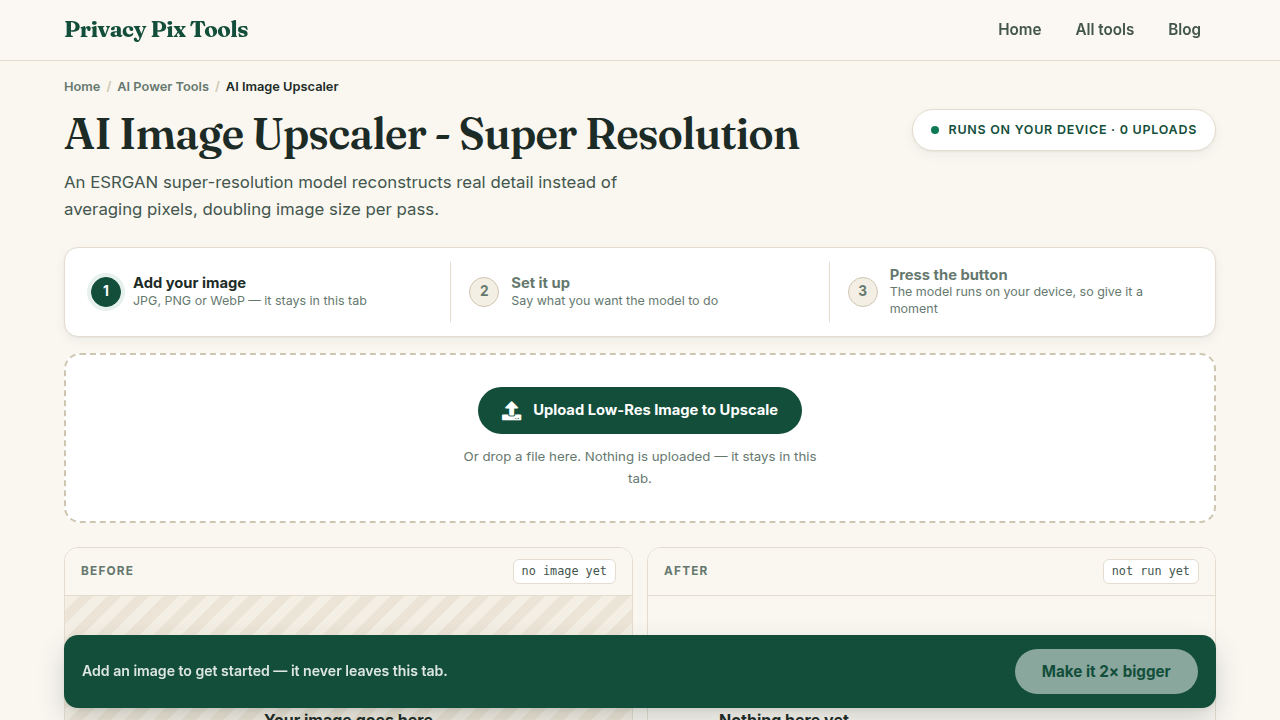
To upscale an image with AI for free, open the AI Image Upscaler, upload your low-resolution photo, click Make it 2× bigger, and download the enhanced result. A super-resolution neural network reconstructs detail as it enlarges - and it runs entirely in your browser, so the photo is never uploaded.
Traditional resizing (bicubic interpolation) makes images bigger by smearing existing pixels - which is why enlarged photos look soft and blocky. AI super resolution works differently: a neural network trained on millions of image pairs predicts the detail that should exist at the higher resolution, reconstructing edges, textures, and patterns that plain scaling can only blur.
This guide shows you how to run that network locally with TensorFlow.js, what kind of images benefit most, and how to chain upscaling with denoising for old photo restoration.
In this guide
What You Need Before You Start
A small or low-resolution image (JPG, PNG, or WebP) and a reasonably recent device - the neural network runs on your machine, and a laptop or modern phone handles it comfortably. Very large inputs need more memory: the sweet spot is upscaling images from roughly 200-1500 px per side.
Privacy note: The super-resolution model (UpscalerJS on TensorFlow.js) downloads to your browser and runs there. Old family photos, ID scans, and design assets stay on your device.
How to Upscale an Image in 3 Steps
Step 1Upload your low-resolution image
Open the AI Image Upscaler and click Upload Low-Res Image to Upscale. Small web images, old phone photos, compressed downloads, and thumbnail-sized graphics are all fair game.
Step 2Run the AI upscaling
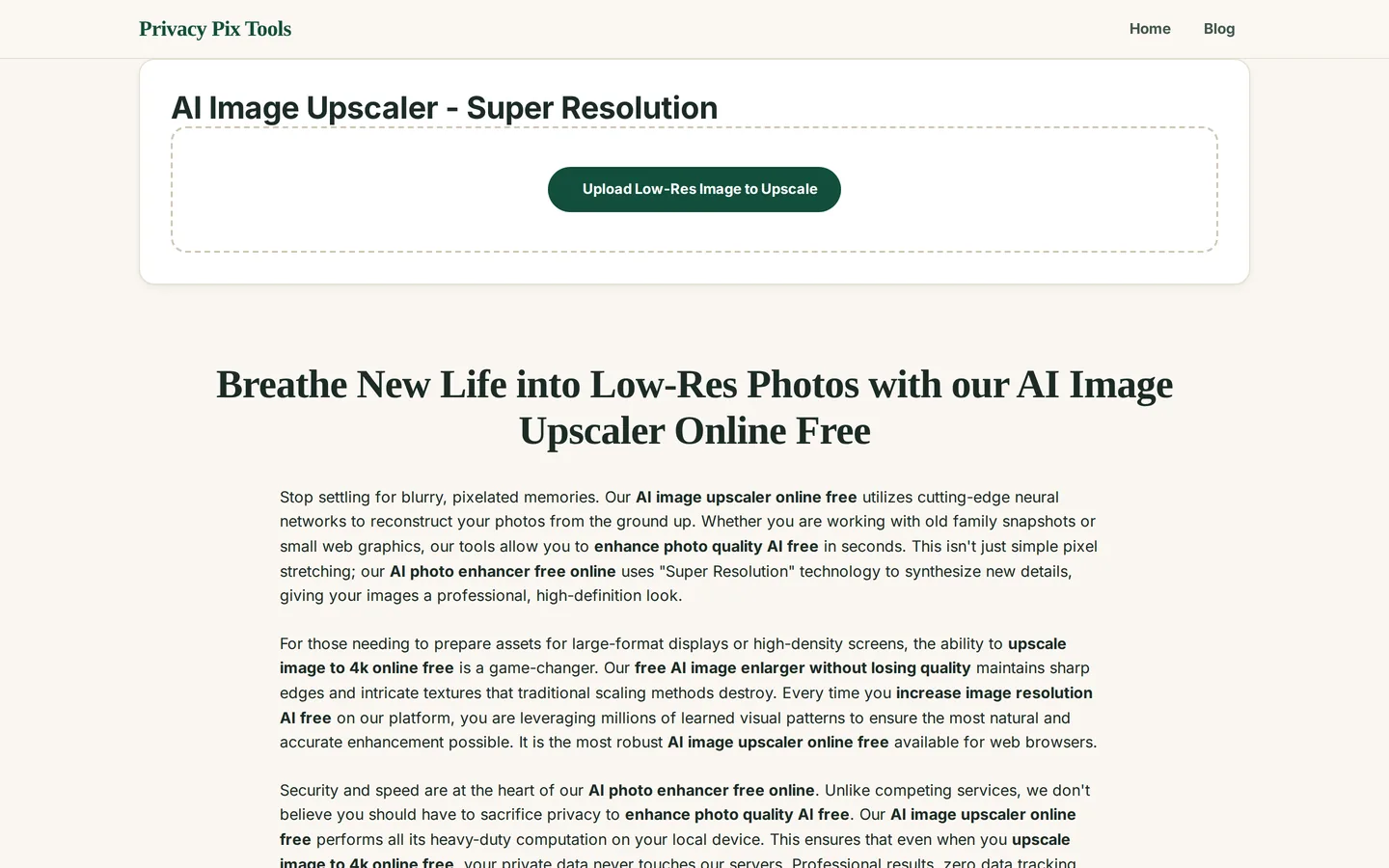
The interface shows your Original Resource beside an empty AI Enhanced Result panel. Click Make it 2× bigger. The model loads once, then processes the image tile by tile - expect several seconds to a minute depending on image size and your hardware.
The page stays responsive while the network runs. Processing is compute-heavy by design: that work is exactly what other sites do on their servers with your uploaded file.
Step 3Compare and download the enhanced image
When the result panel fills in, compare it against the original - edges should be crisper and textures cleaner at double the dimensions. Click Download 2x PNG to save the upscaled PNG at full quality.
Enhance a low-res image now
Open the AI UpscalerPro Tips for Better Results
- Denoise first, upscale second: Upscaling amplifies whatever is in the image - including noise and JPG artifacts. Run grainy photos through the AI Denoise & Sharpen tool before upscaling for dramatically cleaner results.
- Know the limits: AI reconstructs plausible detail; it cannot recover information that was never captured. A 50-pixel face will not become identifiable - but a soft 800px photo becomes a crisp 1600px one.
- Chain 2x passes carefully: Need 4x? Upscale twice. Quality holds up surprisingly well, but inspect the result between passes - some images are better served by one pass plus sharpening.
- Best candidates: Old digital camera photos, downloaded web images, game textures, logos rasterized too small, and video frames all upscale beautifully. Text-heavy screenshots often do better with the OCR tool instead.
- Watch your memory on mobile: Phones can run the model but have tighter memory limits. For very large upscales, use a desktop browser.
Why This Stays 100% Private
AI upscaling services normally run their models on GPU servers, which means your image must be uploaded, processed, stored at least temporarily, and often used to "improve the service." Running the network in your browser via TensorFlow.js removes the server from the equation entirely. The trade-off - your hardware does the work - buys you something no cloud service offers: mathematical certainty that your photo stayed home.
Unlike most "free" web tools, Privacy Pix Tools has no accounts, no file-size tricks, no watermarks, and no server-side processing. You can even load the page, disconnect from the internet, and the tool keeps working - proof that your files never leave your device.
Common Use Cases
- Restoring old photos: Scanned or early-digital family photos gain resolution for reprinting - pair with the AI Photo Colorizer for black-and-white restoration.
- Print preparation: Take a web-resolution image to print DPI for flyers, posters, and photo books.
- E-commerce zoom: Marketplace zoom views demand higher resolution than many suppliers provide - upscale product shots cleanly.
- Design assets: Rescue a logo or icon that only exists as a small raster export.
Frequently Asked Questions
How does AI upscaling differ from normal resizing?
Normal resizing interpolates between existing pixels, producing softness. AI super resolution uses a trained neural network to predict and reconstruct the detail that should exist at the larger size - recovering edges and textures interpolation cannot.
Is it really free? Most AI upscalers charge per image.
Yes. Paid services charge because GPU servers cost money per image. Here the computation happens on your device, so there is nothing to meter - unlimited upscales, free.
How long does upscaling take?
From a few seconds for small images to a minute or so for larger ones, depending on your hardware. The model loads once per session; subsequent images process faster.
Can I upscale 4x instead of 2x?
Run the 2x upscale, download, and run the result through again for an effective 4x. Inspect quality between passes.
Why does my very large image fail or slow down?
The model runs in browser memory, and huge inputs can exceed it - especially on phones. Upscaling is designed for small-to-medium images; a 4000px photo rarely needs it.
Will it fix blurry photos?
It sharpens soft, low-resolution images well. Motion blur and severe out-of-focus blur are different problems - improvement will be modest, though the Denoise & Sharpen tool can help.
Related Tools & Guides
- AI Denoise & Sharpen - clean grain and artifacts before upscaling.
- AI Photo Colorizer - restore black-and-white photos with color.
- How to Remove Objects from Photos - erase defects before enhancement.
- Make Small Images Huge - the quick overview article.