How to Remove Unwanted Objects from Photos - AI Magic Eraser, No Upload
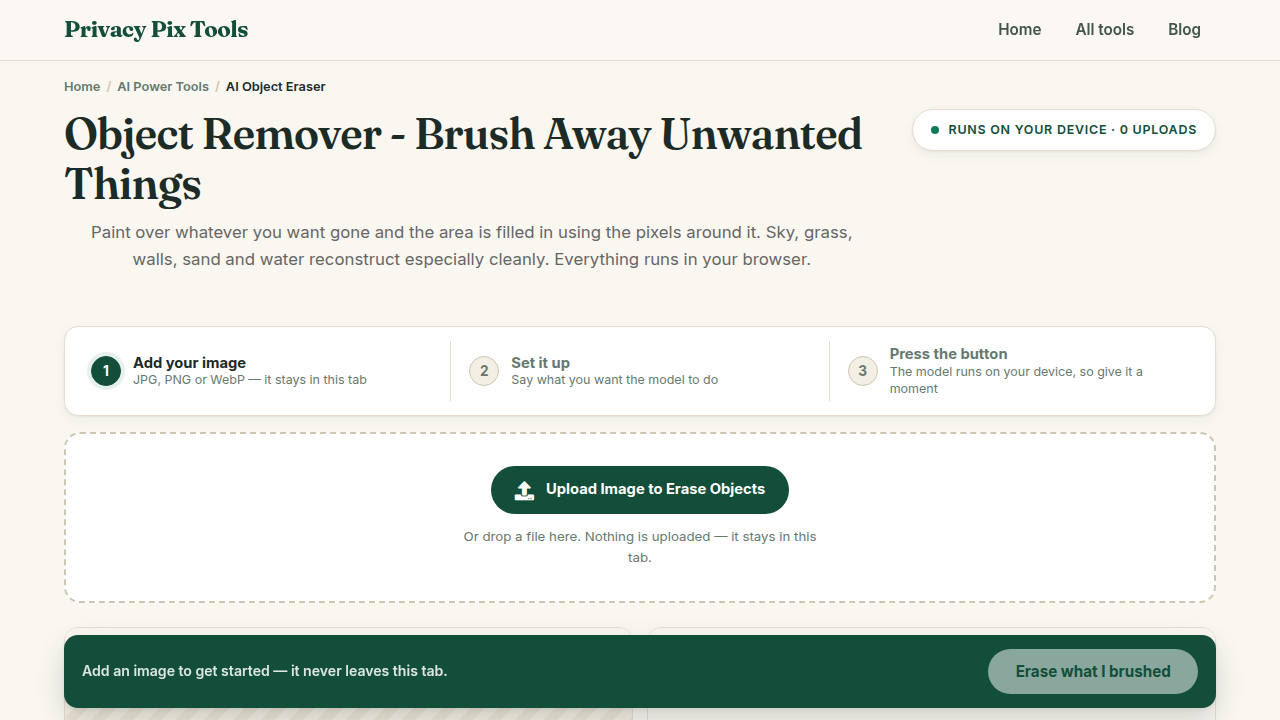
To remove an object from a photo, open the AI Object Eraser, upload the image, brush over the unwanted object with the adjustable selection brush, and click Erase Selected Elements. AI inpainting reconstructs the background where the object used to be - locally, in your browser, with no upload and no watermark.
Every photographer knows the shot that was almost perfect: the stranger walking into frame, the power line slicing the sky, the trash can anchored to the corner of an otherwise beautiful scene. Object removal - "inpainting," in computer-vision terms - deletes the offender and synthesizes plausible background in its place, using the surrounding pixels as evidence for what should have been there.
This guide covers the brush-select-erase workflow and the selection technique that separates seamless results from smudgy ones.
In this guide
What You Need Before You Start
A photo (JPG, PNG, or WebP) with something you want gone. Objects surrounded by regular, predictable background - sky, grass, water, walls, pavement - erase almost perfectly. Objects overlapping complex or unique details (half a face, patterned architecture) are harder for any inpainting system.
Privacy note: The inpainting model runs client-side. The photos you retouch - often personal, often not public - never leave your device.
How to Erase an Object in 3 Steps
Step 1Upload your photo
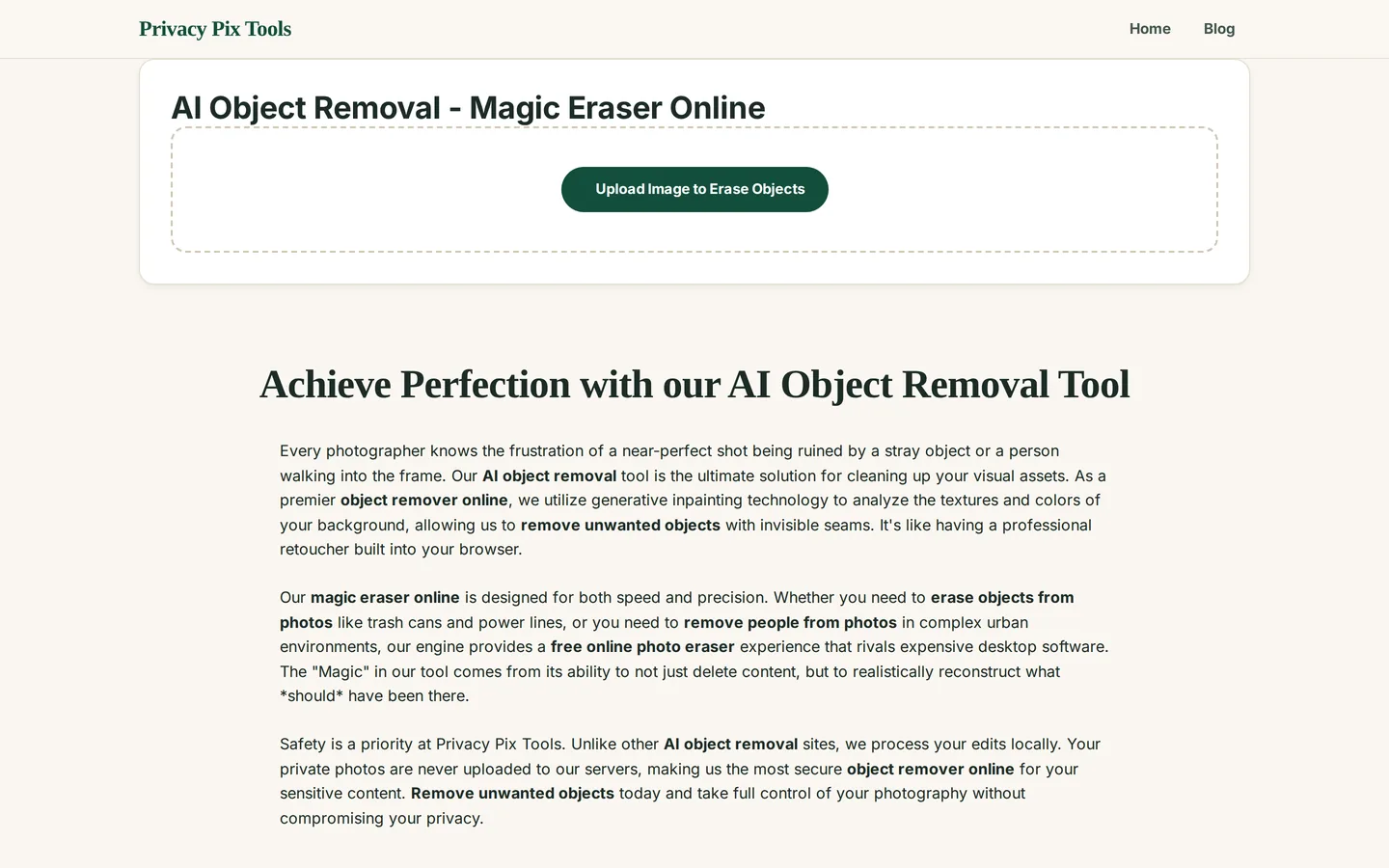
Open the AI Object Removal - Magic Eraser and click Upload Image to Erase Objects. The photo loads onto an interactive canvas ready for brushing.
Step 2Brush over what you want removed
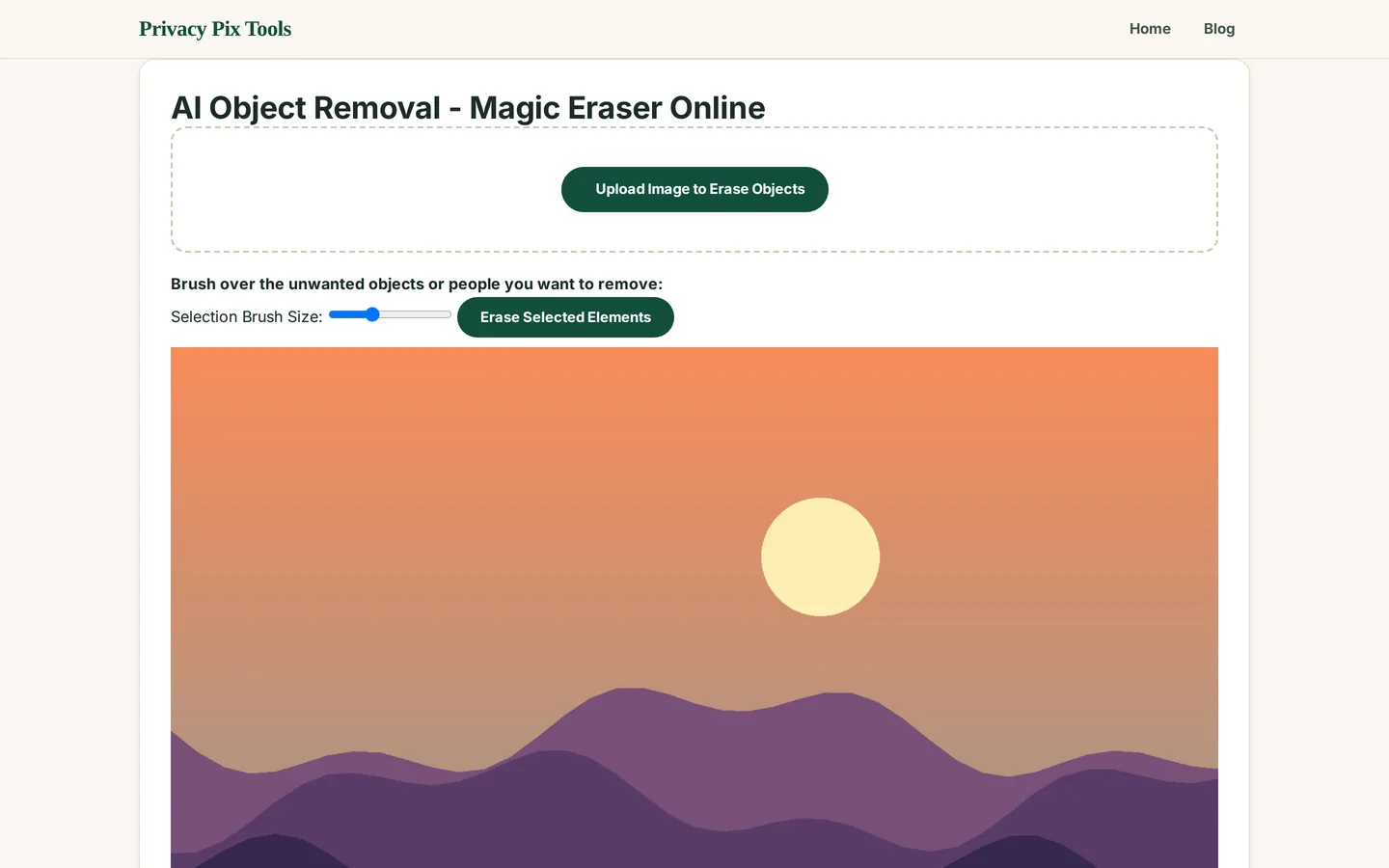
Set the Selection Brush Size slider, then paint directly over the unwanted object. Cover it completely - including its shadow and reflection, which give away a removal faster than the object itself. A slight overlap past the edges helps the AI blend cleanly.
Step 3Erase and download
Click Erase Selected Elements. The model analyzes the surrounding pixels and fills the masked region with synthesized background. Inspect at full zoom; brush and erase again for stubborn remnants, then hit Download for the clean image.
Clean up a photo now
Open the AI Object EraserPro Tips for Better Results
- Shadows and reflections too: Removing a person but leaving their shadow is the classic tell. Brush over the object, its shadow, and any reflection in one pass.
- Multiple small passes beat one big one: Erasing several objects? Do them one at a time - each removal gives the AI cleaner context for the next.
- Overlap the edges slightly: A selection that stops exactly at the object's outline leaves a ghost ring. Extend the brush a few pixels past the edge for seamless blending.
- Simple backgrounds forgive everything: Sky, sea, sand, grass, and plain walls inpaint invisibly. Manage expectations on complex textures - brick, crowds, text.
- Finish with a polish pass: For photos headed to print or portfolio, follow the erase with AI Denoise & Sharpen to unify the grain across original and synthesized regions.
Why This Stays 100% Private
Photos that need retouching are usually the ones closest to your life - family scenes, home interiors, personal moments with an unwanted element. Cloud erasers process those photos on their servers and, per their terms, may retain them. Local inpainting removes that trade: the reconstruction happens in your browser's sandbox, and the only copies of your photo remain the ones on your own disk.
Unlike most "free" web tools, Privacy Pix Tools has no accounts, no file-size tricks, no watermarks, and no server-side processing. You can even load the page, disconnect from the internet, and the tool keeps working - proof that your files never leave your device.
Common Use Cases
- Travel photos: Erase the crowd from your landmark shot - one tourist at a time, from the outside in.
- Real estate & rentals: Remove bins, cars, and clutter from exterior shots (within honest-listing limits).
- Product photography: Delete dust, fingerprints, and stray props from listing images.
- Scanned photo restoration: Brush away creases, spots, and tape marks on digitized prints.
Frequently Asked Questions
How does AI object removal actually work?
It is called inpainting: the model treats your brushed region as missing data and predicts what belongs there from the surrounding pixels - extending textures, edges, and lighting. It reconstructs what plausibly should have been behind the object.
Can I remove a person from a photo?
Yes - people are the most common target. Brush over the person, their shadow, and reflection. Results are best when the background behind them is reasonably uniform.
Why does my result look smudged?
Usually an under-sized selection or a too-complex background. Re-brush with slight edge overlap and erase again; several focused passes outperform one broad one.
Is there a watermark or resolution limit?
No watermark, and output keeps your original resolution. Free web erasers that watermark are monetizing server costs this tool doesn't have.
Does the photo get uploaded for processing?
No - the inpainting runs in your browser. Nothing you retouch is transmitted anywhere.
Can it remove text or watermarks from images?
Technically it removes any pixels you brush. Don't use it to strip other creators' watermarks - that violates copyright. For your own images with baked-in text, it works well on simple backgrounds.
Related Tools & Guides
- AI Denoise & Sharpen - polish the photo after object removal.
- How to Upscale Images with AI - enhance resolution after cleanup.
- Privacy Blur & Pixelate - when hiding is enough and removing is overkill.
- The Magic Eraser Guide - the quick overview article.