How to Convert HEIC to JPG - Open iPhone Photos Anywhere
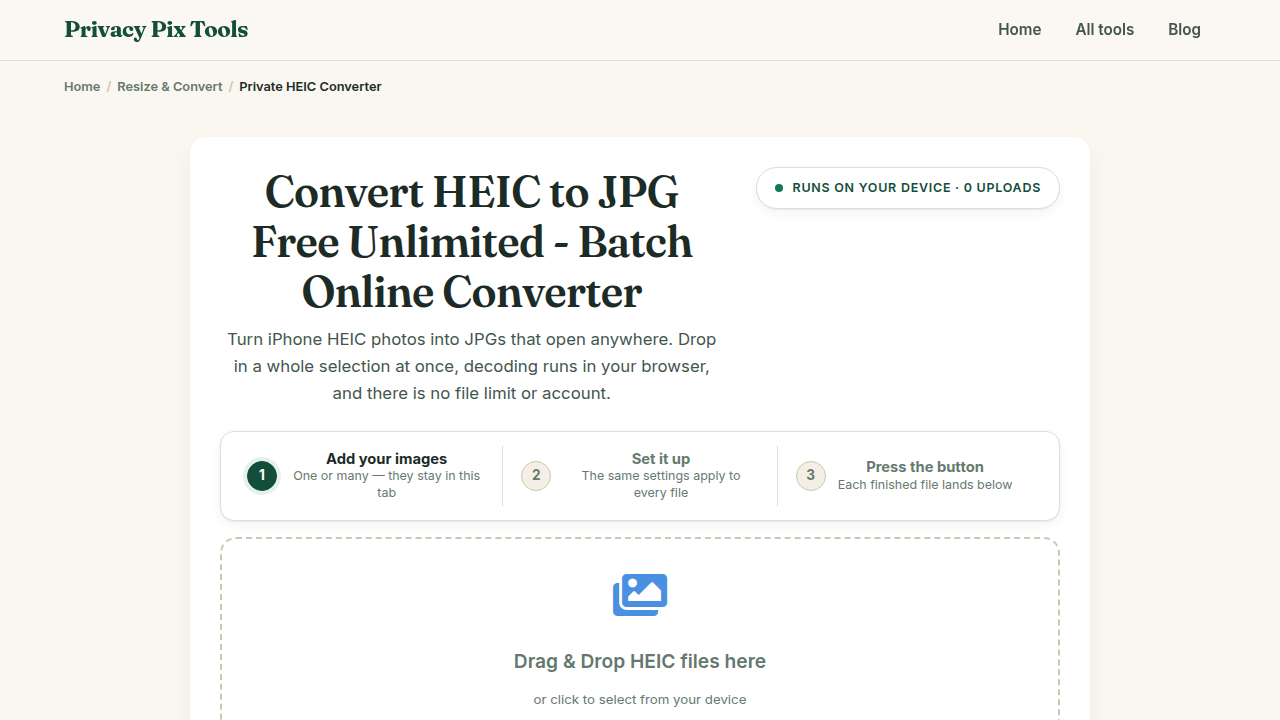
To convert HEIC to JPG for free, open the HEIC to JPG Converter, drag your iPhone photos onto the drop zone, wait a moment for the in-browser conversion, and click Download JPG. No software install, no upload to a server, and no limit on how many photos you convert.
Since iOS 11, iPhones save photos in HEIC (High Efficiency Image Container) - a format that stores excellent quality at about half the size of JPG. The catch: Windows often can't open it without paid codecs, many websites reject it in upload forms, and older software has never heard of it. Converting to JPG remains the universal fix.
This guide shows the fastest private way to do that conversion: a WebAssembly HEIC decoder that runs entirely inside your browser tab. Your family photos are never uploaded to a stranger's server - a real concern with most "free HEIC converter" websites.
⚡ Need to convert HEIC photos right now?
Drop your iPhone HEIC photos into our free online batch converter. Fast WebAssembly processing, unlimited files, and 100% private in your browser.
Open Free HEIC to JPG Converter →In this guide
What You Need Before You Start
The HEIC files from your iPhone (transferred by USB cable, AirDrop, or cloud sync) and any modern browser on any operating system. Nothing to install. If you have hundreds of files, the tool converts them in batch - drop them all at once.
Privacy note: The HEIC decoder is compiled to WebAssembly and runs locally. Your photos - often the most personal files you own - are decoded and re-encoded on your own device.
How to Convert HEIC to JPG in 3 Steps
Step 1Open the converter and drop in your HEIC files
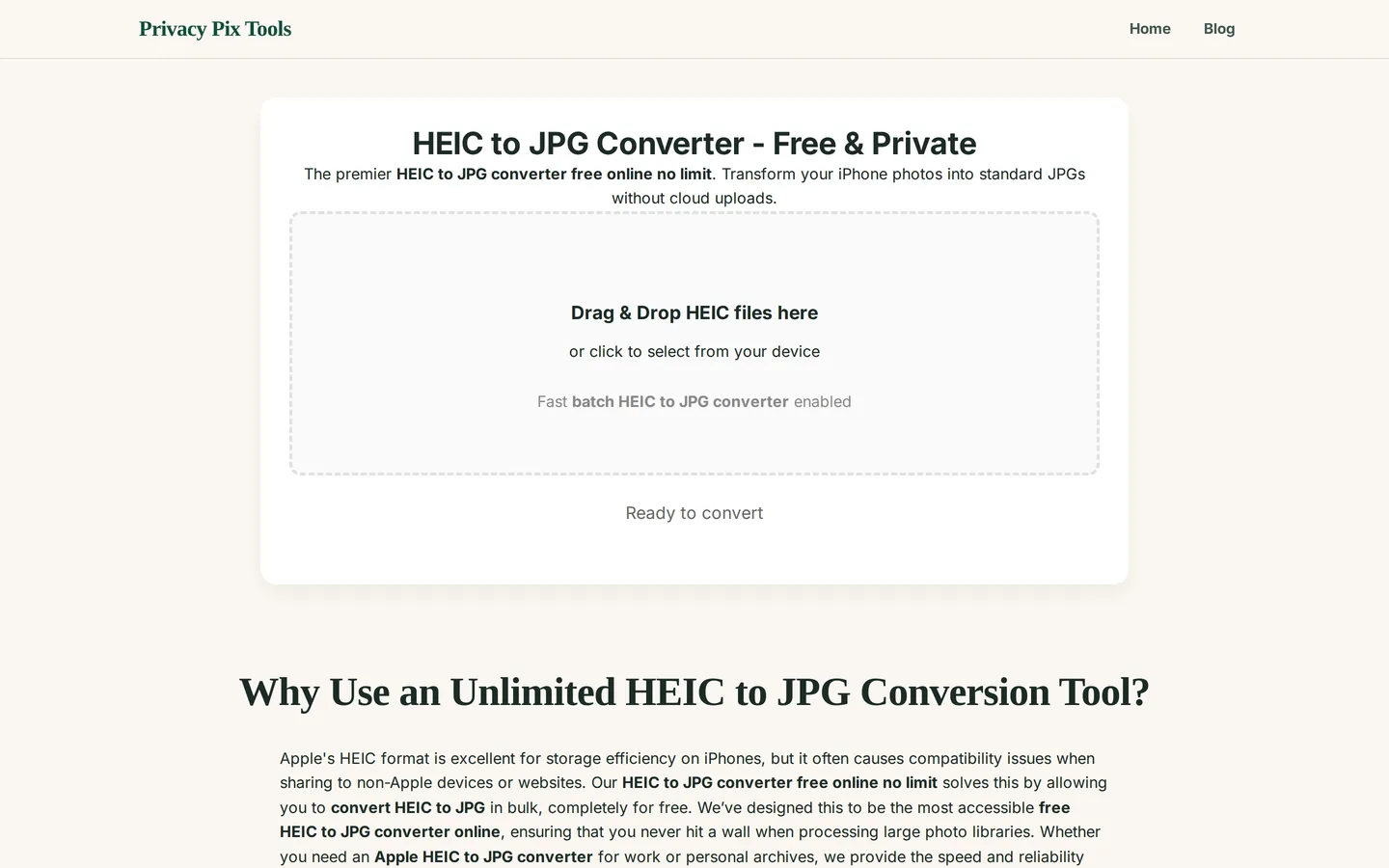
Go to the HEIC to JPG Converter. Click the drop zone labeled "Drag & Drop HEIC files here" or click to browse. You can select a single photo or a whole batch - fast batch conversion is enabled by default.
Step 2Wait for the in-browser conversion
Each file shows a processing status while the WebAssembly decoder unpacks the HEIC data and re-encodes it as high-quality JPG. A typical 12-megapixel iPhone photo converts in a few seconds; batches proceed automatically one after another.
Nothing is queued on a server - if you convert 200 photos, your own CPU does the work, which is why there is no artificial "5 free conversions" limit.
Step 3Download your JPGs
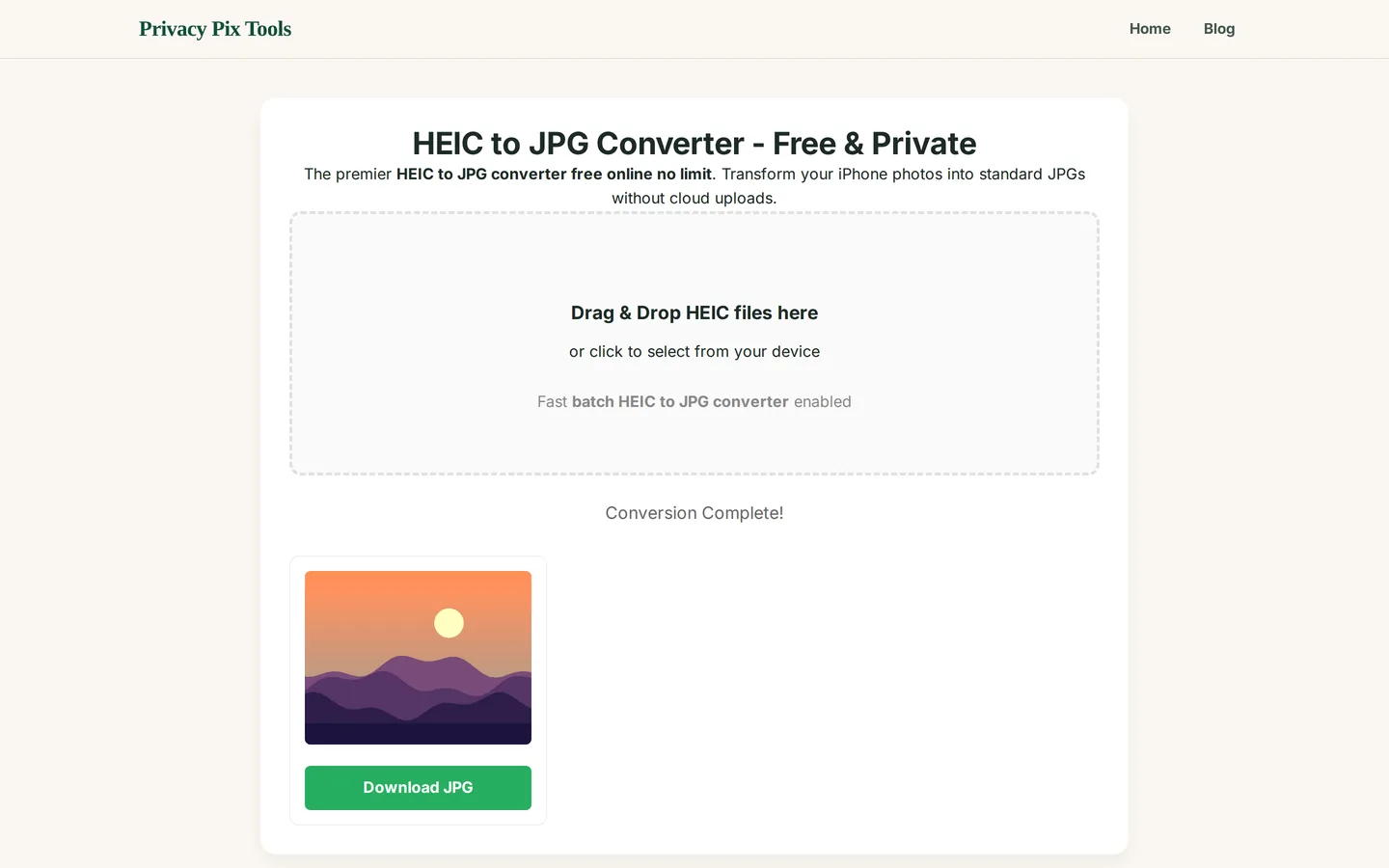
When you see Conversion Complete!, a preview of each converted photo appears with a green Download JPG button. Click to save each file, or use the batch download to grab everything at once.
Convert your iPhone photos now
Open the HEIC ConverterPro Tips for Better Results
- Transfer without auto-conversion: When you email photos or use 'Automatic' transfer mode, Apple may convert them for you at reduced quality. Copying the raw HEIC and converting here keeps full control over quality.
- Stop the problem at the source: If you never want HEIC again: on iPhone go to Settings → Camera → Formats → Most Compatible to shoot JPG directly (at roughly double the storage use).
- Batch, then archive: Converting an entire camera roll? Drop the whole folder in one go, then compress the JPGs with the Image Size Reducer before archiving.
- Check the orientation: HEIC stores rotation as metadata. The converter applies it correctly, but if a downstream app shows a sideways photo, fix it in seconds with the Rotate & Flip tool.
- Keep quality high for prints: JPG re-encoding is done at high quality by default. For photos you plan to print large, avoid re-compressing the result again.
Why This Stays 100% Private
Your camera roll is a map of your life - faces, locations, documents, screenshots. Uploading it wholesale to a conversion website means trusting an unknown operator with all of it. This converter never takes possession of your photos: the decoding library (based on the same open-source HEIF tooling used industry-wide) is delivered to your browser and executes in its sandbox. The network traffic contains code, never your pictures.
Unlike most "free" web tools, Privacy Pix Tools has no accounts, no file-size tricks, no watermarks, and no server-side processing. You can even load the page, disconnect from the internet, and the tool keeps working - proof that your files never leave your device.
Common Use Cases
- Opening iPhone photos on Windows: Convert HEIC so Photos, older Office versions, and image viewers open them without codec purchases.
- Website and form uploads: Government portals, insurance claims, and older CMSs frequently reject HEIC - JPG is accepted everywhere.
- Sharing with Android users: Avoid 'can't open your photo' replies by converting before you send.
- Editing in older software: Photoshop Elements, GIMP builds, and legacy tools may lack HEIC support; JPG unlocks them.
Frequently Asked Questions
Will converting HEIC to JPG lose quality?
Technically yes - JPG is re-encoded - but the converter uses a high quality setting, so the difference is invisible in normal use. The file will get somewhat larger because JPG is less efficient than HEIC.
Can I convert many HEIC files at once?
Yes. Batch mode is built in: drop dozens or hundreds of files and they convert sequentially in your browser with a single download at the end.
Why does Windows struggle with HEIC in the first place?
HEIC uses HEVC compression, which involves patent licensing. Microsoft sells the codec as a paid add-on instead of bundling it - converting to JPG sidesteps the whole issue.
Does this work on Android or Linux?
Yes. Because it is a web page, the converter works identically on Windows, macOS, Linux, Android, and iOS - anywhere a modern browser runs.
Are Live Photos supported?
The still image inside a Live Photo converts normally. The short video component is a separate file (.mov) and is not part of the HEIC conversion.
Is my photo uploaded during conversion?
No. The decoder runs as WebAssembly inside your browser tab. You can switch to airplane mode after the page loads and conversion still works.
Related Tools & Guides
- Image Format Converter - convert between JPG, PNG, WebP, and BMP.
- How to Compress Images - shrink the converted JPGs for sharing.
- How to Remove EXIF Data - strip GPS location before posting photos publicly.
- iPhone Photos on Windows - the quick overview article.