HStack, VStack, Grid), relative positioning (position: { below, rightOf, inside }), variables ($varName), named styles, and the connector primitive ({ from, to, route } that auto-routes between elements, no x/y math). The hand-computed x/y values in the steps below still work, but the same diagram can be expressed more concisely. See the v2 power features reference, and the modernized version at the bottom of this tutorial.
What You'll Build
Organization charts are essential for visualizing company structure, reporting relationships, and team hierarchies. In this tutorial, you'll create a multi-level org chart with:
- CEO at the top with an executive card
- C-level executives (CTO, CFO, CMO)
- Department-level managers
- Clear vertical connection lines showing reporting structure
- Color-coded departments for visual clarity
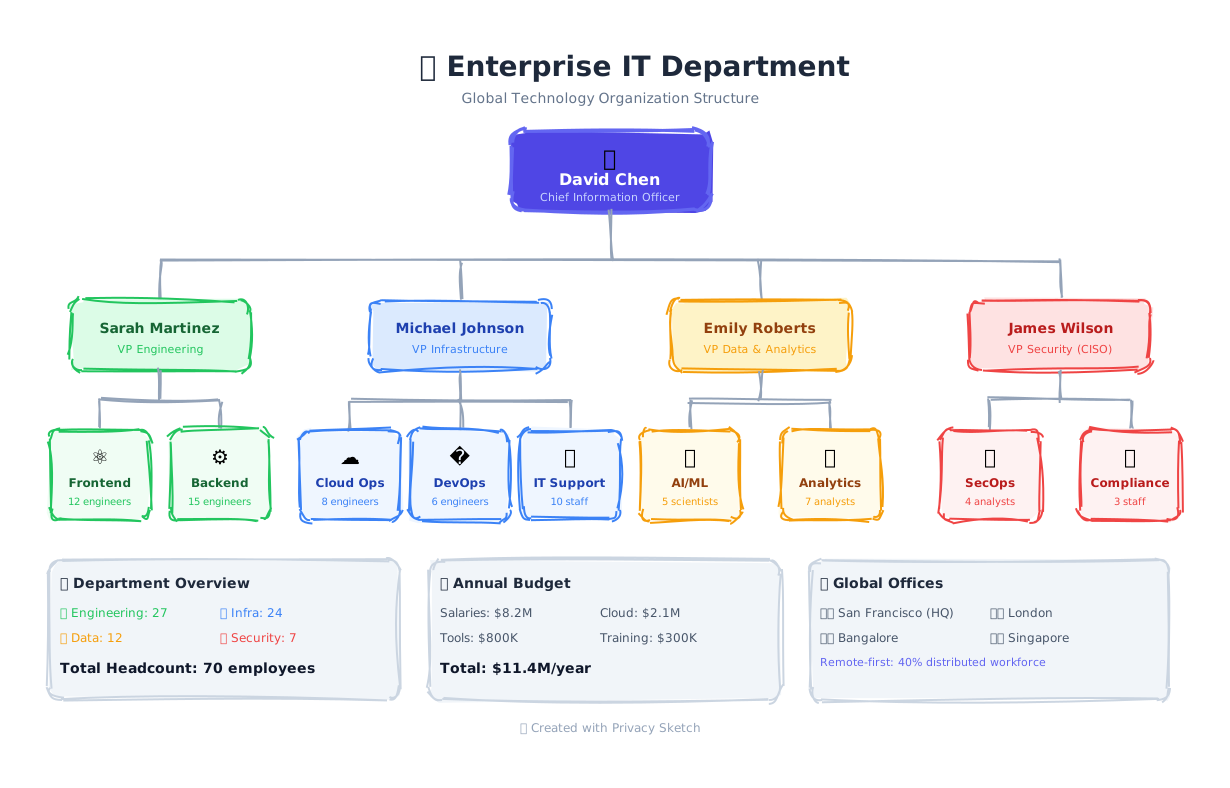
The Org Chart Pattern
Org charts follow a simple pattern:
| Position | Shape | Styling |
|---|---|---|
| CEO/Executive | Larger rectangle | Gold/amber accent, bold border |
| C-Level | Standard rectangle | Blue/purple tones |
| Directors | Standard rectangle | Department color |
| Connections | Vertical lines | Gray, dashed or solid |
Layout Tip: Top-Down Hierarchy
Position the CEO at the top center. Each level below should be evenly spaced and horizontally centered under their supervisor.
Step 1: Create the CEO Card
Start with the CEO at the top of the chart. Use a larger card with a distinctive color.
Add the Executive Card
{
  "id": "ceo-card",
  "type": "rectangle",
  "x": 500,
  "y": 50,
  "w": 200,
  "h": 100,
  "borderRadius": 12,
  "options": {
    "stroke": "amber.500",
    "strokeWidth": 3,
    "fill": "amber.50",
    "fillStyle": "solid"
  }
},
{
  "id": "ceo-emoji",
  "type": "text",
  "x": 500,
  "y": 65,
  "w": 200,
  "h": 30,
  "text": "👔",
  "fontSize": 28,
  "align": "center"
},
{
  "id": "ceo-name",
  "type": "text",
  "x": 500,
  "y": 100,
  "w": 200,
  "h": 20,
  "text": "Sarah Chen",
  "fontSize": 16,
  "fontWeight": "bold",
  "align": "center",
  "options": { "stroke": "#1e293b" }
},
{
  "id": "ceo-title",
  "type": "text",
  "x": 500,
  "y": 120,
  "w": 200,
  "h": 18,
  "text": "Chief Executive Officer",
  "fontSize": 12,
  "align": "center",
  "options": { "stroke": "amber.600" }
}
Step 2: Add Vertical Connection Lines
Connect the CEO to the C-level executives below using vertical lines.
Create the Connecting Lines
// Vertical line from CEO down
{
  "id": "line-ceo-down",
  "type": "line",
  "x": 600,      // Center of CEO card
  "y": 150,      // Bottom of CEO card
  "w": 0,        // No horizontal movement
  "h": 50,       // Goes down 50px
  "options": {
    "stroke": "slate.400",
    "strokeWidth": 2
  }
}

// Horizontal line connecting all C-levels
{
  "id": "line-c-level",
  "type": "line",
  "x": 250,
  "y": 200,
  "w": 700,
  "h": 0,
  "options": { "stroke": "slate.400" }
}
Line vs Arrow: Use type: "line" for org charts - arrows imply direction of
flow, while lines show relationships.
Step 3: Add C-Level Executives
Create cards for CTO, CFO, and CMO, evenly spaced below the CEO.
Create Executive Cards
// CTO Card (left)
{
  "id": "cto-card",
  "type": "rectangle",
  "x": 150,
  "y": 220,
  "w": 180,
  "h": 80,
  "borderRadius": 10,
  "options": {
    "stroke": "blue.500",
    "fill": "blue.50",
    "fillStyle": "solid"
  }
}
// Add name and title text elements similarly...

// CFO Card (center)
{
  "id": "cfo-card",
  "type": "rectangle",
  "x": 510,
  "y": 220,
  "w": 180,
  "h": 80,
  "borderRadius": 10,
  "options": {
    "stroke": "green.500",
    "fill": "green.50",
    "fillStyle": "solid"
  }
}

// CMO Card (right)
{
  "id": "cmo-card",
  "type": "rectangle",
  "x": 870,
  "y": 220,
  "w": 180,
  "h": 80,
  "borderRadius": 10,
  "options": {
    "stroke": "purple.500",
    "fill": "purple.50",
    "fillStyle": "solid"
  }
}
Key Design Principles
- Consistent card sizes — Same-level roles should have same-sized cards
- Vertical alignment — Center subordinates under their manager
- Color by department — Engineering=blue, Finance=green, Marketing=purple
- Spacing — Equal horizontal gaps between same-level cards
- Hierarchy emphasis — CEO card can be slightly larger or have a thicker border
v2 Modernized Version
Full company org chart: CEO at the top, four executives below, then engineering / product / finance / marketing org sub-trees, headcount badges per department, a legend strip, and a sidebar with company stats. Demonstrates one HStack per tier with distribute: "center", department-themed styles, expression-driven connector lines, and side-panel relative positioning.
{
  "version": "2.0",
  "canvas": { "width": 1600, "height": 1000, "background": "cream", "padding": 0 },
  "theme": { "roughness": 1.3, "bowing": 1.0, "fillStyle": "hachure", "fontFamily": "Comic Sans MS" },

  "vars": { "cardW": 200, "cardH": 90, "badgeH": 24 },

  "styles": {
    "role":      { "strokeWidth": 2, "fillStyle": "solid", "fill": "white" },
    "exec":      { "extends": "role", "fill": "amber.50",  "stroke": "amber.700",  "strokeWidth": 3 },
    "vp":        { "extends": "role", "fill": "blue.50",   "stroke": "blue.700" },
    "eng":       { "extends": "role", "stroke": "blue.500" },
    "prod":      { "extends": "role", "stroke": "purple.500" },
    "fin":       { "extends": "role", "stroke": "green.500" },
    "mkt":       { "extends": "role", "stroke": "pink.500" },
    "legend":    { "fill": "slate.50",  "stroke": "slate.500",  "strokeWidth": 2, "fillStyle": "solid" },
    "stat":      { "fill": "indigo.100","stroke": "indigo.700", "strokeWidth": 2, "fillStyle": "solid" },
    "edge":      { "stroke": "slate.600", "strokeWidth": 2 }
  },

  "elements": [
    { "id": "title", "type": "text", "x": 0, "y": 25, "w": 1600, "h": 38, "text": "PrivacyPix Tools · Organization Chart", "fontSize": 26, "fontWeight": "bold", "align": "center" },
    { "id": "sub",   "type": "text", "x": 0, "y": 66, "w": 1600, "h": 22, "text": "78 people · 4 departments · 12 teams · headcount Q1 2026", "fontSize": 13, "align": "center" },

    { "type": "HStack", "x": 0, "y": 110, "width": 1600, "distribute": "center", "children": [
      { "id": "ceo", "type": "rectangle", "style": "exec", "w": "$cardW", "h": "$cardH", "borderRadius": 12 }
    ]},
    { "id": "ceo-t", "type": "text", "position": { "inside": "#ceo", "align": "top-center",    "padding": 14 }, "w": 200, "h": 22, "text": "CEO",                   "fontSize": 12, "align": "center" },
    { "id": "ceo-n", "type": "text", "position": { "inside": "#ceo", "align": "center",        "padding": 14 }, "w": 200, "h": 28, "text": "Alex Chen",             "fontSize": 18, "fontWeight": "bold", "align": "center" },
    { "id": "ceo-b", "type": "text", "position": { "inside": "#ceo", "align": "bottom-center", "padding": 14 }, "w": 200, "h": 18, "text": "founder · 78 reports",  "fontSize": 11, "fontStyle": "italic", "align": "center" },

    { "type": "HStack", "x": 0, "y": 260, "width": 1600, "distribute": "center", "gap": 40, "children": [
      { "id": "cto", "type": "rectangle", "style": "vp", "w": "$cardW", "h": "$cardH", "borderRadius": 12 },
      { "id": "cpo", "type": "rectangle", "style": "vp", "w": "$cardW", "h": "$cardH", "borderRadius": 12 },
      { "id": "cfo", "type": "rectangle", "style": "vp", "w": "$cardW", "h": "$cardH", "borderRadius": 12 },
      { "id": "cmo", "type": "rectangle", "style": "vp", "w": "$cardW", "h": "$cardH", "borderRadius": 12 }
    ]},
    { "id": "cto-t", "type": "text", "position": { "inside": "#cto", "align": "top-center", "padding": 12 }, "w": 200, "h": 22, "text": "CTO",  "fontSize": 12, "align": "center" },
    { "id": "cto-n", "type": "text", "position": { "inside": "#cto", "align": "center",     "padding": 14 }, "w": 200, "h": 26, "text": "Priya Patel", "fontSize": 16, "fontWeight": "bold", "align": "center" },
    { "id": "cto-b", "type": "text", "position": { "inside": "#cto", "align": "bottom-center", "padding": 12 }, "w": 200, "h": 18, "text": "Engineering · 38",     "fontSize": 11, "fontStyle": "italic", "align": "center" },
    { "id": "cpo-t", "type": "text", "position": { "inside": "#cpo", "align": "top-center", "padding": 12 }, "w": 200, "h": 22, "text": "CPO",  "fontSize": 12, "align": "center" },
    { "id": "cpo-n", "type": "text", "position": { "inside": "#cpo", "align": "center",     "padding": 14 }, "w": 200, "h": 26, "text": "Jordan Lee",  "fontSize": 16, "fontWeight": "bold", "align": "center" },
    { "id": "cpo-b", "type": "text", "position": { "inside": "#cpo", "align": "bottom-center", "padding": 12 }, "w": 200, "h": 18, "text": "Product · 14",        "fontSize": 11, "fontStyle": "italic", "align": "center" },
    { "id": "cfo-t", "type": "text", "position": { "inside": "#cfo", "align": "top-center", "padding": 12 }, "w": 200, "h": 22, "text": "CFO",  "fontSize": 12, "align": "center" },
    { "id": "cfo-n", "type": "text", "position": { "inside": "#cfo", "align": "center",     "padding": 14 }, "w": 200, "h": 26, "text": "Marco Rossi", "fontSize": 16, "fontWeight": "bold", "align": "center" },
    { "id": "cfo-b", "type": "text", "position": { "inside": "#cfo", "align": "bottom-center", "padding": 12 }, "w": 200, "h": 18, "text": "Finance · 8",         "fontSize": 11, "fontStyle": "italic", "align": "center" },
    { "id": "cmo-t", "type": "text", "position": { "inside": "#cmo", "align": "top-center", "padding": 12 }, "w": 200, "h": 22, "text": "CMO",  "fontSize": 12, "align": "center" },
    { "id": "cmo-n", "type": "text", "position": { "inside": "#cmo", "align": "center",     "padding": 14 }, "w": 200, "h": 26, "text": "Dana Kim",    "fontSize": 16, "fontWeight": "bold", "align": "center" },
    { "id": "cmo-b", "type": "text", "position": { "inside": "#cmo", "align": "bottom-center", "padding": 12 }, "w": 200, "h": 18, "text": "Marketing · 18",       "fontSize": 11, "fontStyle": "italic", "align": "center" },

    { "type": "HStack", "x": 0, "y": 470, "width": 1600, "distribute": "center", "gap": 24, "children": [
      { "id": "dir-be",   "type": "rectangle", "style": "eng",  "w": "$cardW", "h": "$cardH", "borderRadius": 10 },
      { "id": "dir-fe",   "type": "rectangle", "style": "eng",  "w": "$cardW", "h": "$cardH", "borderRadius": 10 },
      { "id": "dir-data", "type": "rectangle", "style": "eng",  "w": "$cardW", "h": "$cardH", "borderRadius": 10 },
      { "id": "dir-pm",   "type": "rectangle", "style": "prod", "w": "$cardW", "h": "$cardH", "borderRadius": 10 },
      { "id": "dir-ops",  "type": "rectangle", "style": "fin",  "w": "$cardW", "h": "$cardH", "borderRadius": 10 },
      { "id": "dir-grw",  "type": "rectangle", "style": "mkt",  "w": "$cardW", "h": "$cardH", "borderRadius": 10 }
    ]},
    { "id": "be-t",  "type": "text", "position": { "inside": "#dir-be",   "align": "top-center", "padding": 12 }, "w": 200, "h": 22, "text": "Director of Backend",   "fontSize": 12, "align": "center" },
    { "id": "be-n",  "type": "text", "position": { "inside": "#dir-be",   "align": "center", "padding": 14 },     "w": 200, "h": 26, "text": "Sam Okafor",            "fontSize": 14, "fontWeight": "bold", "align": "center" },
    { "id": "be-b",  "type": "text", "position": { "inside": "#dir-be",   "align": "bottom-center", "padding": 12 }, "w": 200, "h": 18, "text": "14 engineers",         "fontSize": 11, "fontStyle": "italic", "align": "center" },
    { "id": "fe-t",  "type": "text", "position": { "inside": "#dir-fe",   "align": "top-center", "padding": 12 }, "w": 200, "h": 22, "text": "Director of Frontend",  "fontSize": 12, "align": "center" },
    { "id": "fe-n",  "type": "text", "position": { "inside": "#dir-fe",   "align": "center", "padding": 14 },     "w": 200, "h": 26, "text": "Léa Dubois",            "fontSize": 14, "fontWeight": "bold", "align": "center" },
    { "id": "fe-b",  "type": "text", "position": { "inside": "#dir-fe",   "align": "bottom-center", "padding": 12 }, "w": 200, "h": 18, "text": "12 engineers",         "fontSize": 11, "fontStyle": "italic", "align": "center" },
    { "id": "da-t",  "type": "text", "position": { "inside": "#dir-data", "align": "top-center", "padding": 12 }, "w": 200, "h": 22, "text": "Director of Data",      "fontSize": 12, "align": "center" },
    { "id": "da-n",  "type": "text", "position": { "inside": "#dir-data", "align": "center", "padding": 14 },     "w": 200, "h": 26, "text": "Ravi Krishnan",         "fontSize": 14, "fontWeight": "bold", "align": "center" },
    { "id": "da-b",  "type": "text", "position": { "inside": "#dir-data", "align": "bottom-center", "padding": 12 }, "w": 200, "h": 18, "text": "11 engineers",         "fontSize": 11, "fontStyle": "italic", "align": "center" },
    { "id": "pm-t",  "type": "text", "position": { "inside": "#dir-pm",   "align": "top-center", "padding": 12 }, "w": 200, "h": 22, "text": "Group PM",              "fontSize": 12, "align": "center" },
    { "id": "pm-n",  "type": "text", "position": { "inside": "#dir-pm",   "align": "center", "padding": 14 },     "w": 200, "h": 26, "text": "Hana Tanaka",           "fontSize": 14, "fontWeight": "bold", "align": "center" },
    { "id": "pm-b",  "type": "text", "position": { "inside": "#dir-pm",   "align": "bottom-center", "padding": 12 }, "w": 200, "h": 18, "text": "13 PMs / designers",    "fontSize": 11, "fontStyle": "italic", "align": "center" },
    { "id": "op-t",  "type": "text", "position": { "inside": "#dir-ops",  "align": "top-center", "padding": 12 }, "w": 200, "h": 22, "text": "VP Operations",         "fontSize": 12, "align": "center" },
    { "id": "op-n",  "type": "text", "position": { "inside": "#dir-ops",  "align": "center", "padding": 14 },     "w": 200, "h": 26, "text": "Erik Nordström",        "fontSize": 14, "fontWeight": "bold", "align": "center" },
    { "id": "op-b",  "type": "text", "position": { "inside": "#dir-ops",  "align": "bottom-center", "padding": 12 }, "w": 200, "h": 18, "text": "7 reports",            "fontSize": 11, "fontStyle": "italic", "align": "center" },
    { "id": "gr-t",  "type": "text", "position": { "inside": "#dir-grw",  "align": "top-center", "padding": 12 }, "w": 200, "h": 22, "text": "Head of Growth",        "fontSize": 12, "align": "center" },
    { "id": "gr-n",  "type": "text", "position": { "inside": "#dir-grw",  "align": "center", "padding": 14 },     "w": 200, "h": 26, "text": "Imani Adekunle",        "fontSize": 14, "fontWeight": "bold", "align": "center" },
    { "id": "gr-b",  "type": "text", "position": { "inside": "#dir-grw",  "align": "bottom-center", "padding": 12 }, "w": 200, "h": 18, "text": "17 reports",           "fontSize": 11, "fontStyle": "italic", "align": "center" },

    { "type": "connector", "id": "c-ceo-cto", "from": "ceo", "to": "cto", "route": "orthogonal", "options": { "stroke": "slate.600", "strokeWidth": 2 } },
    { "type": "connector", "id": "c-ceo-cpo", "from": "ceo", "to": "cpo", "route": "orthogonal", "options": { "stroke": "slate.600", "strokeWidth": 2 } },
    { "type": "connector", "id": "c-ceo-cfo", "from": "ceo", "to": "cfo", "route": "orthogonal", "options": { "stroke": "slate.600", "strokeWidth": 2 } },
    { "type": "connector", "id": "c-ceo-cmo", "from": "ceo", "to": "cmo", "route": "orthogonal", "options": { "stroke": "slate.600", "strokeWidth": 2 } },

    { "type": "connector", "id": "c-cto-be",   "from": "cto", "to": "dir-be",   "route": "orthogonal", "options": { "stroke": "blue.500",   "strokeWidth": 2 } },
    { "type": "connector", "id": "c-cto-fe",   "from": "cto", "to": "dir-fe",   "route": "orthogonal", "options": { "stroke": "blue.500",   "strokeWidth": 2 } },
    { "type": "connector", "id": "c-cto-data", "from": "cto", "to": "dir-data", "route": "orthogonal", "options": { "stroke": "blue.500",   "strokeWidth": 2 } },
    { "type": "connector", "id": "c-cpo-pm",   "from": "cpo", "to": "dir-pm",   "route": "orthogonal", "options": { "stroke": "purple.500", "strokeWidth": 2 } },
    { "type": "connector", "id": "c-cfo-ops",  "from": "cfo", "to": "dir-ops",  "route": "orthogonal", "options": { "stroke": "green.500",  "strokeWidth": 2 } },
    { "type": "connector", "id": "c-cmo-grw",  "from": "cmo", "to": "dir-grw",  "route": "orthogonal", "options": { "stroke": "pink.500",   "strokeWidth": 2 } },

    { "id": "legend-h", "type": "text", "x": 60, "y": 640, "w": 1480, "h": 22, "text": "Department legend", "fontSize": 14, "fontWeight": "bold" },
    { "type": "HStack", "x": 60, "y": 670, "gap": 18, "children": [
      { "id": "lg-eng",  "type": "rectangle", "style": "eng",  "w": 200, "h": 40, "borderRadius": 8 },
      { "id": "lg-prod", "type": "rectangle", "style": "prod", "w": 200, "h": 40, "borderRadius": 8 },
      { "id": "lg-fin",  "type": "rectangle", "style": "fin",  "w": 200, "h": 40, "borderRadius": 8 },
      { "id": "lg-mkt",  "type": "rectangle", "style": "mkt",  "w": 200, "h": 40, "borderRadius": 8 }
    ]},
    { "id": "lg-eng-t",  "type": "text", "position": { "inside": "#lg-eng",  "align": "center", "padding": 10 }, "w": 200, "h": 20, "text": "Engineering (38)", "fontSize": 13, "fontWeight": "bold", "align": "center" },
    { "id": "lg-prod-t", "type": "text", "position": { "inside": "#lg-prod", "align": "center", "padding": 10 }, "w": 200, "h": 20, "text": "Product (14)",     "fontSize": 13, "fontWeight": "bold", "align": "center" },
    { "id": "lg-fin-t",  "type": "text", "position": { "inside": "#lg-fin",  "align": "center", "padding": 10 }, "w": 200, "h": 20, "text": "Operations (8)",   "fontSize": 13, "fontWeight": "bold", "align": "center" },
    { "id": "lg-mkt-t",  "type": "text", "position": { "inside": "#lg-mkt",  "align": "center", "padding": 10 }, "w": 200, "h": 20, "text": "Marketing (18)",   "fontSize": 13, "fontWeight": "bold", "align": "center" },

    { "id": "stats-h", "type": "text", "x": 60, "y": 760, "w": 1480, "h": 22, "text": "Company snapshot", "fontSize": 14, "fontWeight": "bold" },
    { "type": "HStack", "x": 60, "y": 790, "gap": 20, "children": [
      { "id": "k1", "type": "rectangle", "style": "stat", "w": 240, "h": 90, "borderRadius": 10 },
      { "id": "k2", "type": "rectangle", "style": "stat", "w": 240, "h": 90, "borderRadius": 10 },
      { "id": "k3", "type": "rectangle", "style": "stat", "w": 240, "h": 90, "borderRadius": 10 },
      { "id": "k4", "type": "rectangle", "style": "stat", "w": 240, "h": 90, "borderRadius": 10 },
      { "id": "k5", "type": "rectangle", "style": "stat", "w": 240, "h": 90, "borderRadius": 10 },
      { "id": "k6", "type": "rectangle", "style": "stat", "w": 240, "h": 90, "borderRadius": 10 }
    ]},
    { "id": "k1-n", "type": "text", "position": { "inside": "#k1", "align": "top-center", "padding": 10 }, "w": 240, "h": 32, "text": "78",     "fontSize": 26, "fontWeight": "bold", "align": "center" },
    { "id": "k1-l", "type": "text", "position": { "inside": "#k1", "align": "bottom-center", "padding": 10 }, "w": 240, "h": 20, "text": "total headcount", "fontSize": 12, "align": "center" },
    { "id": "k2-n", "type": "text", "position": { "inside": "#k2", "align": "top-center", "padding": 10 }, "w": 240, "h": 32, "text": "+22%",   "fontSize": 26, "fontWeight": "bold", "align": "center" },
    { "id": "k2-l", "type": "text", "position": { "inside": "#k2", "align": "bottom-center", "padding": 10 }, "w": 240, "h": 20, "text": "YoY headcount growth", "fontSize": 12, "align": "center" },
    { "id": "k3-n", "type": "text", "position": { "inside": "#k3", "align": "top-center", "padding": 10 }, "w": 240, "h": 32, "text": "3.2 yr", "fontSize": 26, "fontWeight": "bold", "align": "center" },
    { "id": "k3-l", "type": "text", "position": { "inside": "#k3", "align": "bottom-center", "padding": 10 }, "w": 240, "h": 20, "text": "median tenure",         "fontSize": 12, "align": "center" },
    { "id": "k4-n", "type": "text", "position": { "inside": "#k4", "align": "top-center", "padding": 10 }, "w": 240, "h": 32, "text": "12",     "fontSize": 26, "fontWeight": "bold", "align": "center" },
    { "id": "k4-l", "type": "text", "position": { "inside": "#k4", "align": "bottom-center", "padding": 10 }, "w": 240, "h": 20, "text": "active teams",          "fontSize": 12, "align": "center" },
    { "id": "k5-n", "type": "text", "position": { "inside": "#k5", "align": "top-center", "padding": 10 }, "w": 240, "h": 32, "text": "100%",   "fontSize": 26, "fontWeight": "bold", "align": "center" },
    { "id": "k5-l", "type": "text", "position": { "inside": "#k5", "align": "bottom-center", "padding": 10 }, "w": 240, "h": 20, "text": "remote-first",          "fontSize": 12, "align": "center" },
    { "id": "k6-n", "type": "text", "position": { "inside": "#k6", "align": "top-center", "padding": 10 }, "w": 240, "h": 32, "text": "14",     "fontSize": 26, "fontWeight": "bold", "align": "center" },
    { "id": "k6-l", "type": "text", "position": { "inside": "#k6", "align": "bottom-center", "padding": 10 }, "w": 240, "h": 20, "text": "countries represented", "fontSize": 12, "align": "center" }
  ]
}
Showcase: 3-tier hierarchy with auto-centered HStacks, 4 department styles via extends, and 10 type: connector declarations that auto-route between the actual element bounding boxes (the compiler picks the elbow path; you do not write x/y/w/h for any line). Same diagram previously needed 22 expression-driven line segments, now reads as one connector per parent-child edge.
🏢 Build Your Org Chart
Open Privacy Sketch and create your team's organization chart. Start from the top and work down.
Open Privacy SketchNext Steps
- Product Mindmap Tutorial — Build radial diagrams
- Timeline Tutorial — Create historical timelines
- LLM Reference — Technical JSON documentation